
Introduction
The Standard Audio Description feature uses AI to generate audio description tracks for your videos. Audio descriptions narrate visual elements (such as actions, scene changes, and on-screen text), making content more accessible for viewers who are blind or have low vision. It fits descriptions into natural pauses in the video. For videos where the pauses are not enough, use Extended Audio Description, which pauses the video to describe the visual content.
You can generate audio description from three entry points in Video Cloud Studio:
- Upload Module – Generate audio description during or after the upload workflow.
- Media Module – Two paths:
- Bulk generation – Generate audio description for multiple videos at once.
- Video-level generation – Generate audio description for a single video from Video Details.
Admin settings
Default languages
Configure default audio description languages so they are pre-selected when you generate audio description from the Upload module or the Media module. This is a configuration step only and does not trigger any generation.
- Open the Admin module and select Upload Settings.
- Under Captions and Languages, locate Default Audio Description Languages and add the languages you want pre-selected.
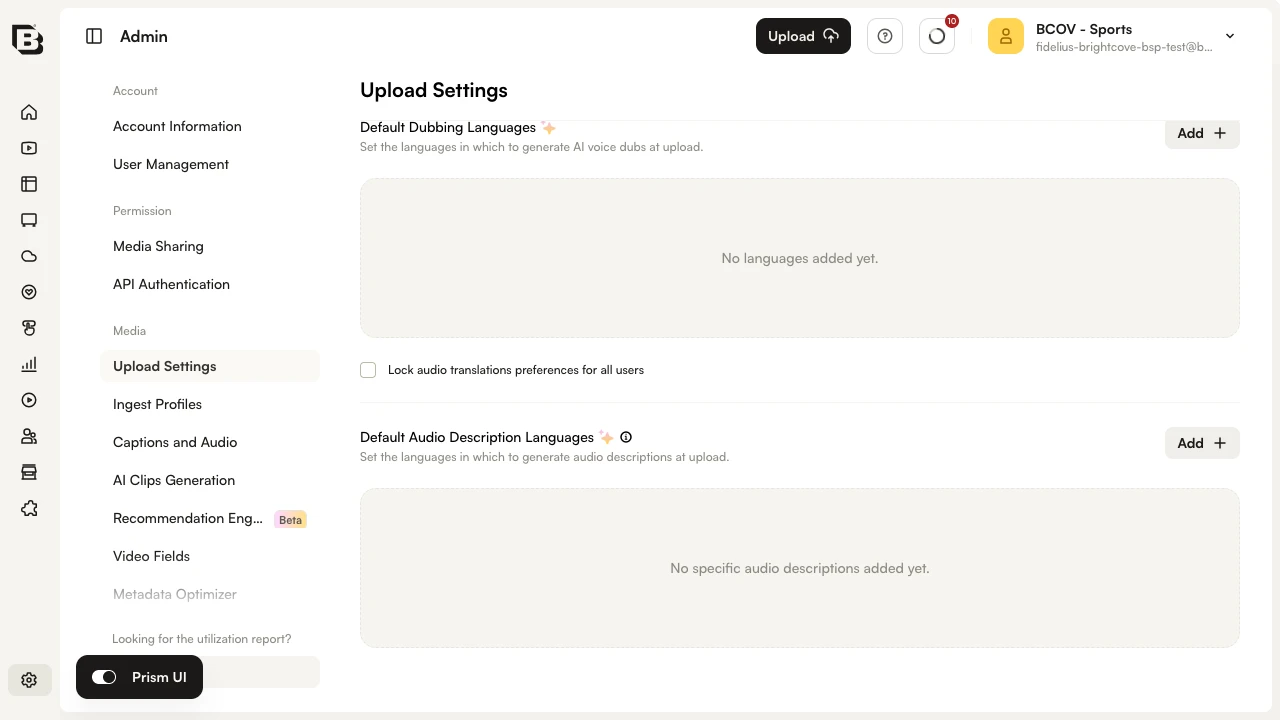
- Click Save to store your settings.
AI transparency label
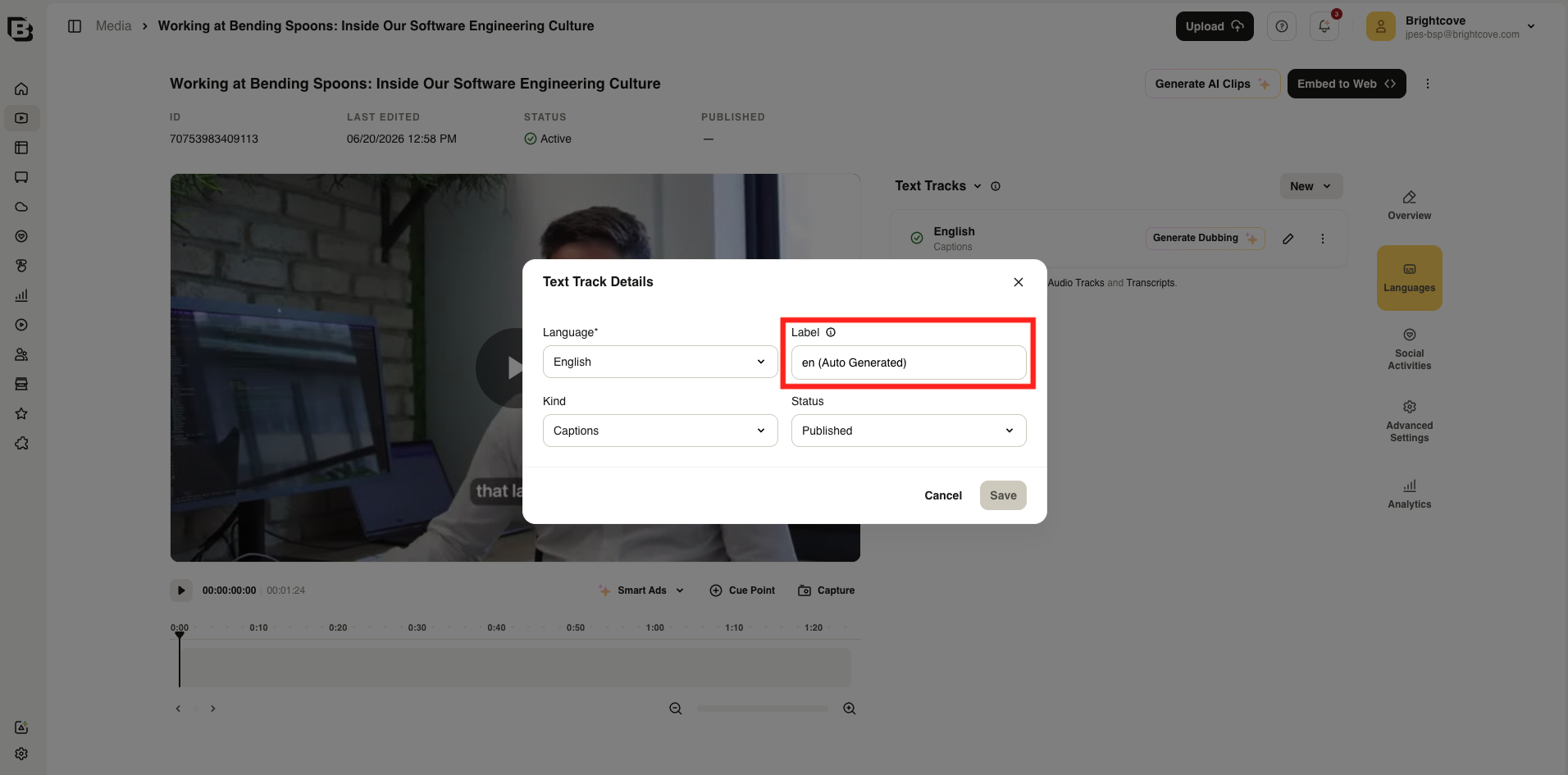
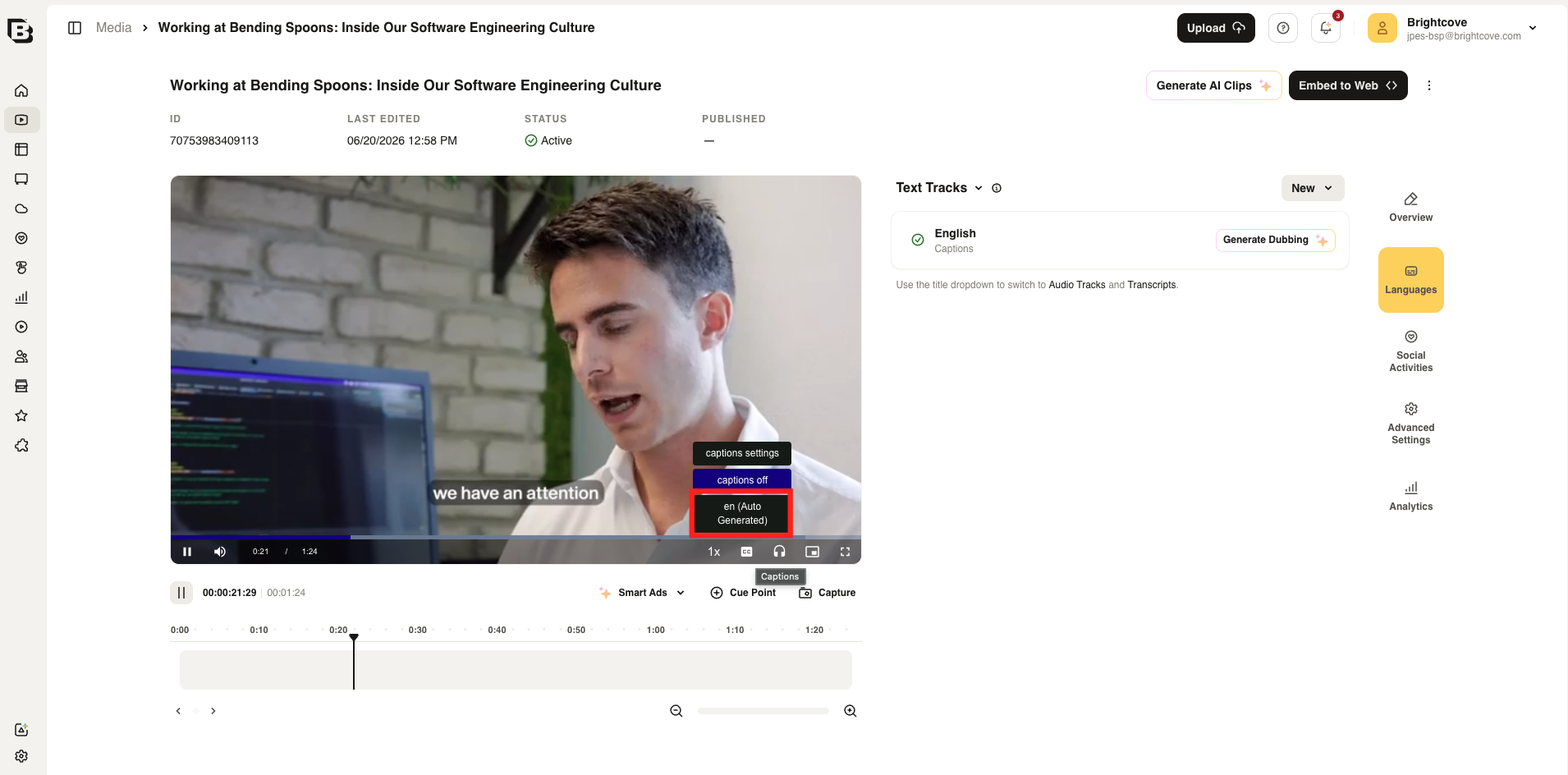
You can toggle AI transparency labels on and customize the suffix that is appended to generated track labels, such as (Auto Generated). The suffix helps viewers identify AI generated content in the player.
- In the Admin module, select Captions and Audio.
- Under AI Transparency Labels, turn on Audio Description to add an AI label to generated audio description tracks, and change the suffix in the corresponding text field if needed.
- After generation, you can still edit the track label manually from the track details dialog if needed.
- The label is visible to viewers in the player track menu.
Upload Module
Generate audio description from the Upload module as part of your upload workflow.
- Navigate to the Upload module.
- In the Audio Description field on the left, select the languages you want to generate audio description for.
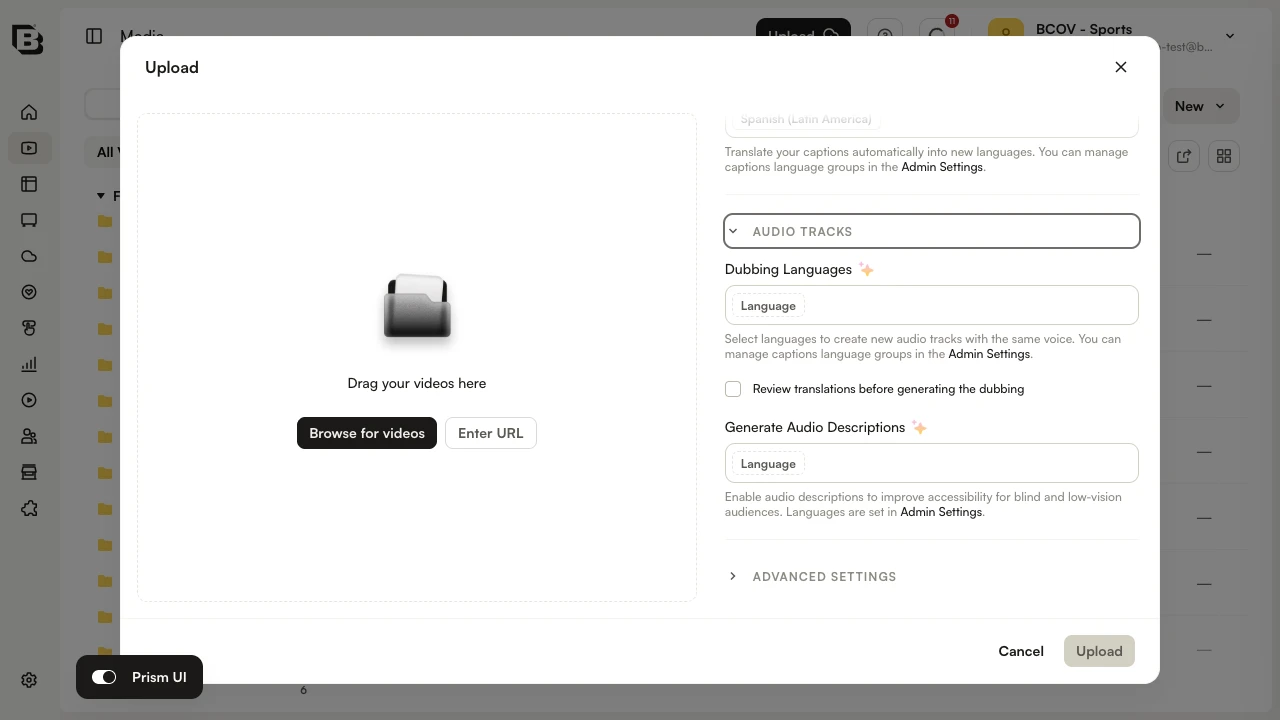
- Complete the upload. When processing is complete, audio description tracks will appear as Audio Tracks with variant Descriptive in the video’s Video Details (see Where Audio Descriptions Appear).
Media module: Bulk generation
Generate audio description for multiple videos at once from the Media module.
- In the Media module, select the videos you want to process.
- Click the ... menu and choose Captions and Audio.
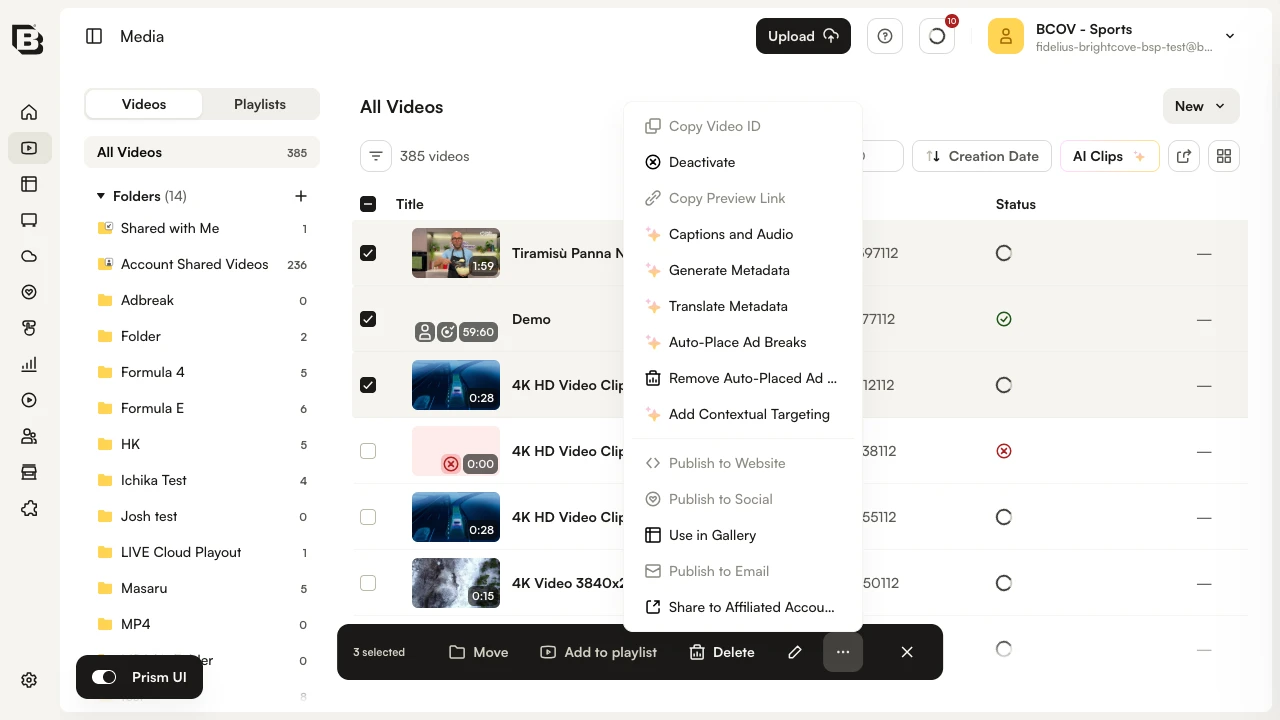
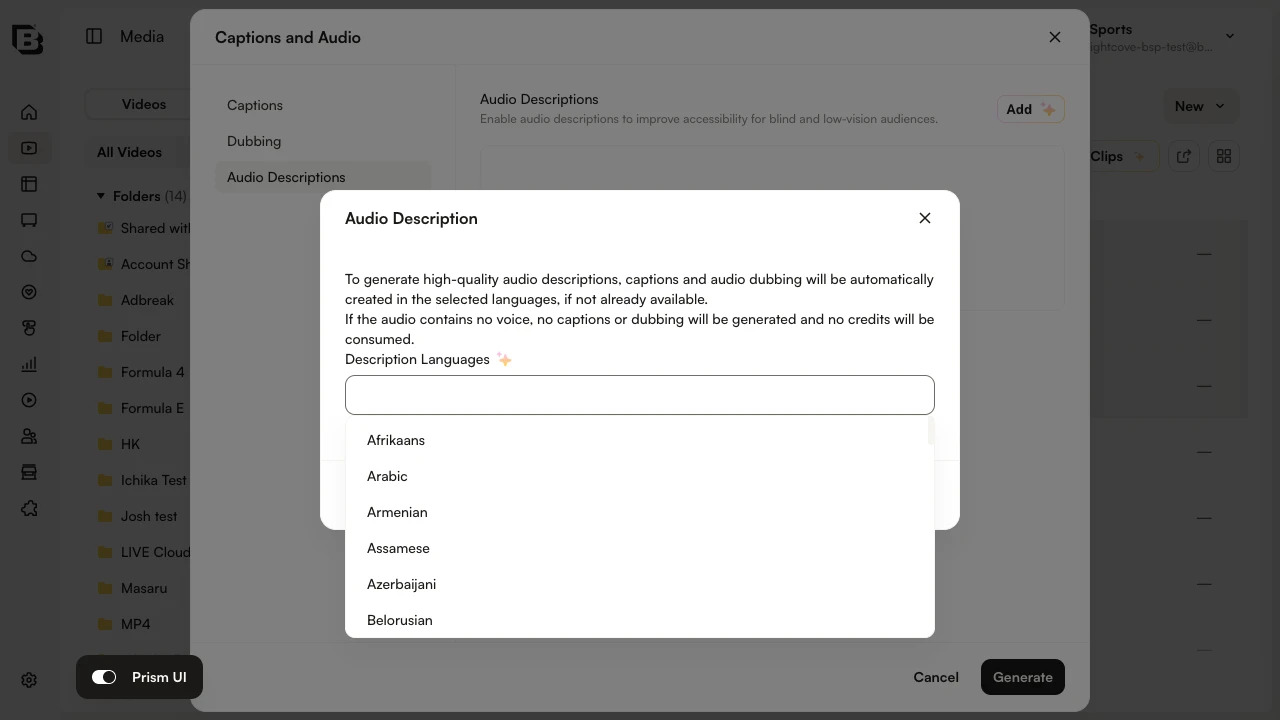
- In the dialog, navigate to the Audio Description section on the left, then set your languages using the Add button on the right. Save the language(s) you have chosen.
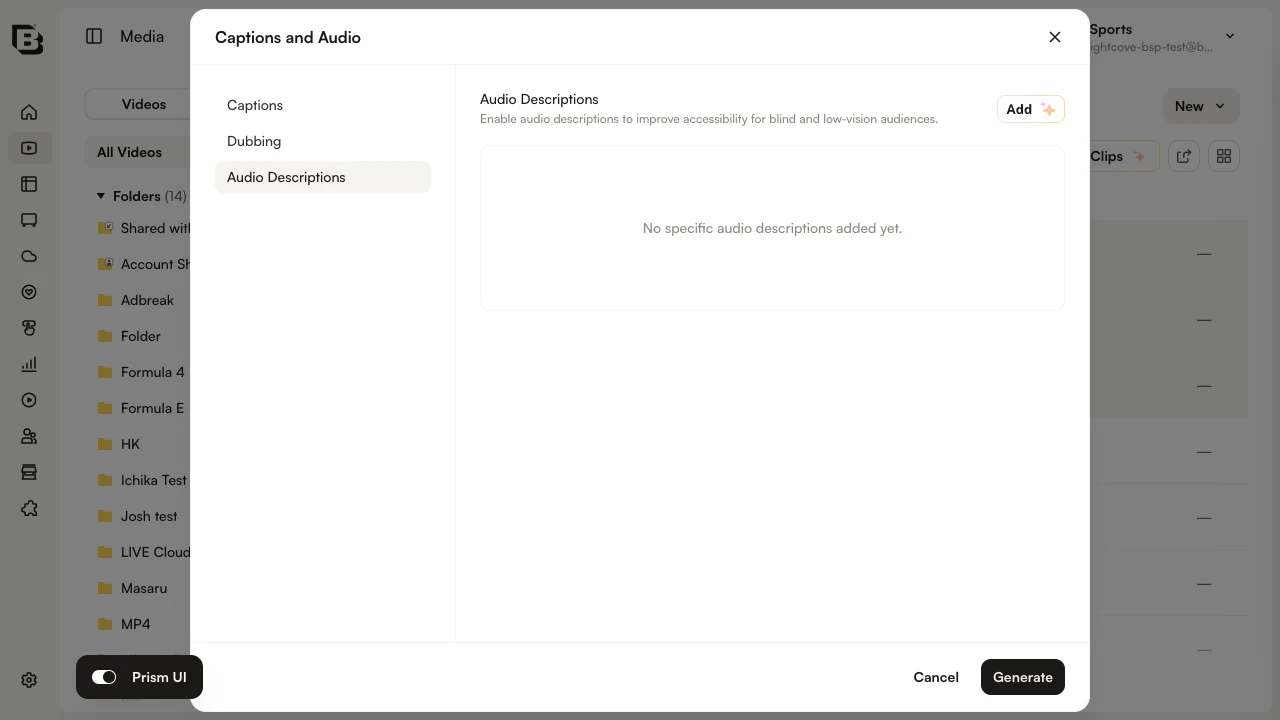
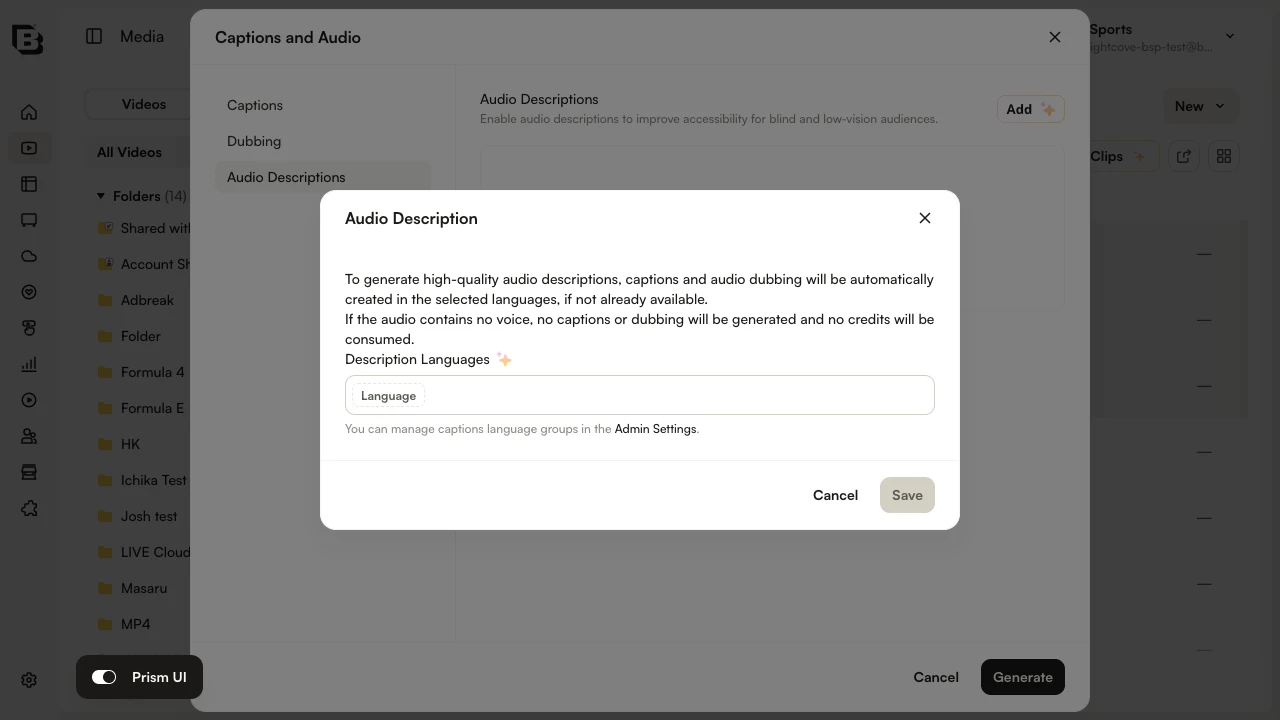
- Click Generate to trigger audio description generation.
- When processing is complete, audio description tracks will appear in the Languages section of each video’s Video Details page (see Where Audio Descriptions Appear). Review and publish as needed.
Media module: Video-level generation
Generate audio description for a single video from the Video Details page.
- In the Media module, open a video and locate the Languages section.
- Click the Add button next to Audio Tracks, then click Generate Audio Description.
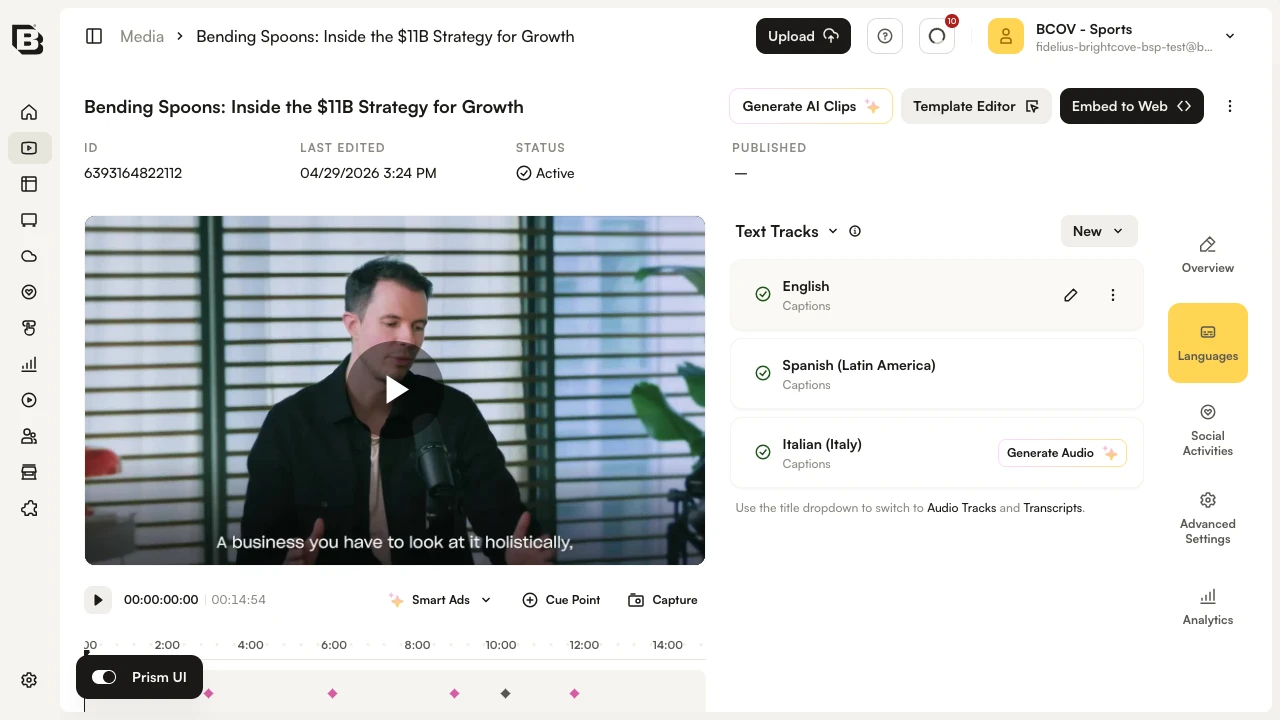
- Select the languages and click Generate. If no languages are selected, the default ones will be applied.
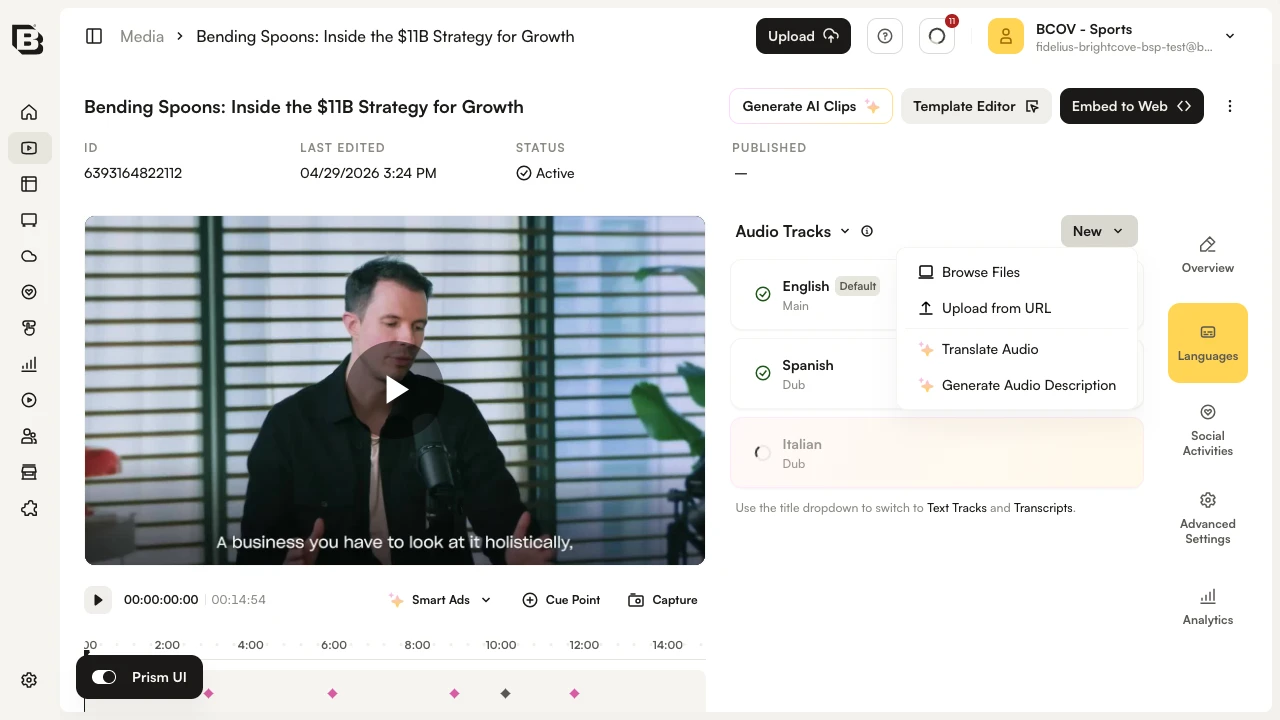
- When processing is complete, the new audio description track will appear in the Languages section (see Where Audio Descriptions Appear). Review and publish as needed.
Where Audio Descriptions Appear
Once generated, audio descriptions appear in the Languages section of the Video Details page. They are shown as Audio Tracks with the variant labeled Descriptive.
Because they are created with the Descriptive variant, these tracks play as the audio description track and are marked accordingly in the delivered manifests. For details on how descriptive audio tracks appear on each playback path, see Descriptive (audio description) tracks.
Editing Audio Descriptions
- To edit an audio description, you must edit the corresponding text track with the kind set to descriptions.
- Make your changes in the text editor and save. Regenerate the audio description after saving your edits to ensure the audio track reflects your updated text (use the Generate Audio Description button).
API access
The Audio Description feature is available via the Ingest API. All endpoints require OAuth with scope video-cloud/video/read.
Create / Get Audio Description jobs (by video)
Endpoint:
POST | GET https://ingest.api.brightcove.com/v1/accounts/{account_id}/videos/{video_id}/ai/audio-descriptions
Scope: video-cloud/video/read
POST – Create audio description job
Starts audio description generation for a video. Request body:
languages: required array of strings. At least one language code (e.g.["en-US", "es-ES"]). Each language generates one track; rate limits count per language.ai_transparency_label(optional, string): AI transparency label for generated audio description tracks when supported.
Dynamic Ingest: include audio_descriptions with the same languages array (and optional ai_transparency_label) on each transcriptions item — see Ingesting Transcript Files — Audio description at ingest.
Response: job_id (string), job_status (e.g. processing).
GET – Get jobs for a video
Returns all audio description jobs for the given account and video. Response: array of job objects. Each job includes:
account_id,video_id: stringsjob_id: string (workflow execution ID)languages: array of strings (e.g.["en-US"])status:processing|finished|failederror: string (present whenstatusisfailed)input: string (JSON of the workflow input used when the job was created)
Status is updated from the workflow; when status is finished, the audio description tracks are available as Audio Tracks with variant Descriptive in the video’s Languages section (see Where Audio Descriptions Appear).
Get list of Audio Description jobs (by account)
GET https://ingest.api.brightcove.com/v1/accounts/{account_id}/ai/audio-descriptions/jobs
Scope: video-cloud/video/read
Response: array of job objects (same shape as the video-level GET)
Supported languages
Audio description can be generated in the following languages:
| Language | Code |
|---|---|
| Afrikaans | af |
| Arabic (Standard) | ar |
| Armenian | hy |
| Assamese | as |
| Azerbaijani | az |
| Belarusian | be |
| Bengali | bn |
| Bosnian | bs |
| Bulgarian | bg |
| Catalan | ca |
| Cebuano | ceb |
| Chichewa | ny |
| Chinese | zh |
| Croatian | hr |
| Czech | cs |
| Danish | da |
| Dutch | nl |
| English | en |
| Estonian | et |
| Finnish | fi |
| French | fr |
| Galician | gl |
| Georgian | ka |
| German | de |
| Greek | el |
| Gujarati | gu |
| Hausa | ha |
| Hebrew | he |
| Hindi | hi |
| Hungarian | hu |
| Icelandic | is |
| Indonesian | id |
| Irish | ga |
| Italian | it |
| Japanese | ja |
| Javanese | jv |
| Kannada | kn |
| Kazakh | kk |
| Language | Code |
|---|---|
| Korean | ko |
| Kyrgyz | ky |
| Latvian | lv |
| Lingala | ln |
| Lithuanian | lt |
| Luxembourgish | lb |
| Macedonian | mk |
| Malay | ms |
| Malayalam | ml |
| Marathi | mr |
| Māori | mi |
| Nepali | ne |
| Norwegian | no |
| Pashto | ps |
| Persian | fa |
| Polish | pl |
| Portuguese | pt |
| Punjabi | pa |
| Romanian | ro |
| Russian | ru |
| Scottish Gaelic | gd |
| Serbian | sr |
| Sindhi | sd |
| Slovak | sk |
| Slovenian | sl |
| Somali | so |
| Spanish | es |
| Swahili | sw |
| Swedish | sv |
| Tagalog | tl |
| Tamil | ta |
| Telugu | te |
| Thai | th |
| Turkish | tr |
| Ukrainian | uk |
| Urdu | ur |
| Vietnamese | vi |
| Welsh | cy |
FAQs
- How long does processing take?
Generation can take several minutes depending on video length. When ready, the audio description track will appear on the Video Details page under the Languages section as an Audio Track with variant Descriptive. - How is credit consumption calculated?
Usage is based on minutes of video processed. Contact your account team for details.