
Introduction
Dubbing Pro is a higher-quality dubbing option than standard dubbing from Universal Translator. It optimizes the translation specifically for dubbing and analyzes the original audio, including pacing and emotion, which delivers a more faithful emotional carryover from the original audio and improved pacing.
Use Dubbing Pro for complex, dynamic content with multiple speakers, where the audio tends to be more difficult. Use standard dubbing for easier content with less emotion in the tone of voice and a limited number of speakers.
| Use Dubbing Pro when | Use standard dubbing when |
|---|---|
| The content is complex and dynamic. | The content is straightforward. |
| The video has multiple speakers or overlapping dialogue. | The video has a limited number of speakers. |
| The audio is difficult to analyze, for example because of background noise or music. | The audio is clear and easy to analyze. |
| Emotion in the tone of voice is important to preserve. | There is less emotion in the tone of voice. |
| Translation quality and pacing matter more than processing cost. | Faster and less expensive dubbing is acceptable. |
Generating Dubbing Pro from Video Detail
You can generate a Dubbing Pro track for a single video from the Languages section of the Video Detail page.
- Open the Media module and select the video you want to dub.
- In the Languages section, click New and select Dub Audio.
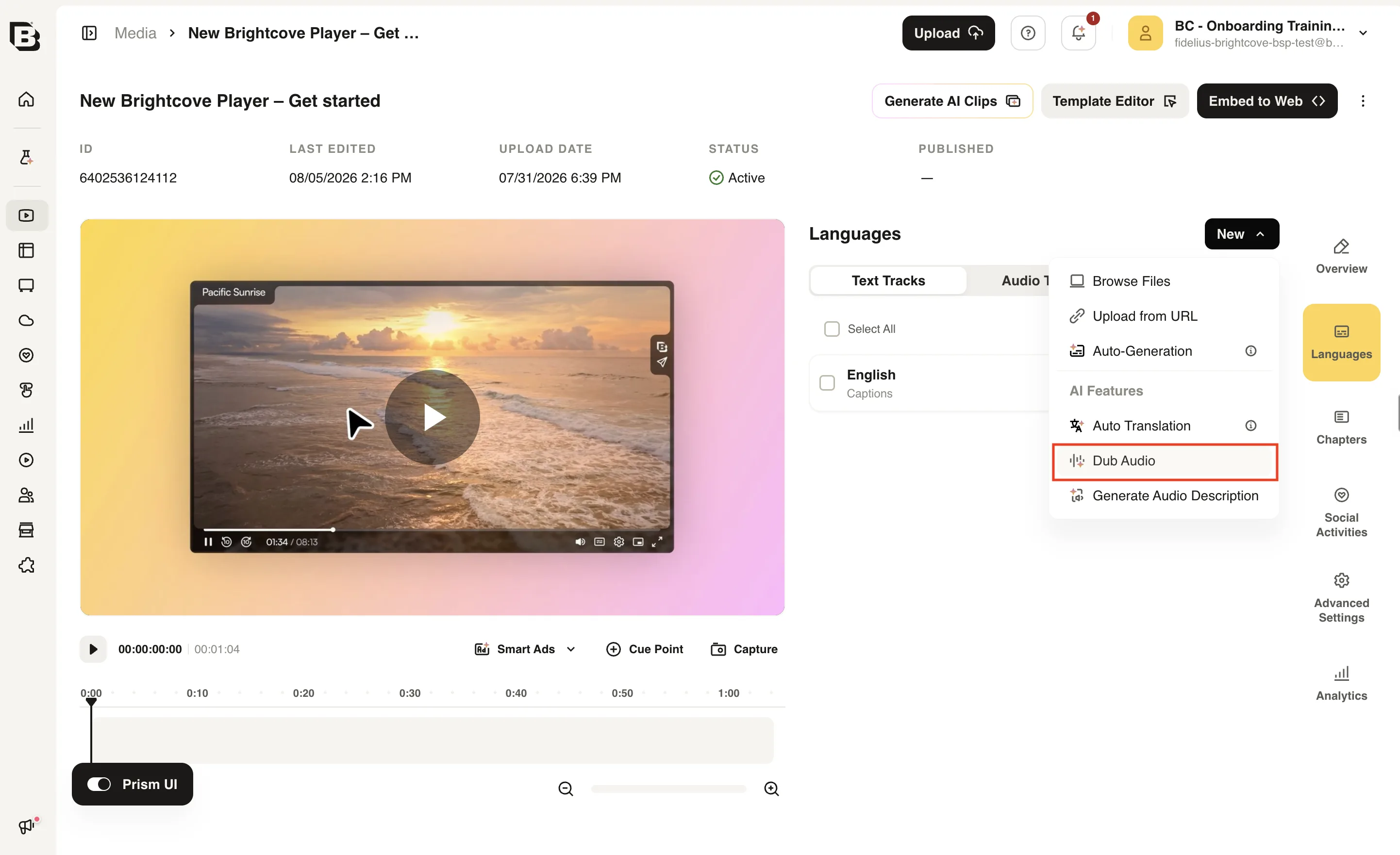
- Select one or more target languages.
- Turn on Audio Dubbing PRO, then select Use Dubbing PRO.
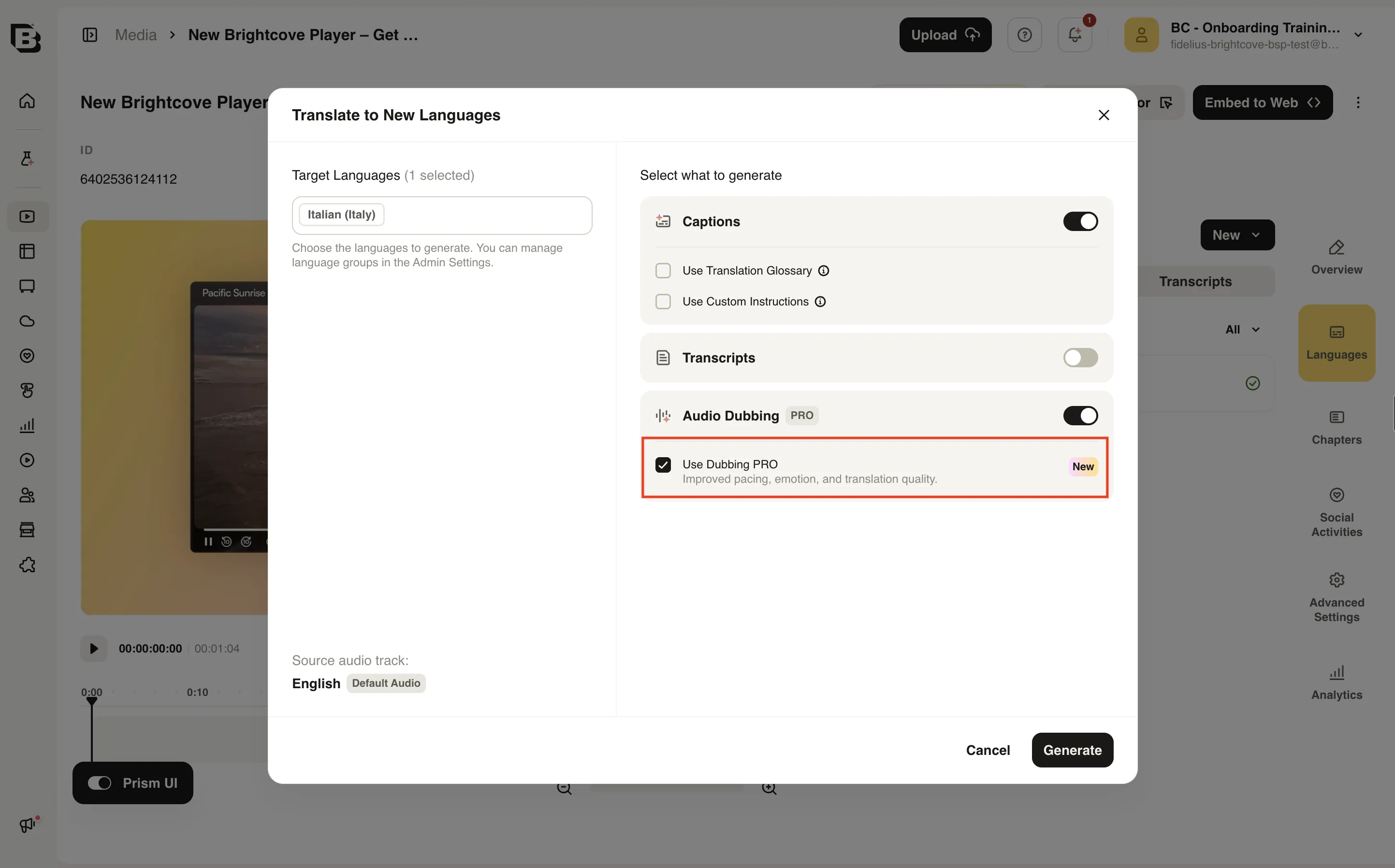
- Click Generate.
Generating Dubbing Pro in bulk
You can generate Dubbing Pro tracks for multiple videos at once from the Media module.
- In the Media module, select the videos you want to dub.
- Open the AI Suite menu, then open Captions and Audio and select Dub Audio.
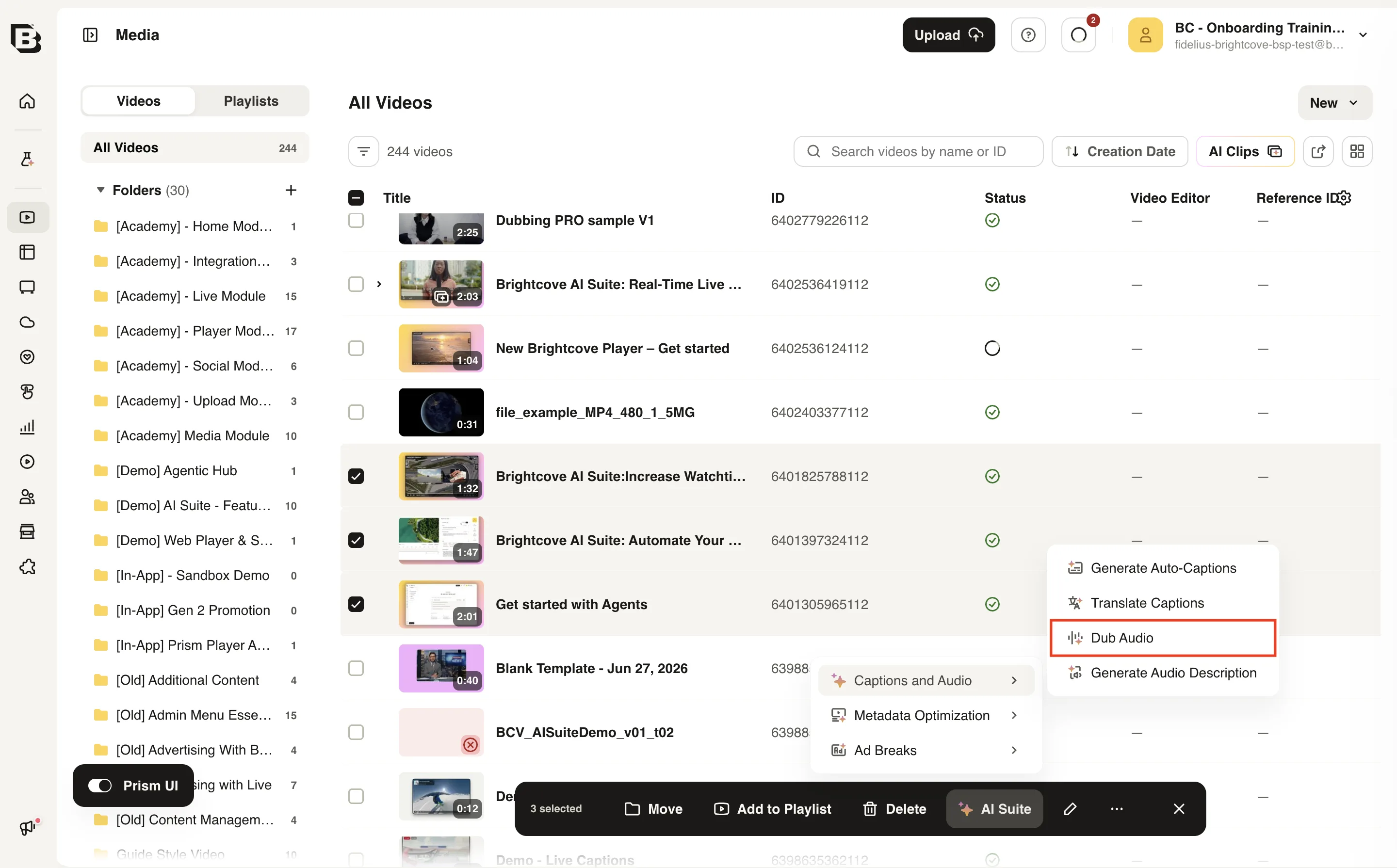
- Select one or more target languages.
- Turn on Audio Dubbing PRO, then select Use Dubbing PRO.
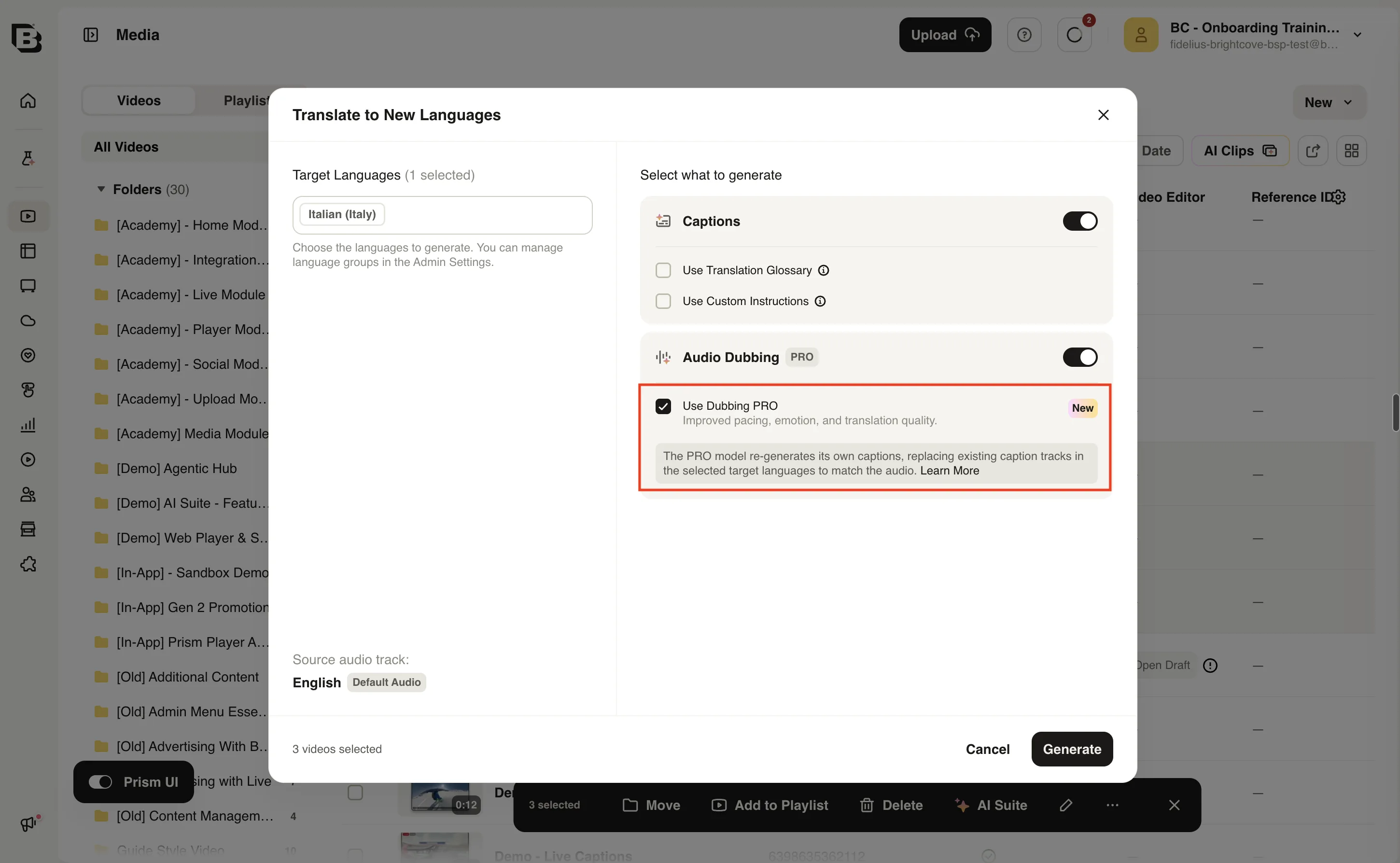
- Click Generate.
Generating from an existing caption translation
If the target language already has a caption translation, you can generate Dubbing Pro directly from that track.
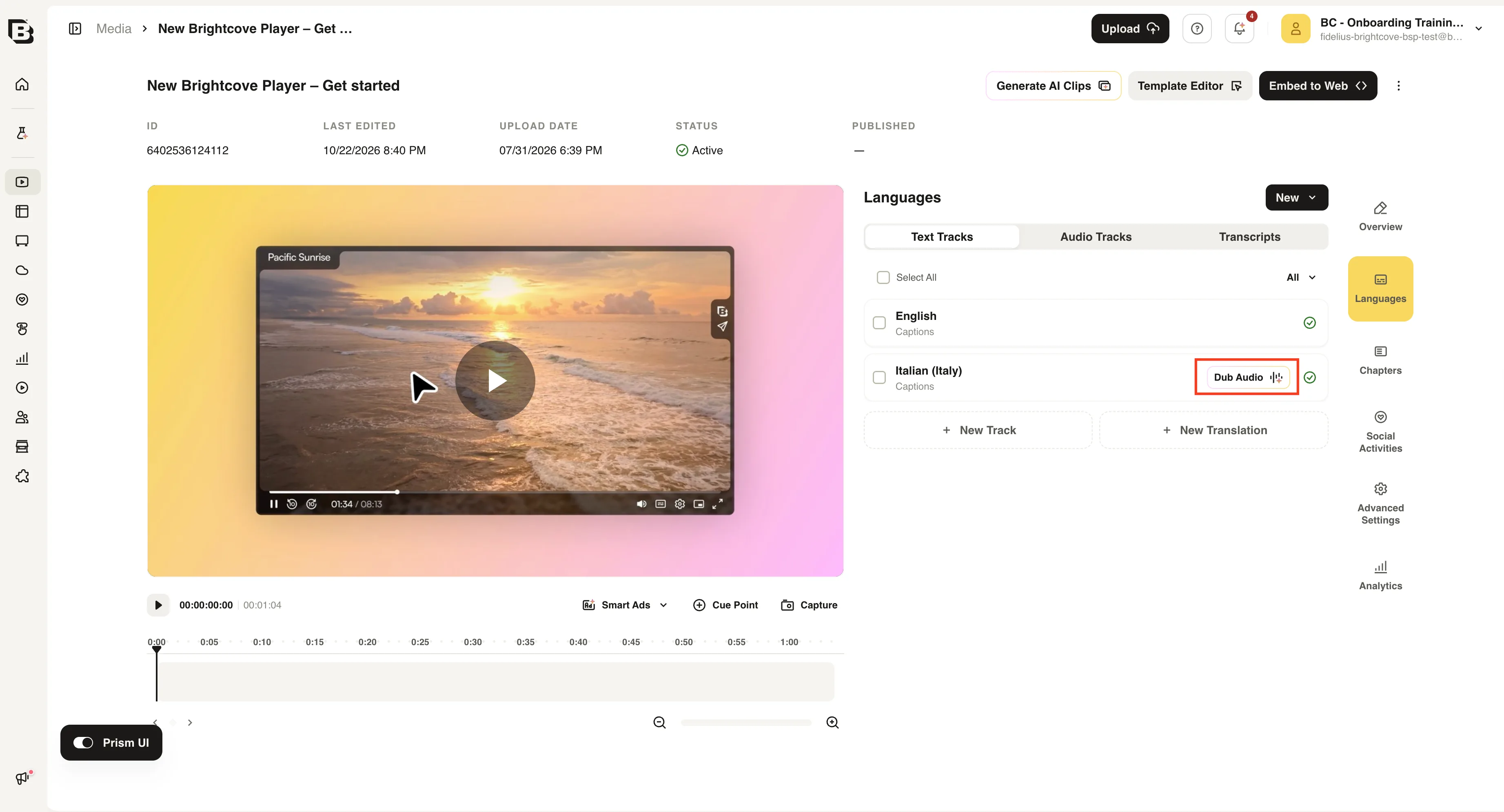
- In the Text Tracks tab, locate the translated caption track for the target language.
- Click Dub Audio next to the track.
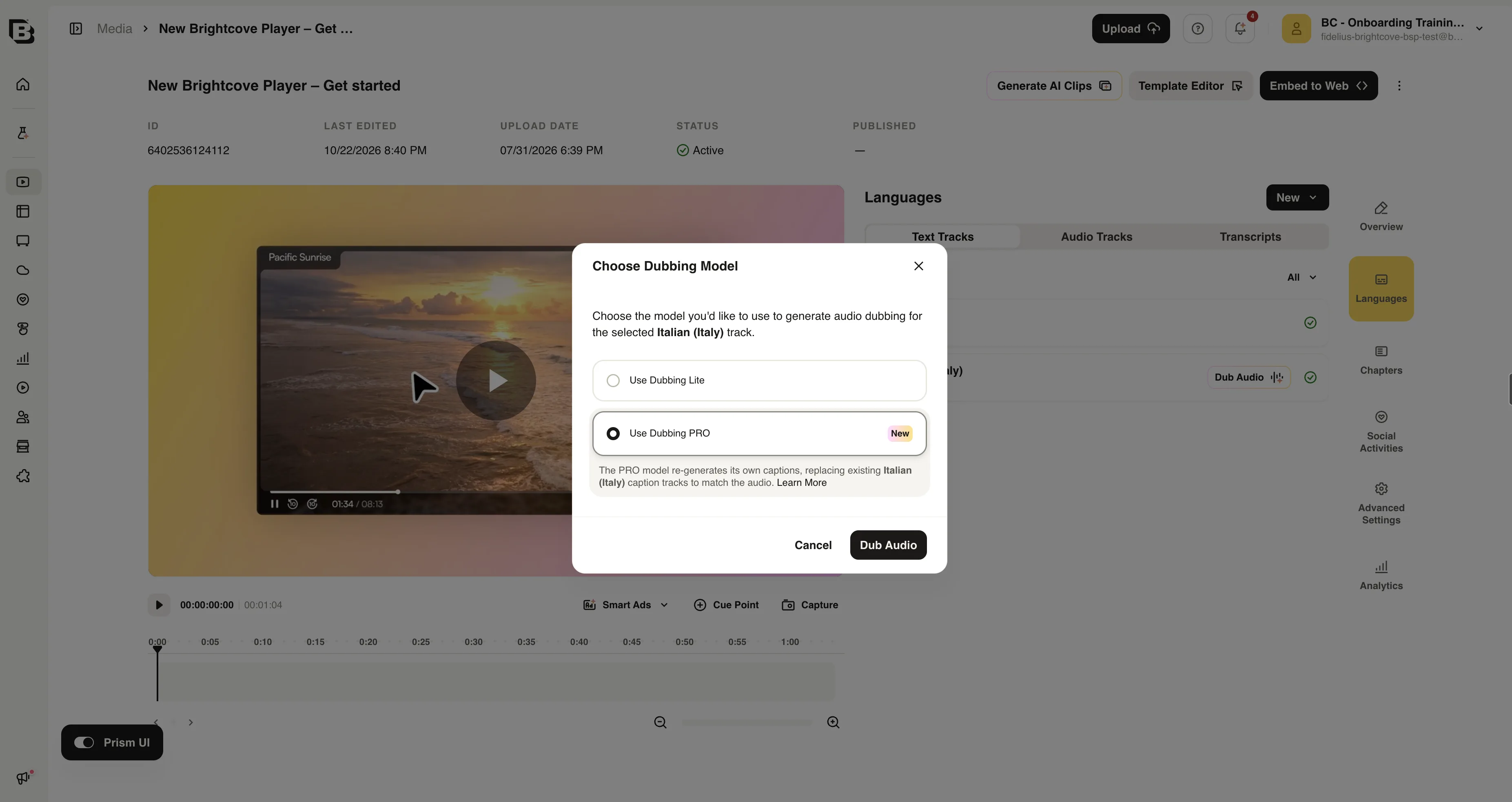
- In the Choose Dubbing Model dialog, select Use Dubbing PRO, then click Dub Audio.
Viewing the generated tracks
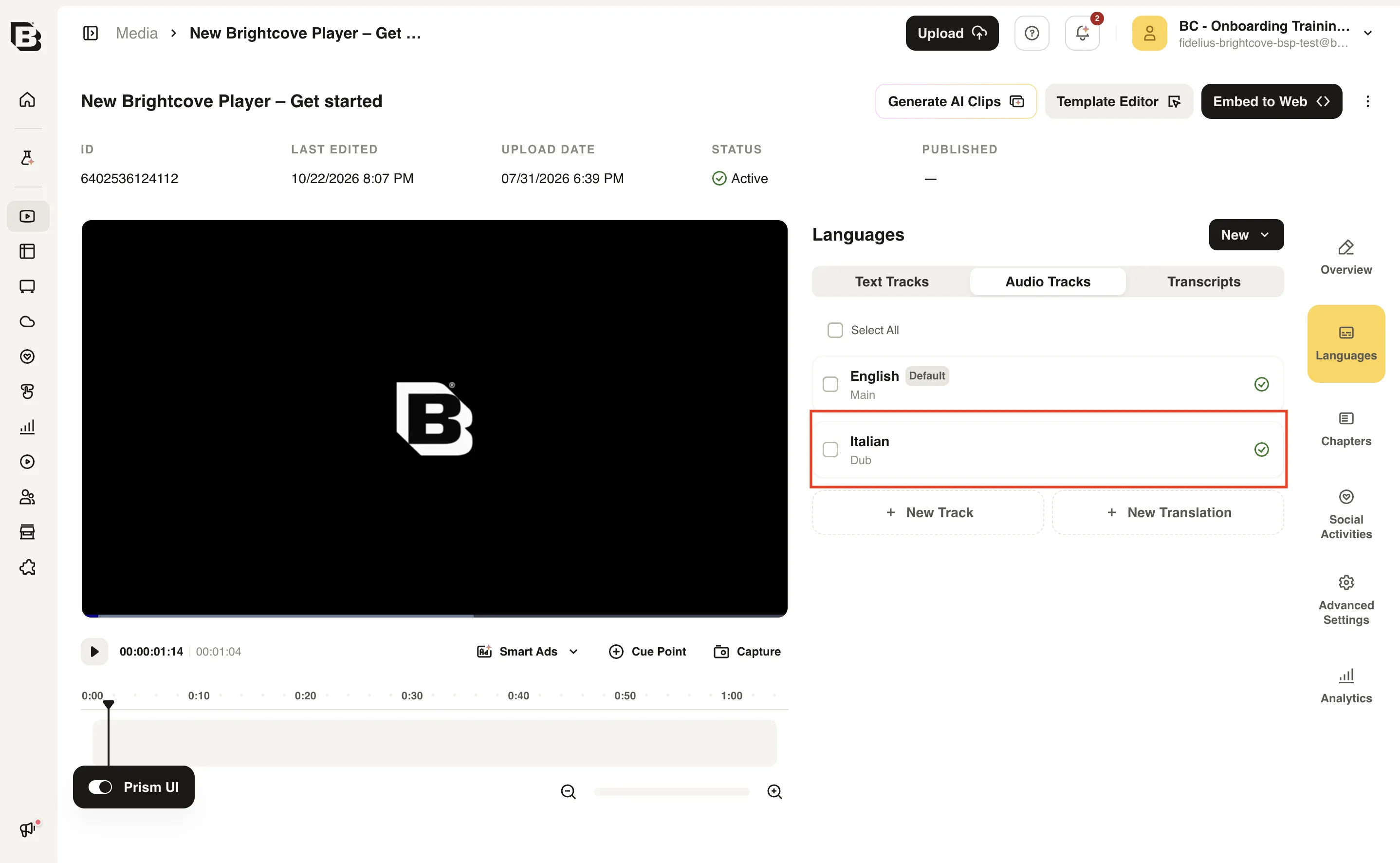
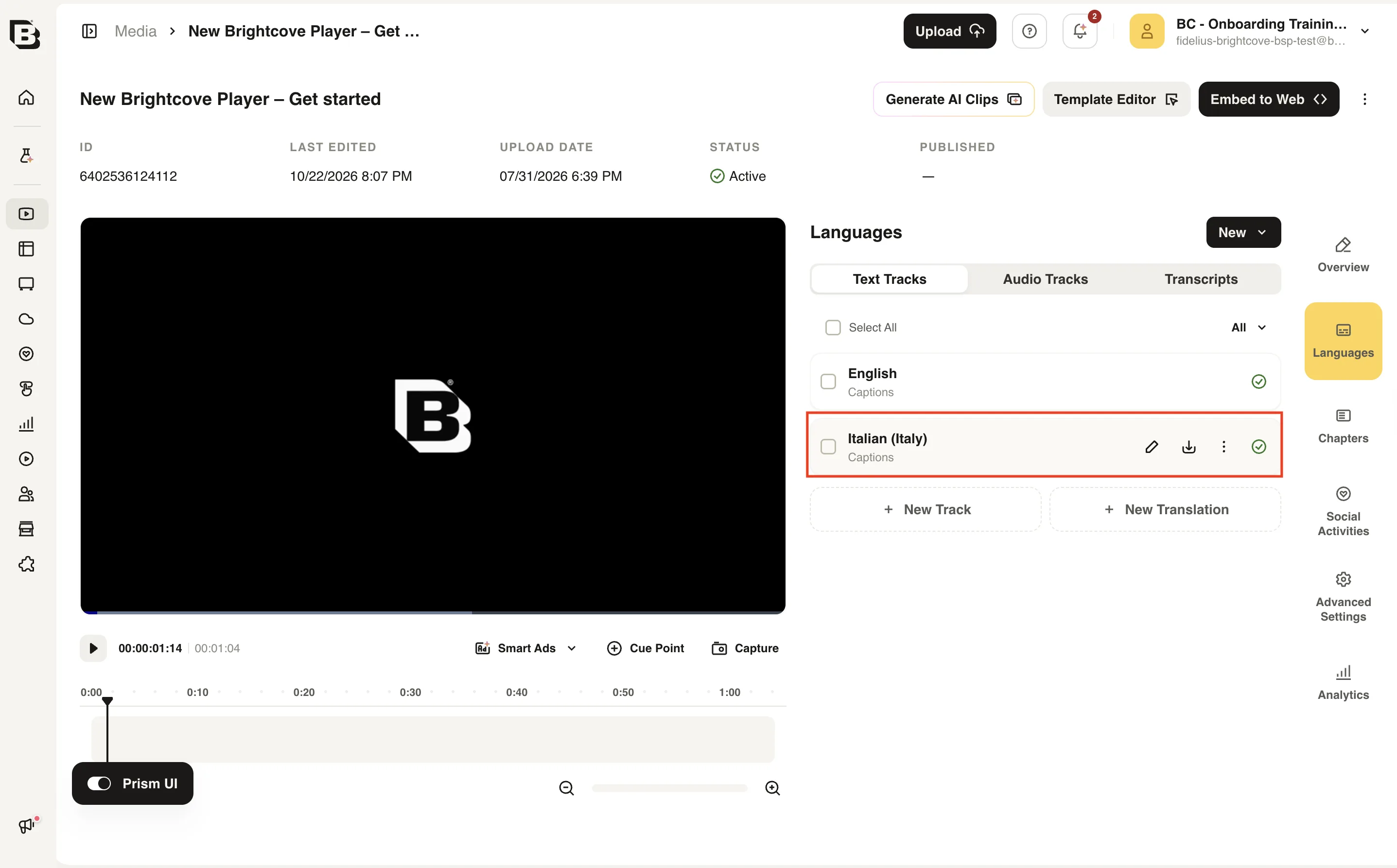
When processing finishes, Dubbing Pro adds a dubbed audio track and a caption track in each target language.
- The Audio Tracks tab lists the dubbed audio track.
- The Text Tracks tab lists the caption track that Dubbing Pro created for editing.
Editing captions and regenerating dubbing
You can edit the generated caption track and regenerate only the parts of the audio that you change.
- In the Text Tracks tab, click the edit icon next to the Dubbing Pro caption track, or click the caption track directly.
- Edit the caption text as needed. Keep the edit reasonable in terms of timing. Do not significantly lengthen or shorten the caption block, so the dubbed audio keeps a natural delivery instead of sounding sped up or slowed down.
- To regenerate the audio for an edited block, click Re-dub this Caption on that block.
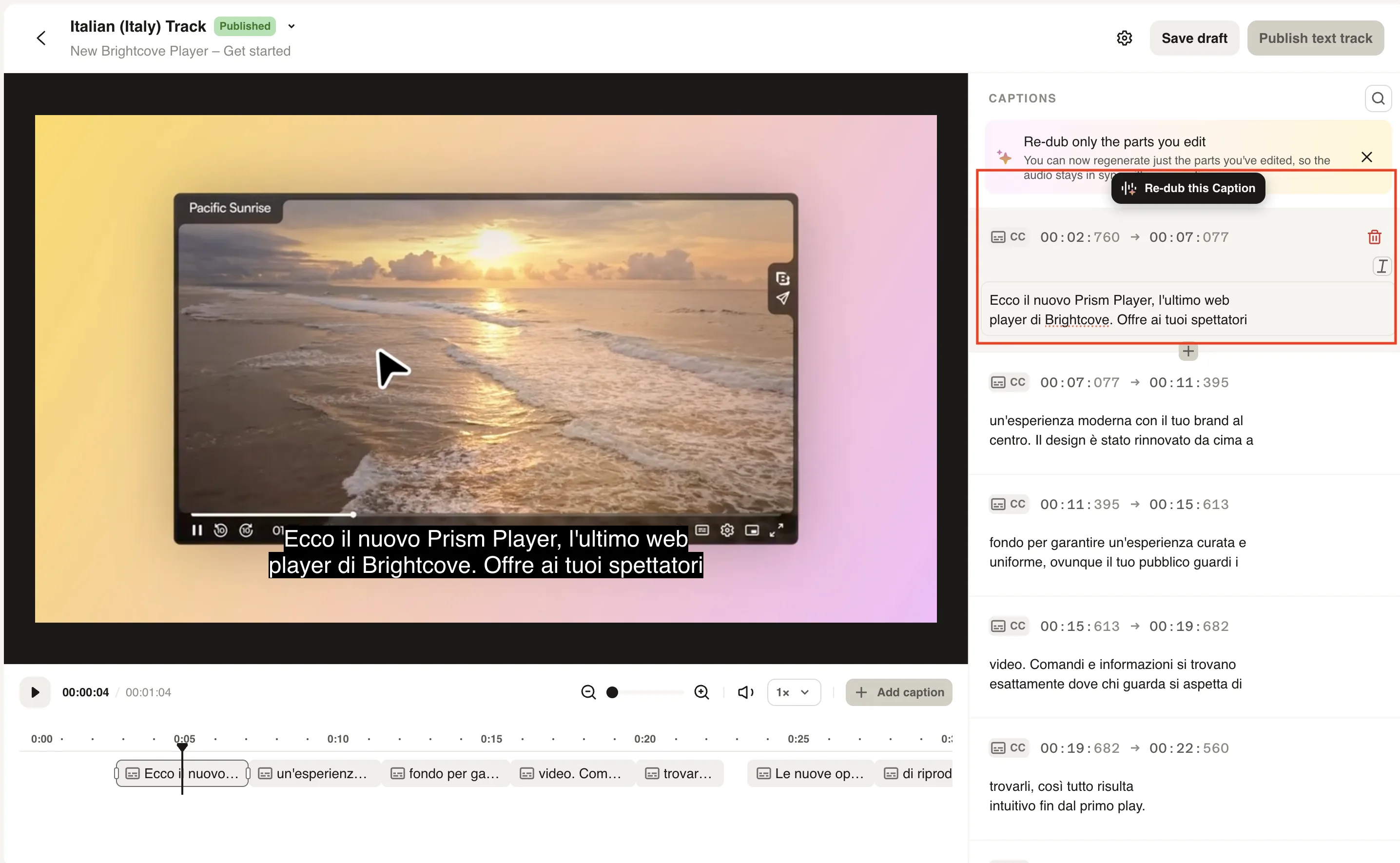
- In the confirmation dialog, click Save Draft & Re-Dub.
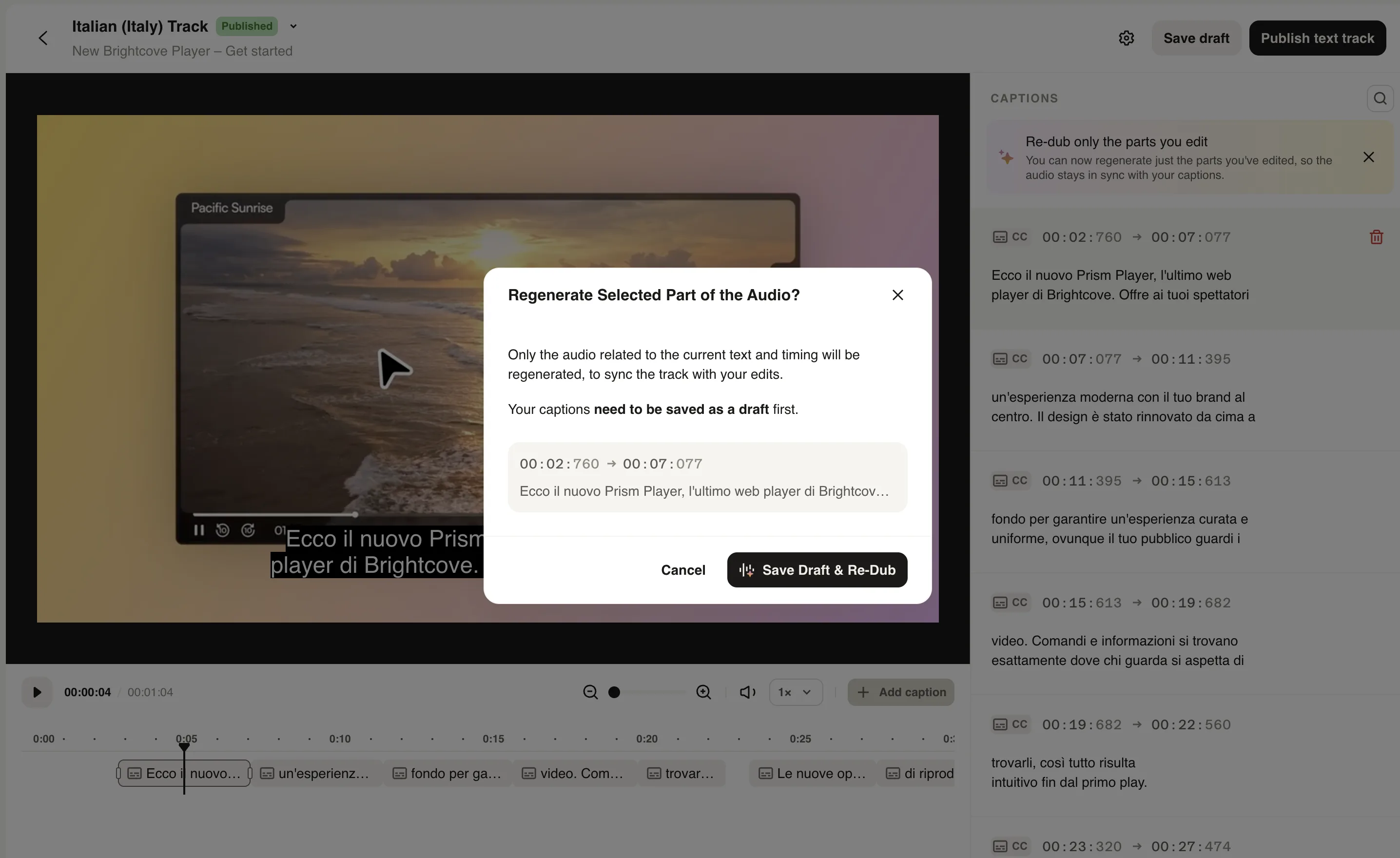
After regeneration, the video has two caption tracks in the target language: the original published track and a new draft track.
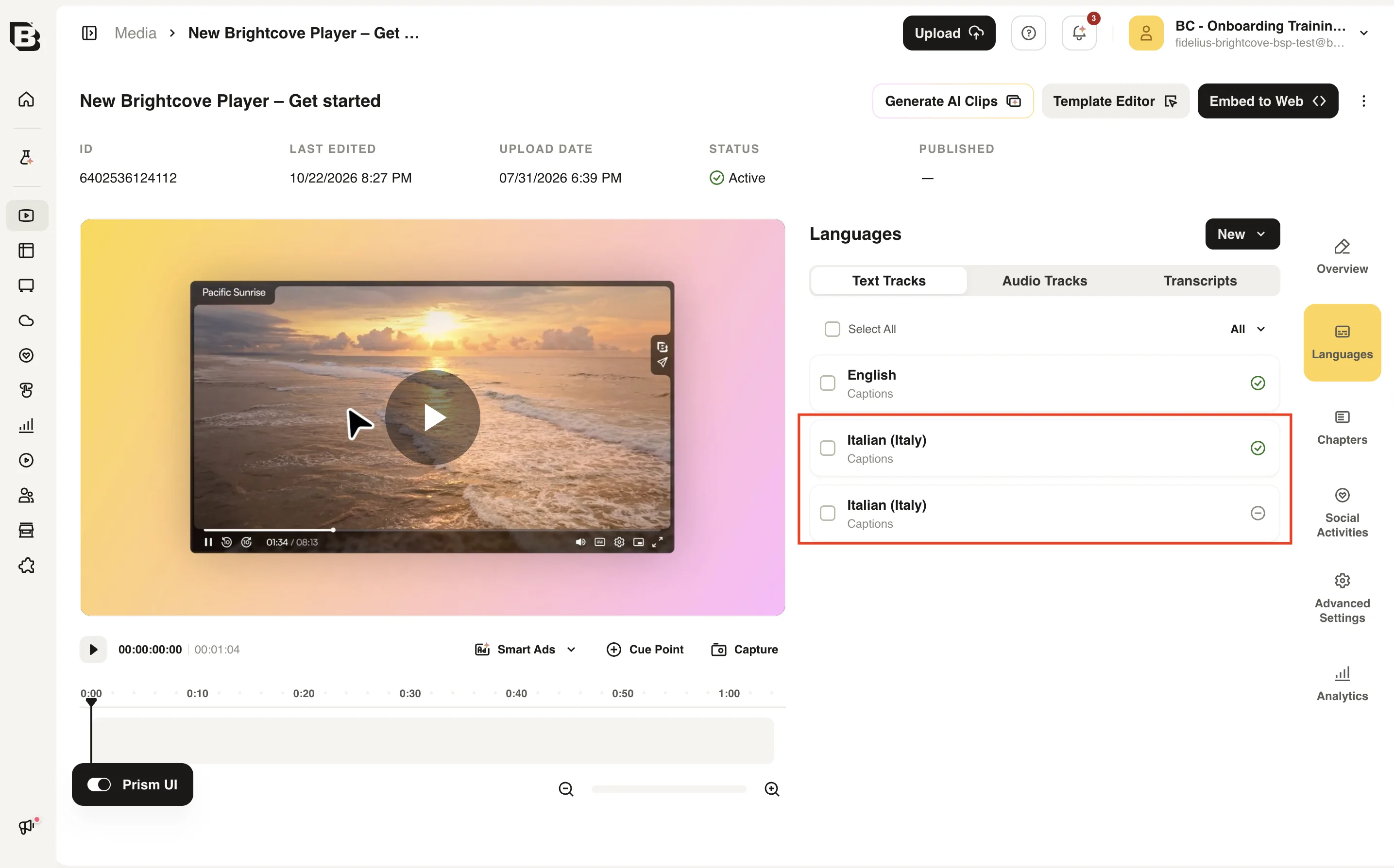
Publishing the edited caption track
The published caption track is the one used by the dubbing system in the background. Its text is optimized for dubbing, not for captioning, so it should be removed after you finish editing.
- Delete the published caption track that the dubbing system used.
- Publish the draft caption track that contains your edits.
Prerequisites
Dubbing Pro requires a caption file in the original language. If a caption file is not available, Brightcove runs auto captioning first, which also consumes AI Suite Brightcove Credits.
Unlike dubbing from Universal Translator, Dubbing Pro includes the caption translation and the caption file as part of the dubbing process. They are not billed separately, so they are included in the Dubbing Pro price.
Supported languages
Dubbing Pro can generate dubbed audio in the following languages:
| Language | Code |
|---|---|
| Afrikaans | af |
| Akan | ak |
| Albanian | sq |
| Amharic | am |
| Arabic (Egypt) | ar-EG |
| Arabic (Standard) | ar |
| Armenian | hy |
| Assamese | as |
| Azerbaijani | az |
| Basque | eu |
| Belarusian | be |
| Bosnian | bs |
| Bulgarian | bg |
| Burmese | my |
| Catalan | ca |
| Cebuano | ceb |
| Chinese | zh |
| Chinese (Cantonese) | zh-yue |
| Chinese (Traditional) | zh-TW |
| Croatian | hr |
| Czech | cs |
| Danish | da |
| Dogri | doi |
| Dutch | nl |
| English | en |
| English (Australia) | en-AU |
| English (Canada) | en-CA |
| English (UK) | en-GB |
| English (US) | en-US |
| Estonian | et |
| Finnish | fi |
| French | fr |
| French (Canada) | fr-CA |
| French (France) | fr-FR |
| Galician | gl |
| Ganda | lg |
| Georgian | ka |
| German | de |
| Greek | el |
| Gujarati | gu |
| Hausa | ha |
| Hebrew | he |
| Hindi | hi |
| Hungarian | hu |
| Icelandic | is |
| Indonesian | id |
| Italian | it |
| Japanese | ja |
| Javanese | jv |
| Kannada | kn |
| Kazakh | kk |
| Kinyarwanda | rw |
| Language | Code |
|---|---|
| Korean | ko |
| Kyrgyz | ky |
| Latvian | lv |
| Lithuanian | lt |
| Macedonian | mk |
| Malay | ms |
| Malayalam | ml |
| Marathi | mr |
| Mongolian | mn |
| Nepali | ne |
| Northern Sotho | nso |
| Norwegian | no |
| Persian | fa |
| Polish | pl |
| Portuguese | pt |
| Portuguese (Brazil) | pt-BR |
| Portuguese (Portugal) | pt-PT |
| Punjabi | pa |
| Romanian | ro |
| Rundi | run |
| Russian | ru |
| Sindhi | sd |
| Slovak | sk |
| Slovenian | sl |
| Southern Sotho | st |
| Spanish | es |
| Spanish (Argentina) | es-AR |
| Spanish (Chile) | es-CL |
| Spanish (Mexico) | es-MX |
| Spanish (Spain) | es-ES |
| Sundanese | su |
| Swahili | sw |
| Swedish | sv |
| Tagalog | tl |
| Tajik | tg |
| Tamil | ta |
| Telugu | te |
| Thai | th |
| Tibetan | bo |
| Tsonga | ts |
| Tswana | tn |
| Turkish | tr |
| Ukrainian | uk |
| Urdu | ur |
| Uyghur | ug |
| Uzbek | uz |
| Vietnamese | vi |
| Welsh | cy |
| Wolof | wo |
| Yoruba | yo |
| Zulu | zu |
FAQs
- How is Dubbing Pro different from standard dubbing?
Dubbing Pro optimizes the translation for dubbing and analyzes the original audio, including pacing and emotion. This produces a more faithful emotional carryover and improved pacing than standard dubbing from Universal Translator. - How long does processing take?
Processing time depends on the length of the video and the complexity of the audio. In some cases, processing may take as long as the video itself, or longer. When processing finishes, the dubbed audio track and caption track appear in the Languages section of the Video Detail page. - How is credit consumption calculated?
Dubbing Pro consumes AI Suite Brightcove Credits based on the minutes of video processed and is more expensive than standard dubbing. Contact your account manager for details. - Do I need a caption file to use Dubbing Pro?
Dubbing Pro requires a caption file in the original language. If no caption file is available, Brightcove runs auto captioning first, which also consumes AI Suite Brightcove Credits. - Why do I have two caption tracks after editing?
When you regenerate an edited block, the original published track remains and Brightcove creates a new draft copy. The published track is the one used by the dubbing system in the background. Delete it and publish the draft track with your edits. - Can I regenerate only part of the dubbed audio?
Yes. In the caption editor, click Re-dub this Caption on the block you edited, then click Save Draft & Re-Dub. Only the audio related to that block is regenerated. - Can I use Dubbing Pro with an existing caption translation?
Yes. Click Dub Audio next to the translated caption track and select Use Dubbing PRO. Dubbing Pro replaces the existing caption translation with a new translation optimized for dubbing, which might differ slightly. - Which languages are supported?
See Supported languages above. Some languages may only appear in the target language picker when Use Dubbing PRO is selected. - Does Dubbing Pro replace the original audio track?
No. Dubbing Pro adds a separate dubbed audio track for each target language. The original audio track remains available.