
Accessing the Recommendation Engine
The Recommendation Engine is configured in the Admin module. These settings define which videos are eligible for recommendations, how content is constrained, and what is promoted.
- Navigate to the Admin module.
- Select Recommendation Engine.
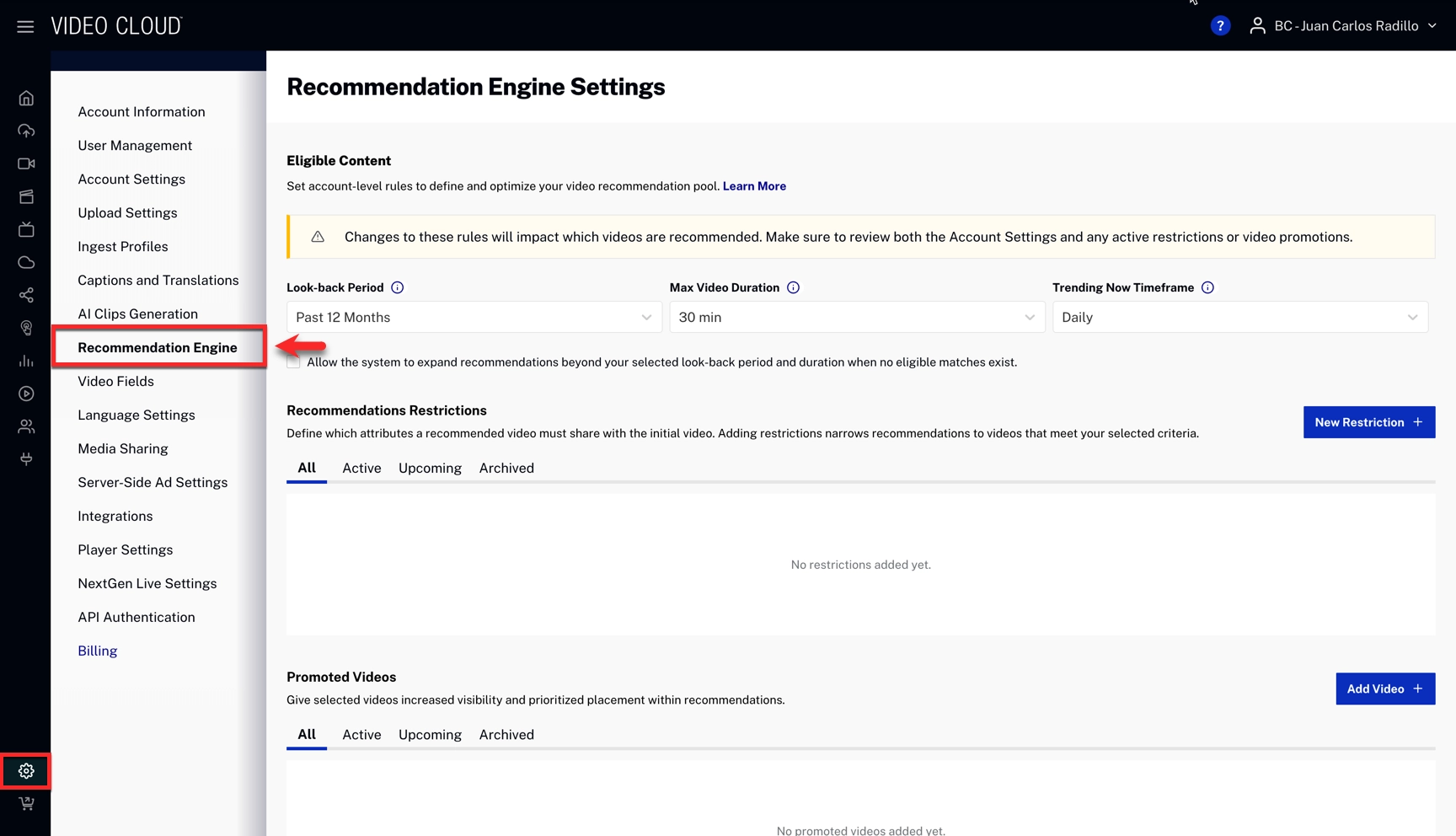
Eligible Content
These rules define the account-level recommendation pool. Only videos matching these criteria will be considered for recommendations. Live channels and events are not eligible.
In the Eligible Content card, click Edit to open the Edit Eligible Contents Settings dialog.
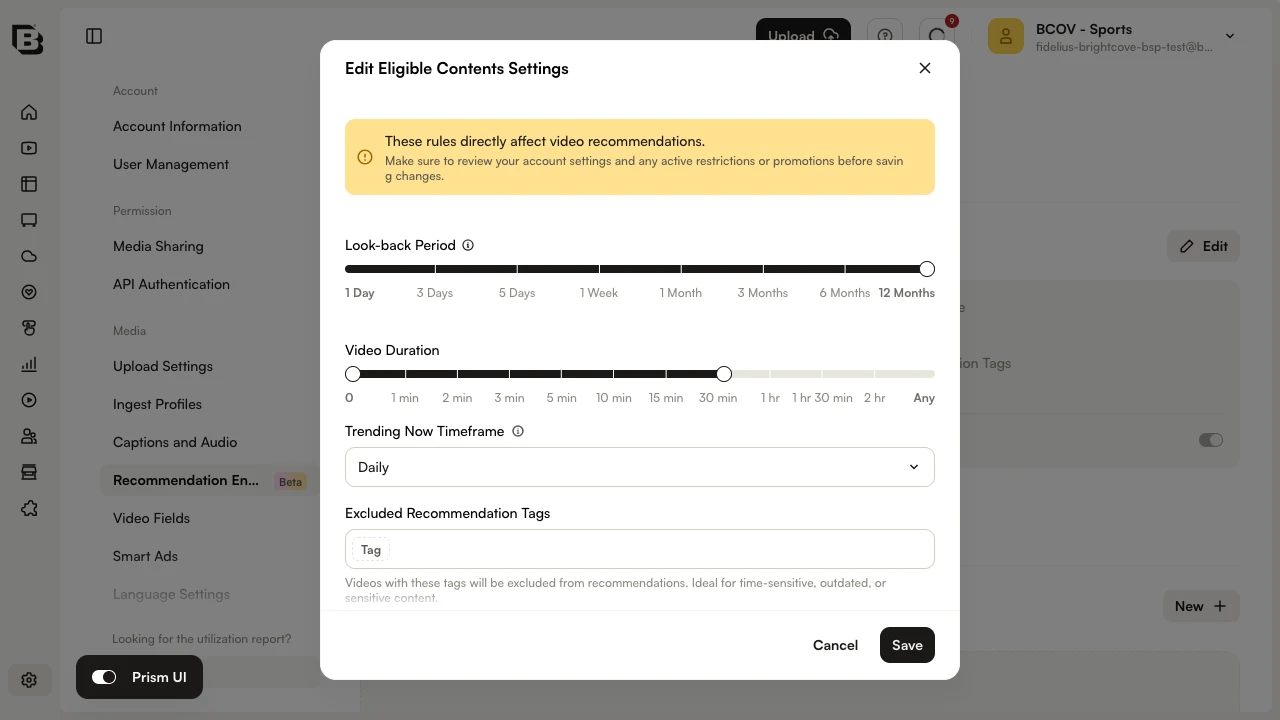
Look-back Period
Defines the oldest published date eligible for recommendations. Videos published before this timeframe are excluded. Use the slider to choose a value between 1 Day and 12 Months.
For example: If 3 Days is selected, only content that has been published within the last 3 days will be recommended. Older content will not be considered eligible.
Video Duration
Sets the minimum and maximum length of recommended videos as a single range. Use the dual-thumb slider to choose a lower bound (from 0) and an upper bound (up to Any). Videos outside the selected range are excluded from recommendations. The default range is 0 to 30 min.
Trending Now Timeframe
Controls how virality is calculated for the Trending Now recommendation strategy.
- Daily — Favors fast spikes in viewership. Best for breaking news or event-driven content.
- Weekly — Favors sustained growth. Best for evergreen content strategies.
Excluded Recommendation Tags
Enter tag values here to exclude any matching videos from recommendations account-wide. See Excluded Recommendation Tags below for use cases.
Includes additional videos if no results meet the defined criteria
Located below the Eligible Content card on the Recommendation Engine page. When this toggle is on, the system expands recommendations beyond your selected look-back period and duration constraints when no eligible matches are found. Restrictions are still enforced even when this option is active.
Excluded Recommendation Tags
Use excluded recommendation tags to prevent specific content from appearing in recommendations. Videos with any of these tags will be excluded from all recommendation results.
This is useful for:
- Time-sensitive content that should no longer be recommended after a specific date
- Outdated content that is still in the catalog but should not be surfaced
- Sensitive content that should not appear as a recommendation
To add excluded tags, open the Edit Eligible Contents Settings dialog and enter the tag values in the Excluded Recommendation Tags field. For example: no_rec, internal.
Recommendation Restrictions
Restrictions enforce editorial lanes by requiring recommended videos to share specific attributes with the initial video. Adding restrictions narrows recommendations to videos that meet your selected criteria.
Restrictions are evaluated against the initial video only — not subsequent recommended videos in a session.
Creating a Restriction
- In the Recommendations Restrictions section, click New.
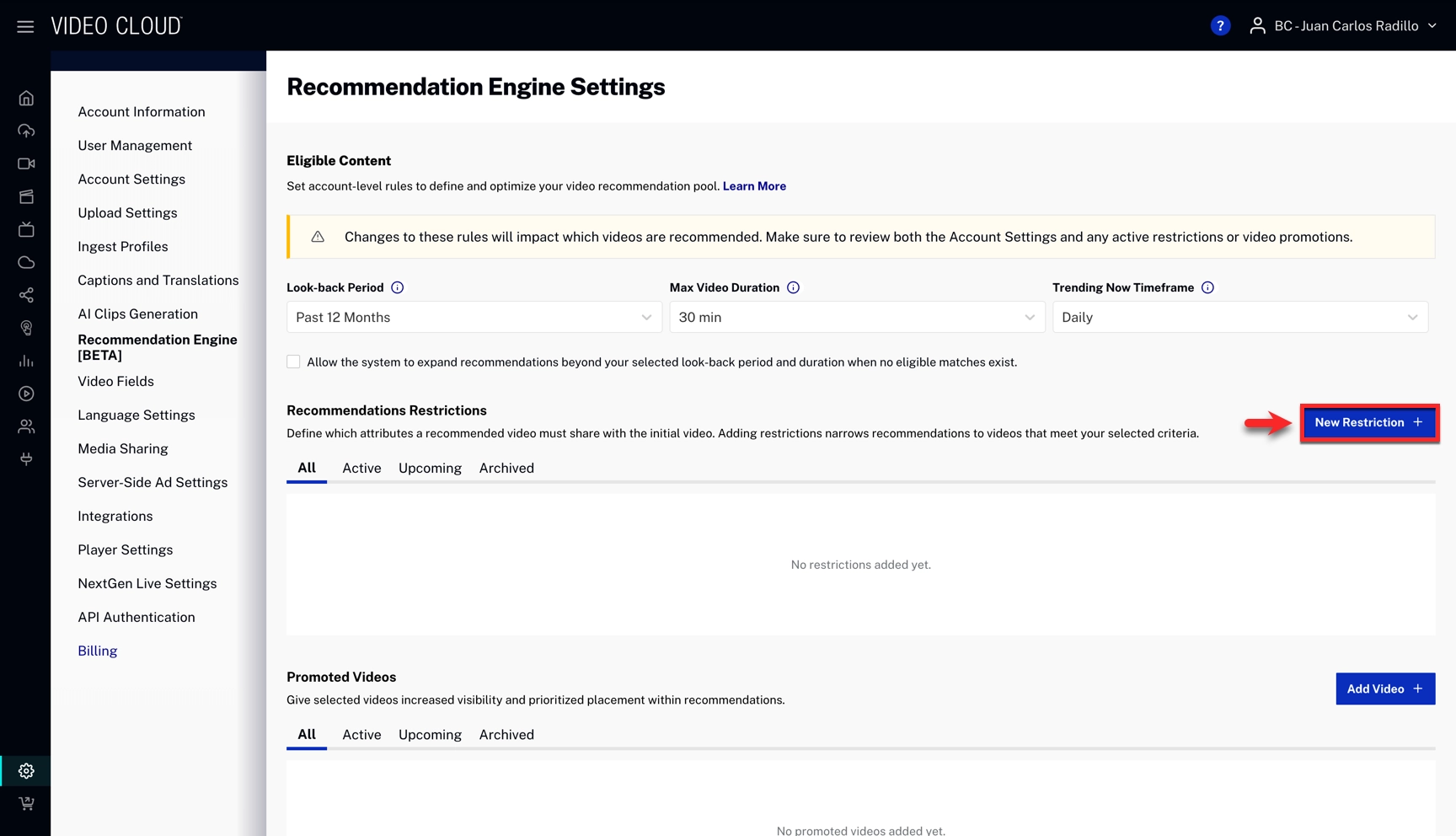
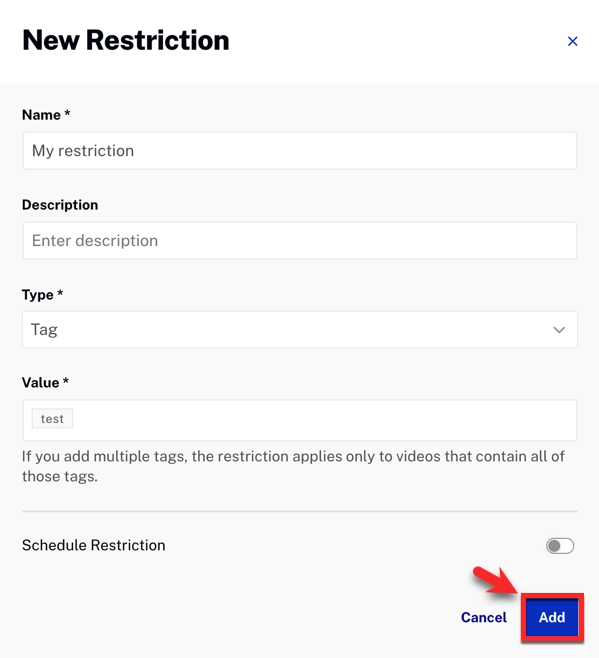
- Fill in the restriction settings:
- Name (required) — A descriptive name for the restriction.
- Description — An optional description of what the restriction does.
- Type — Choose Tag or Custom Field.
- Value — The tag value or custom field value to match.
- Schedule Restriction (optional) — Set a start and end date to apply the restriction only during a specific timeframe.
- Click Add.
Tag-based Restrictions
When a tag-based restriction is active, the system calculates the intersection of the initial video's tags and the restriction's tags. Recommended videos must contain all tags in that intersection.
Custom Field Restrictions
Custom field restrictions require recommended videos to match a specific custom field value. This is useful when your content taxonomy relies on custom fields rather than tags.
When creating a restriction, you can select the All (*) option at the top of the value list. Selecting this option automatically creates a restriction for every predefined value in the Custom Field, eliminating the need to create individual restrictions manually.
This option is available only for Custom Fields of type List, which use predefined values.
Common Use Cases
- Kids content — Create a restriction on the
kidstag to ensure kids content is never mixed with other categories. If no more eligible kids videos exist, recommendations stop rather than showing non-kids content. - Travel content — Keep
travelrecommendations within the travel lane. - Sports / Politics separation — Prevent sports content from being mixed with politics.
- Campaign windows — Use scheduled restrictions during special coverage periods (e.g.,
elections week,transfer window) to confine recommendations to those topics.
Promoted Content
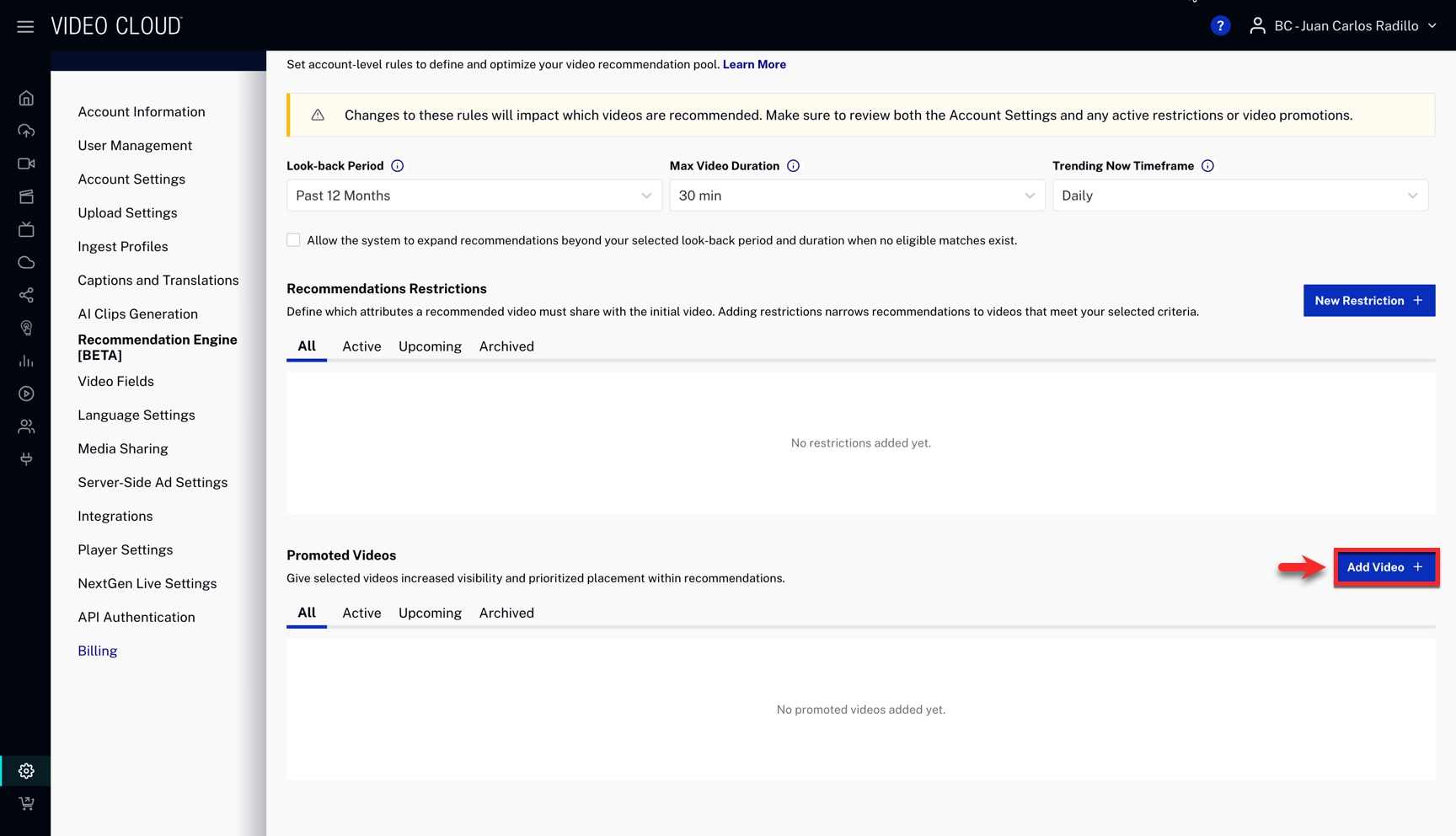
Promoted content increases the visibility of selected videos within recommendations. Use this feature to highlight new releases, sponsored content, or priority videos.
Adding Promoted Videos
- In the Promoted Videos section, click New.
- Select the video to promote and click Select.
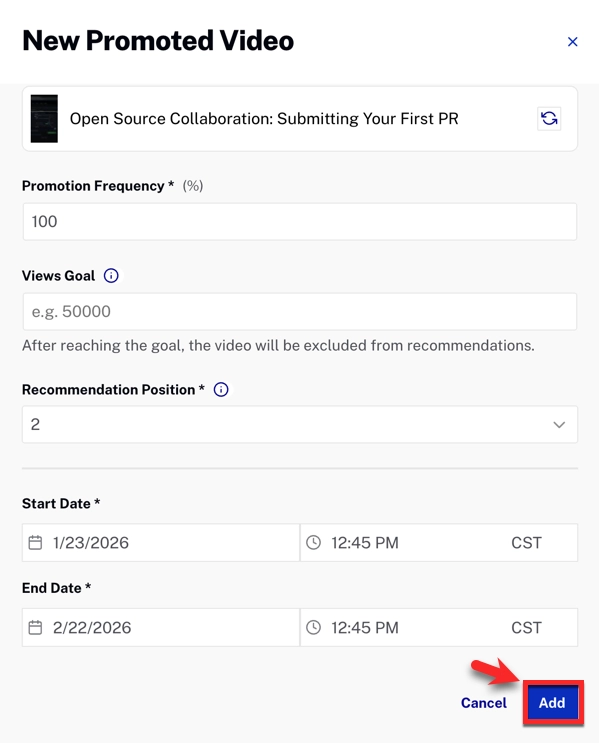
- Configure the promotion settings and click Add.
Promotion Settings
| Setting | Description |
|---|---|
| Promotion Frequency (%) | The percentage of recommendation requests in which the promoted video will appear. For each request, a random number determines inclusion — the video appears in roughly this percentage of requests. |
| Views Goal | The total number of views after which the promoted video will no longer be included. Once the goal is reached, the video becomes ineligible for promotion. |
| Recommendation Position | The slot in the recommendation list where the promoted video will appear. This position is 0-indexed and does not count the initial video. For example, position 3 means the viewer watches the initial video, then two organic recommendations, then the promoted video. |
| Start Date | The date and time when the promotion begins. |
| End Date | The date and time when the promotion ends. |
Tagging Best Practices
Strong tagging directly improves recommendation quality. The recommendation engine uses your tags alongside AI-based content analysis, so well-structured tags significantly boost precision.
Minimum Viable Tagging
At a minimum, each video should have:
- At least one section/category tag (e.g.,
Sports,News,Business) - At least one entity tag (e.g.,
Real Madrid,Apple,MoMA)
Tips
- Use a controlled vocabulary — Pick canonical tag names and document them. Avoid near-duplicates (use
Soccer, not bothSoccerandFootball). - Use 3–7 high-signal tags — Over-tagging dilutes relevance; under-tagging limits match rates. Prioritize section, topic, entities, format, and geography.
- Align tags with titles — Put primary entities in both the title/description and as tags. This helps both the AI similarity engine and SEO.
- Mark special content with explicit tags — Use tags like
kids,opinion, orsensitiveso restrictions can filter them effectively.
Anti-patterns to Avoid
- Synonyms or variants for the same entity (e.g.,
Ninersvs49ersvsSan Francisco 49ers) - Overly broad single tags with no specifics (e.g.,
Sportsalone with no sport or team) - Low-signal tags that add noise (e.g.,
viral,must-watch) - Mixing taxonomy styles (plural vs singular, local language vs English)
Saving Changes
After configuring your settings, click Save to apply the changes. Changes take effect immediately for new recommendation requests.