
Introduction
Enhanced Captions is part of the Brightcove AI Suite and improves the existing captioning solution by adding two features: Audio Cues and Speaker Attribution.
Audio Cues automatically insert non-speech sound indicators (e.g., [music], [applause]) into captions.
Speaker Attribution identifies and labels who is speaking in the captions.
Admin settings
The speaker attribution and audio cues defaults are configured in the Admin module.
- Open the Admin module and select Captions and Audio.
- Under General Caption Settings, use the Speaker diarization dropdown to select the default speaker attribution mode:
- No diarization - speaker changes are not marked.
- Hyphen (default) - a hyphen (
-) marks speaker changes. - Speaker labels - generic labels such as
[Speaker 1]are added. - Speaker names - detected names such as
[Sarah]are added.
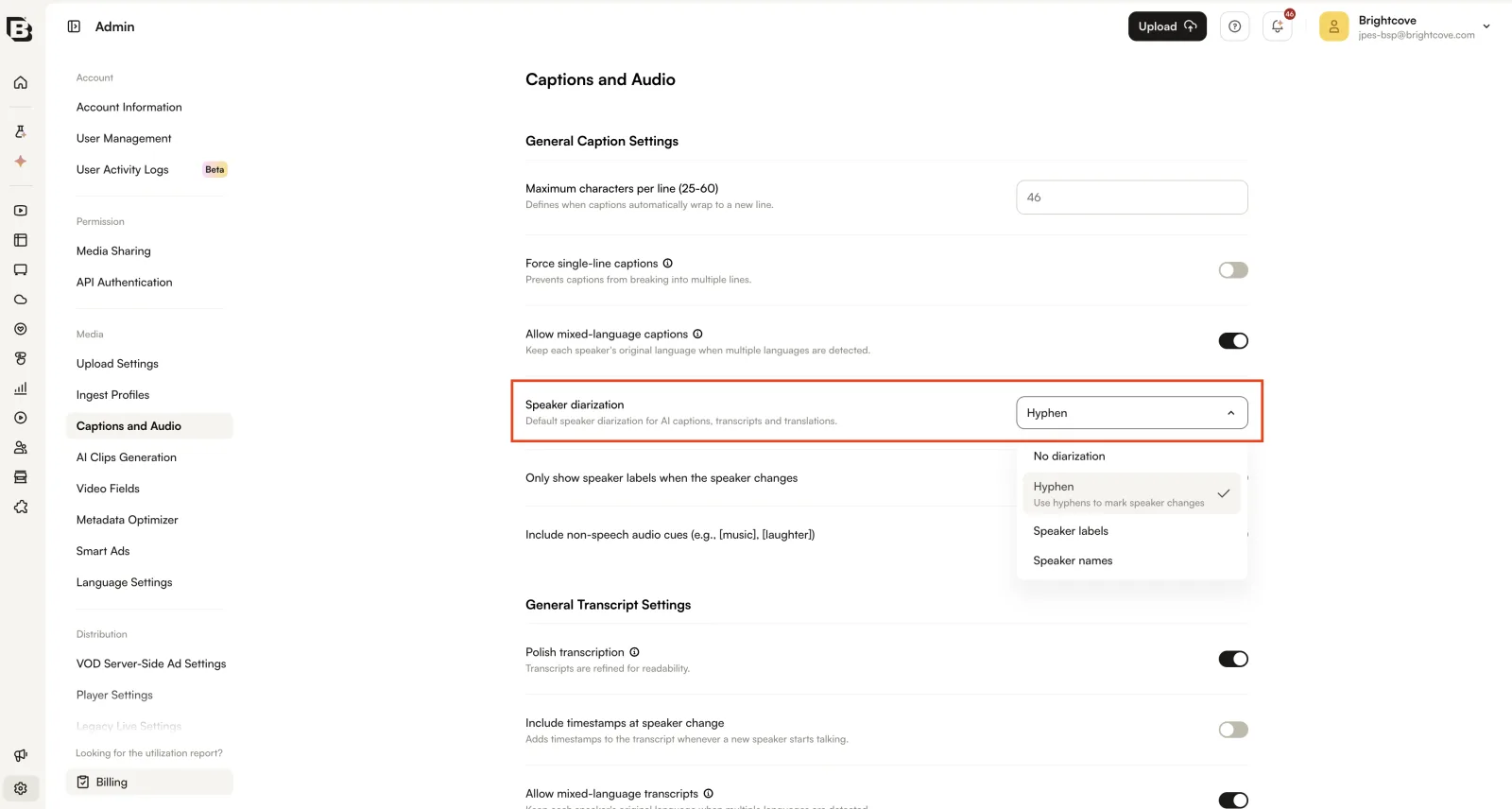
- Use the Only show speaker labels when the speaker changes toggle to control where speaker labels and speaker names appear:
- On - labels appear only when the speaker changes, the same behavior as hyphens.
- Off - labels appear in every caption block.
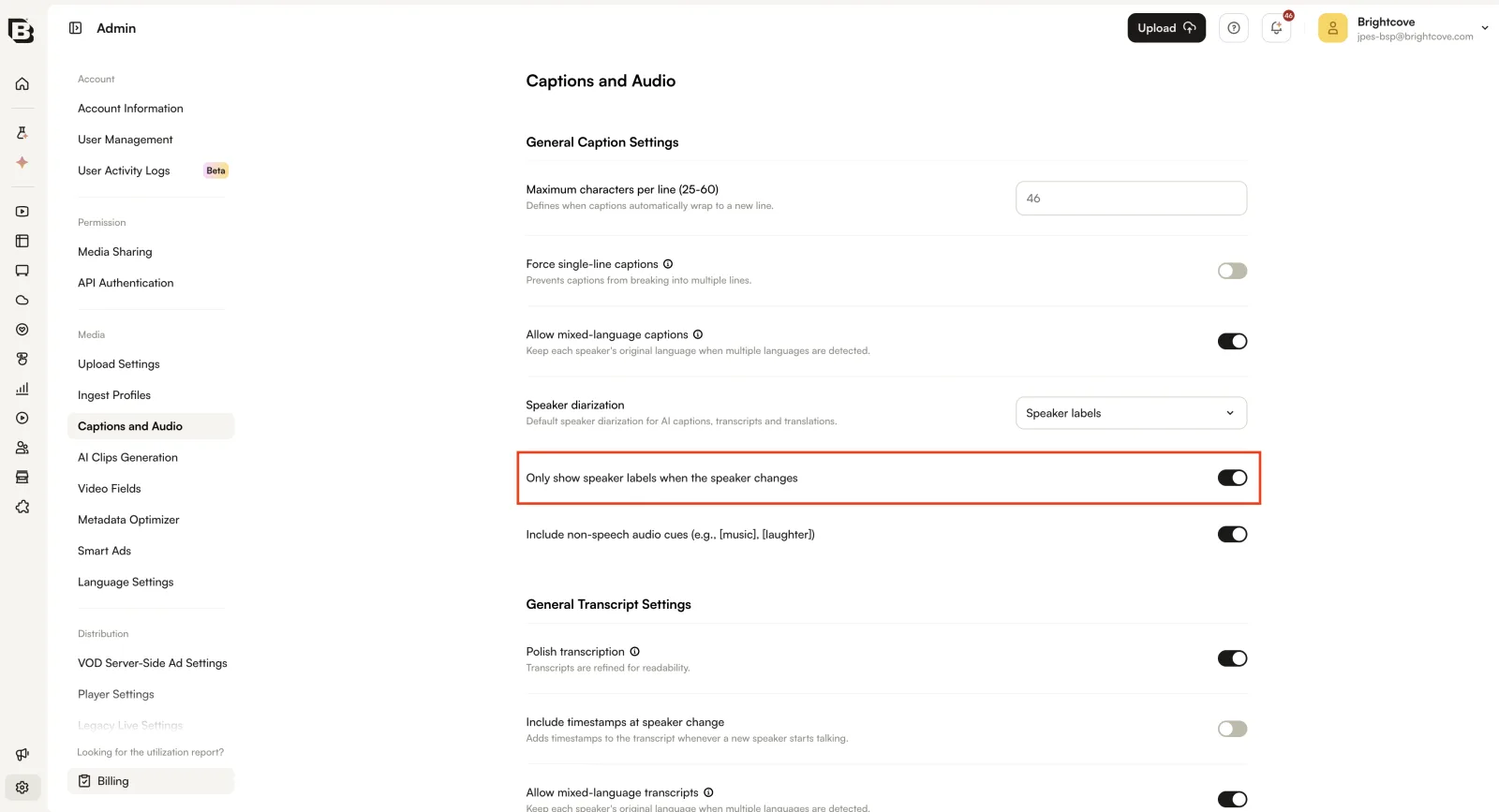
- Use the Include non-speech audio cues (e.g., [music], [laughter]) toggle to turn audio cues on or off.
- Changes are saved automatically.
Audio Cues
When enabled, audio cues are automatically included in generated captions. No additional user action is required. Audio cues appear automatically when you generate or regenerate captions.
Examples of audio cues: [music], [applause], [laughter].
Speaker Attribution
Speaker Attribution adds labels to indicate who is speaking. The default mode is selected with the Speaker diarization setting in the Admin module. With diarization enabled, there are three modes available:
Hyphen (default)
A hyphen (-) is used to indicate speaker changes.
Generic names
Format: [Speaker 1], [Speaker 2], etc. By default, these labels appear in front of every speaker change or caption block. If the Only show speaker labels when the speaker changes setting is on, they appear only when the speaker changes.
Actual names
Format: [Sarah], [Dylan], etc. The system attempts to detect speaker names from the audio or video context and assigns them automatically. If a name cannot be detected, it falls back to the generic name format (e.g., [Speaker 1]). As with generic names, labels appear in every caption block unless Only show speaker labels when the speaker changes is on.
| Mode | Format | When it appears | How names are determined |
|---|---|---|---|
| No diarization | N/A | Never | N/A |
| Hyphen (default) | - |
Only when speakers change within the same caption block | N/A |
| Generic names | [Speaker 1], [Speaker 2] |
Every caption block, or only at speaker changes if Only show speaker labels when the speaker changes is on | Automatically numbered |
| Actual names | [Sarah], [Dylan] |
Every caption block, or only at speaker changes if Only show speaker labels when the speaker changes is on | AI-detected from context; falls back to generic if undetected |
Video-level generation
Generate captions with Audio Cues and/or Speaker Attribution for a single video from the Video Details page.
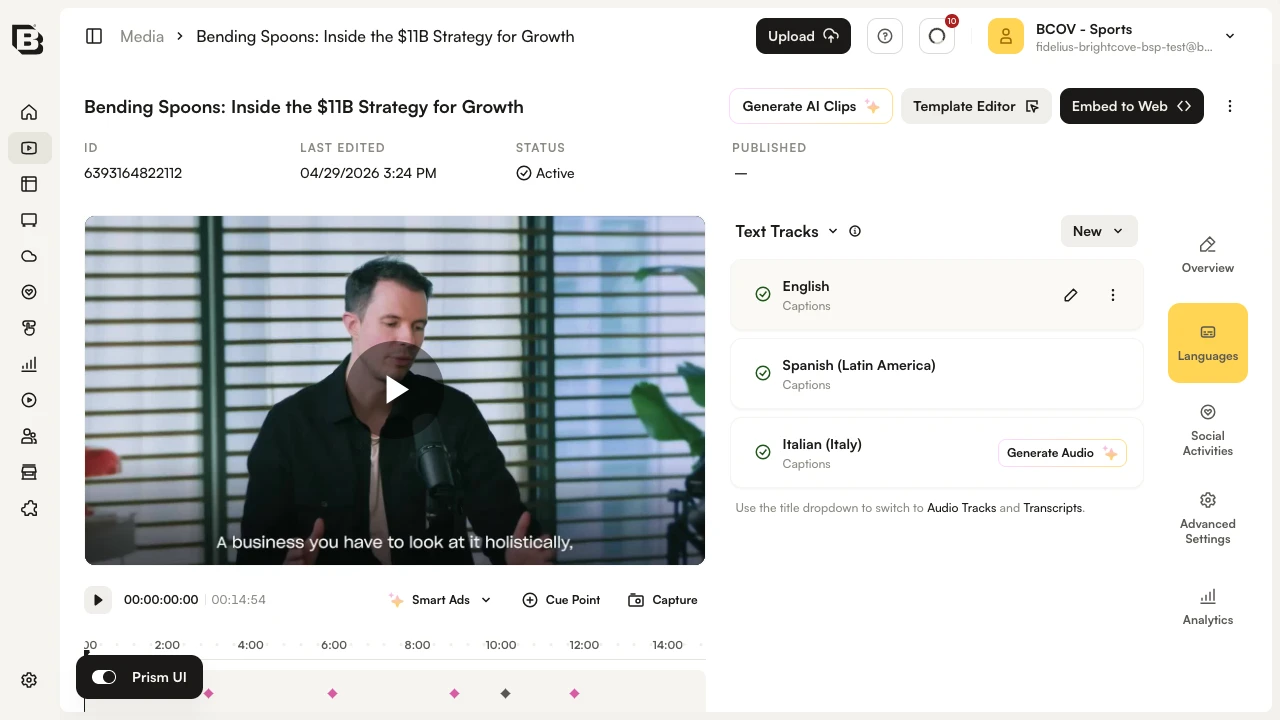
- In the Media module, open a video and locate the Languages section.
- Generate captions for the target language and select a speaker attribution style. When Audio Cues and/or Speaker Attribution are enabled in Admin, they will be applied to the generated captions.
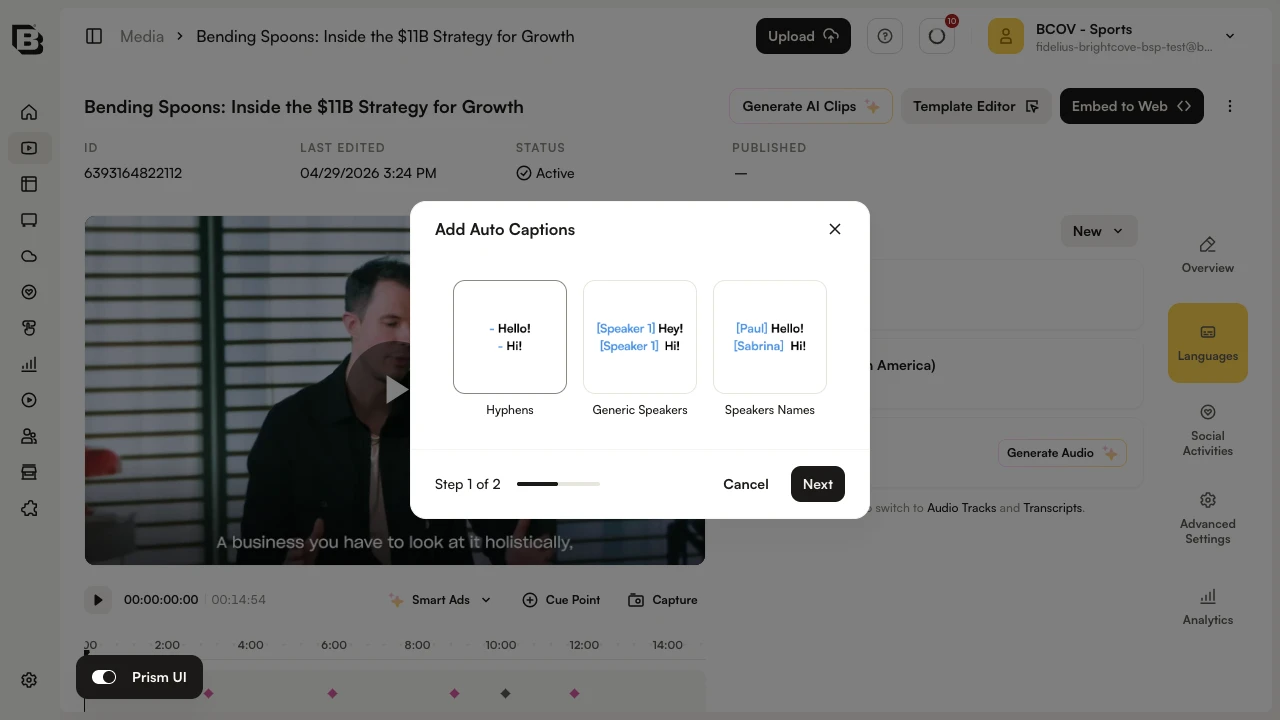
- When processing is complete, the captions will include audio cues and speaker attribution according to your selected style. Review and publish as needed.
Bulk generation
Generate captions with Enhanced Captions for multiple videos at once from the Media module.
- In the Media module, select the videos you want to process.
- Click the ... menu and choose Captions and Audio.
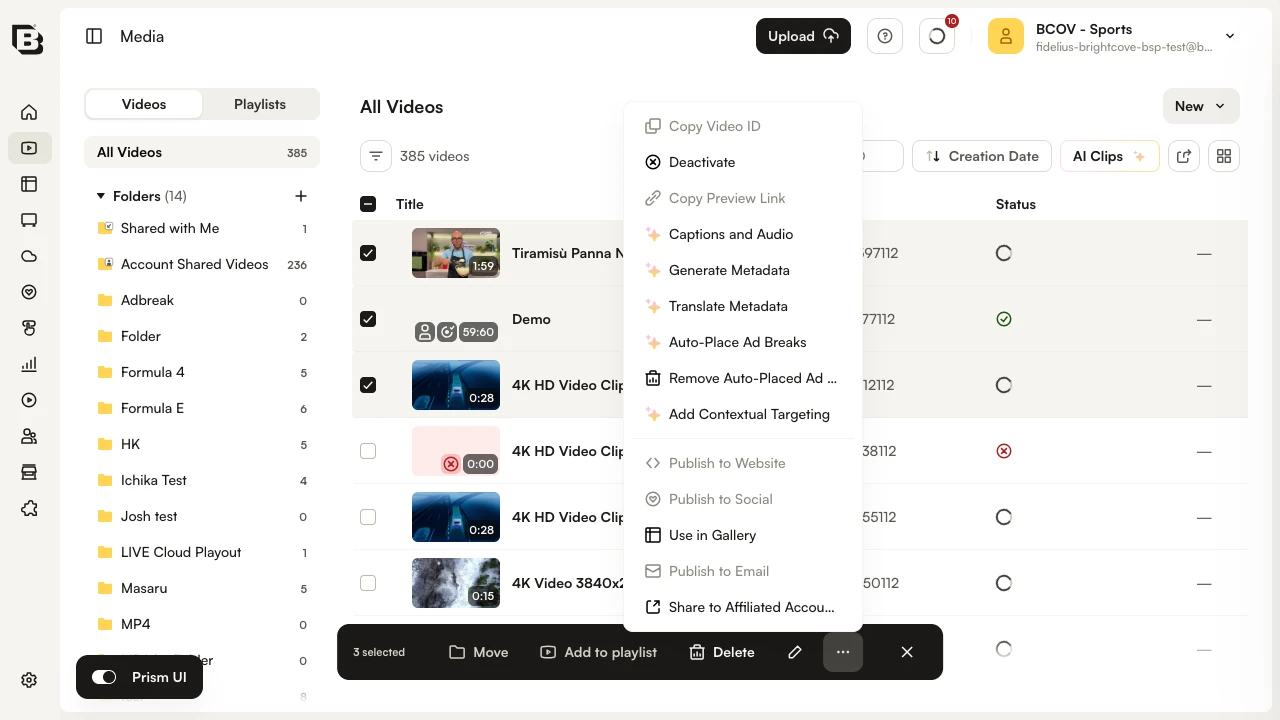
- In the dialog, configure your caption and speaker attribution options, choose your target languages, and click Generate to start processing.
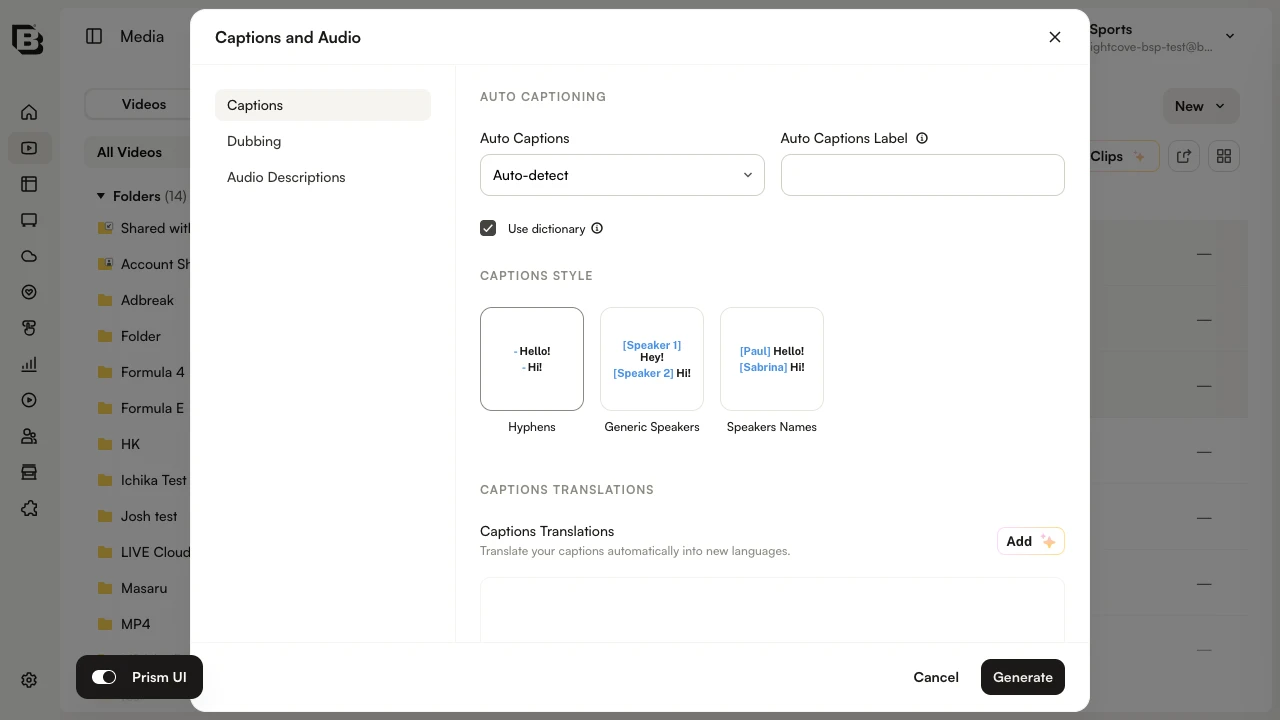
- When processing is complete, the captions will appear in the Languages section of each video’s Video Details page. Review and publish as needed.
Editing captions
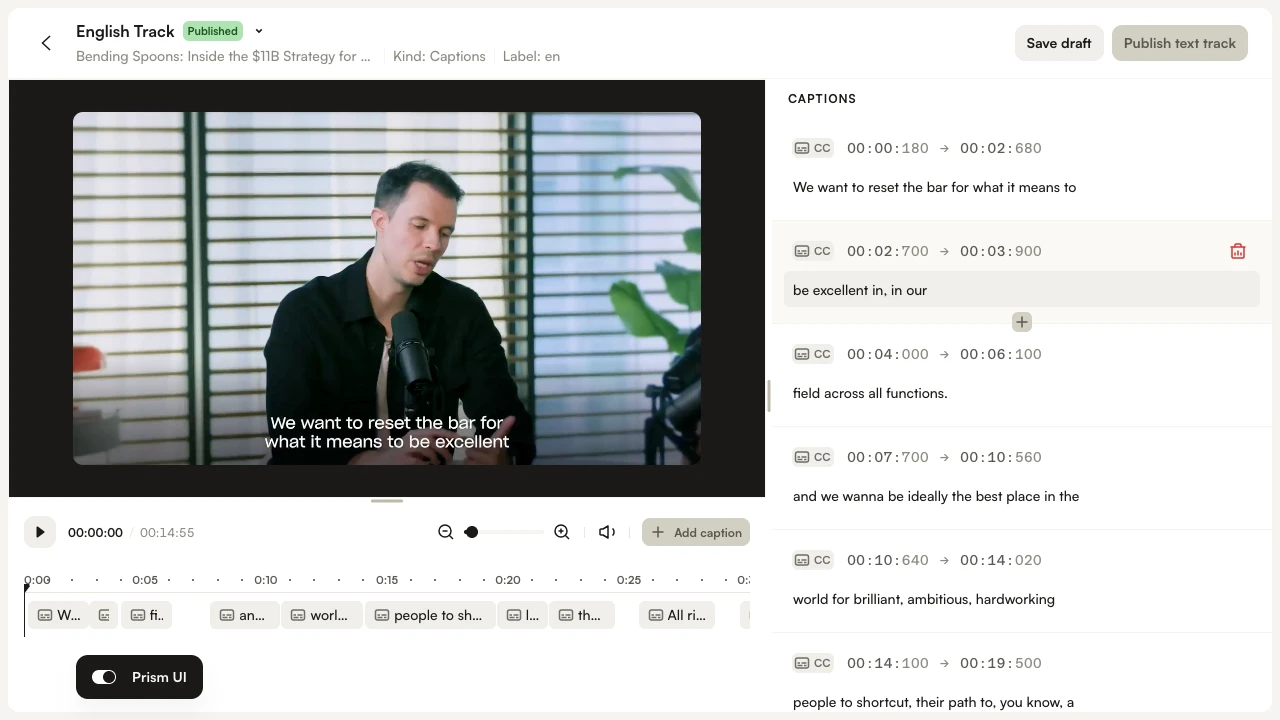
Captions with audio cues and speaker attribution can be edited using the caption editor. Currently, to change speaker names, you must edit them line by line.
- To edit a track, click the Edit text track pencil icon next to the track in the Languages section.
- Make your changes in the text editor directly, then save the draft.
API access
Enhanced Captions is available when requesting auto captions via the Dynamic Ingest API. For the full request format, authentication, and standard request body fields, see Requesting Auto Captions.
The table below shows the additional request body fields for Enhanced Captions (speaker attribution and audio cues).
| Field | Type | Required | Description |
|---|---|---|---|
diarization_mode |
string | no |
Controls how speaker attribution is rendered in the generated captions. Allowed values:
|
enable_audio_tags |
boolean | no | When true, non-speech sound indicators (audio cues) such as [music], [applause], and [laughter] are inserted into the generated captions. |
FAQs
- How do I enable Enhanced Captions?
Select a Speaker diarization mode and/or turn on Include non-speech audio cues in the Admin module. - Can I use Enhanced Captions with existing captions?
Enhanced Captions apply to newly generated captions. To apply the feature to existing captions, you must regenerate them. - What happens if the AI cannot detect a speaker's name?
It falls back to the generic format (e.g.,[Speaker 1]). - Can I edit speaker names after generation?
Yes, but currently changes must be made line by line. A future UI update will allow bulk renaming.