
Enabling Recommendations in the Player
Brightcove Recommendations is configured per player in the Players module. The player controls how recommendations are presented and timed — it does not change content eligibility (see Configuring Recommendation Rules for eligibility settings).
- Open the Players module.
- Select the player you want to configure.
- Ensure the player is using version 7.41.6 or later.
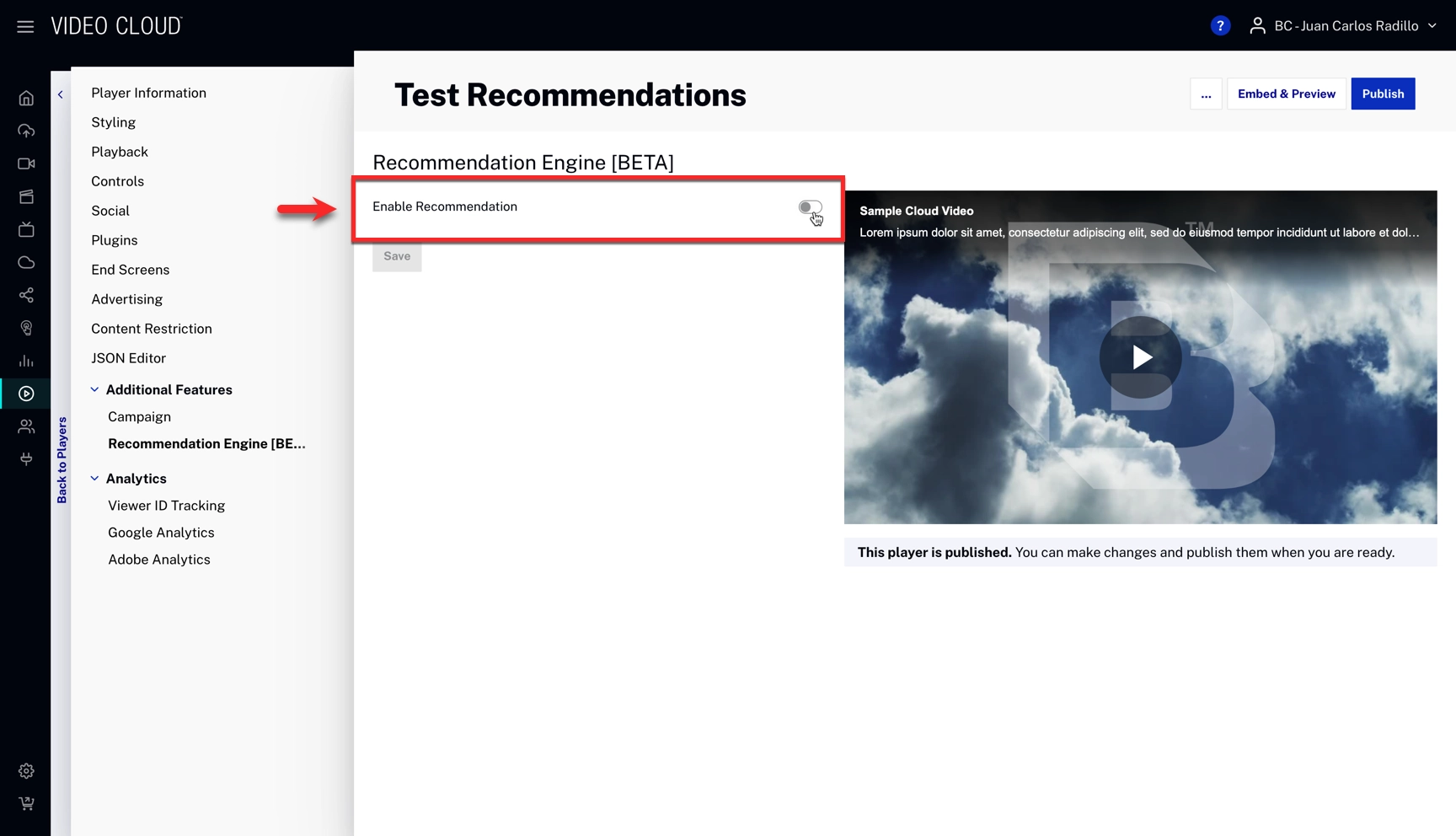
- Open the Additional Features tab on the right and expand Recommendations Engine.
- Toggle Enable Recommendation on.
Recommendation Strategy
The Primary Recommendation Rule determines the ranking algorithm used to select recommended videos:
| Strategy | Description |
|---|---|
| Related Contents | Recommends videos that are most semantically similar to the initial video. Uses embedding-based similarity with tag and recency boosters. |
| Trending Now | Recommends videos that are currently trending based on popularity, momentum, and time decay. Results are rescored by similarity to the initial video. |
| Recently Added | Recommends the most recently published videos. Results are rescored by similarity to the initial video. |
Enable Promoted Videos
When enabled, promoted videos configured in the Admin module will appear in recommendations for this player. Promoted videos are managed in Admin > Recommendation Engine Settings > Promoted Videos.
Picture-in-Picture
The Run recommendations during Picture in Picture (PiP) toggle controls whether recommendations continue running when the player is in PiP mode.
When enabled, recommendations and autoplay will continue even when the player is in a PiP window. Note that PiP is handled by the browser, so recommendations may not always be visible in the PiP window.
Layout Options
Choose how recommendations are displayed in the player:
| Layout | Description | Best for |
|---|---|---|
| In the corner | A small overlay in the corner of the player showing the next video with a countdown timer. | When the slate appears before the end of the video. Prioritizes video visibility. |
| Central on Overlay | A larger overlay in the center of the player displaying multiple recommendation thumbnails. | When the slate appears after video completion and more than one recommendation is displayed. Prioritizes recommendations visibility. |
Displayed Videos
The N. Displayed Videos setting controls the maximum number of videos shown in the recommendation slate.
Timing & Autoplay
These settings control when recommendations appear and when playback transitions to the next video.
Show Recommendations
Determines when the recommendation slate appears. Configure a number of seconds and select Before Video Completion or After Video Completion.
Auto-Play Next Video
Toggle this on to have the player automatically transition to the next recommended video. When the toggle is off, the viewer must select a recommendation manually.
Play Next Video
When Auto-Play Next Video is enabled, this setting determines when the transition fires. Configure a number of seconds and select Before Video Completion or After Video Completion.
Example Configurations
| Style | Show Recommendations | Play Next Video | Description |
|---|---|---|---|
| Conservative | After completion | Disabled | Recommendations appear only after the video ends. No autoplay. |
| Balanced | 5 seconds before completion | At video completion | Recommendations appear near the end. Autoplay triggers when the video finishes. |
| Fast transition | 5 seconds before completion | 2 seconds before completion | Recommendations and autoplay both trigger before the video ends, maximizing session continuity. |
Ads & Recommendations
Brightcove Recommendations works with SSAI and ad plugins. When ads are present:
- Ads always take precedence over recommendations.
- The recommendation overlay closes when an ad starts.
- The overlay reopens after the ad finishes.
- Autoplay timers are paused during ads and resume afterward.
Save and Publish
After configuring your recommendation settings:
- Click Save in the Recommendations Engine section header.
- Click Publish Changes at the top of the player to deploy the new configuration.