
Introduction
Contextual Advertising is part of the Brightcove AI Suite. It analyzes your video content and categorizes it according to the IAB Content Taxonomy 3.1. The resulting key-value pairs can be passed to your advertising server in ad calls to support contextual targeting—without manually mapping your video content to categories.
You can configure and use the feature from two places in Video Cloud Studio:
- Admin module – Set account-wide defaults, ad key labels, and category exclusions under Smart Ads.
- Media module – Generate categories for a single video from Video Details, or use the video context menu to process one or more videos.
There are two generation methods:
- Video-level categories – Analyzes the full video and generates a single category set. Use for pre-roll targeting.
- Scene-level categories – Analyzes the full video and each scene to generate categories at the video level and per cue point. Use for pre-roll and mid-roll targeting.
After generation, review suggested categories, adjust them as needed, and save. Categories are stored in advertising key-value fields in the video and cue point metadata.
Admin settings
Configure how Contextual Advertising behaves for your account in the Admin module.
- Open the Admin module and select Smart Ads.
- Under Contextual Advertising, configure the following as needed:
- Automatically apply Suggested Content Categories for Ad Targeting – When enabled, generated categories are saved to the respective key-value fields without requiring manual review.
- Edit Ad Key Label – Define prefixes for AI-generated contextual ad keys:
- Video-level Label – Prefix for video-level categories (for example,
bc_vid_iab31). Preview format:bc_vid_iab31={categories}. - Scene-level Label – Prefix for per-cue-point categories (for example,
bc_scene_iab31). Preview format:bc_scene_iab31={categories}.
- Video-level Label – Prefix for video-level categories (for example,
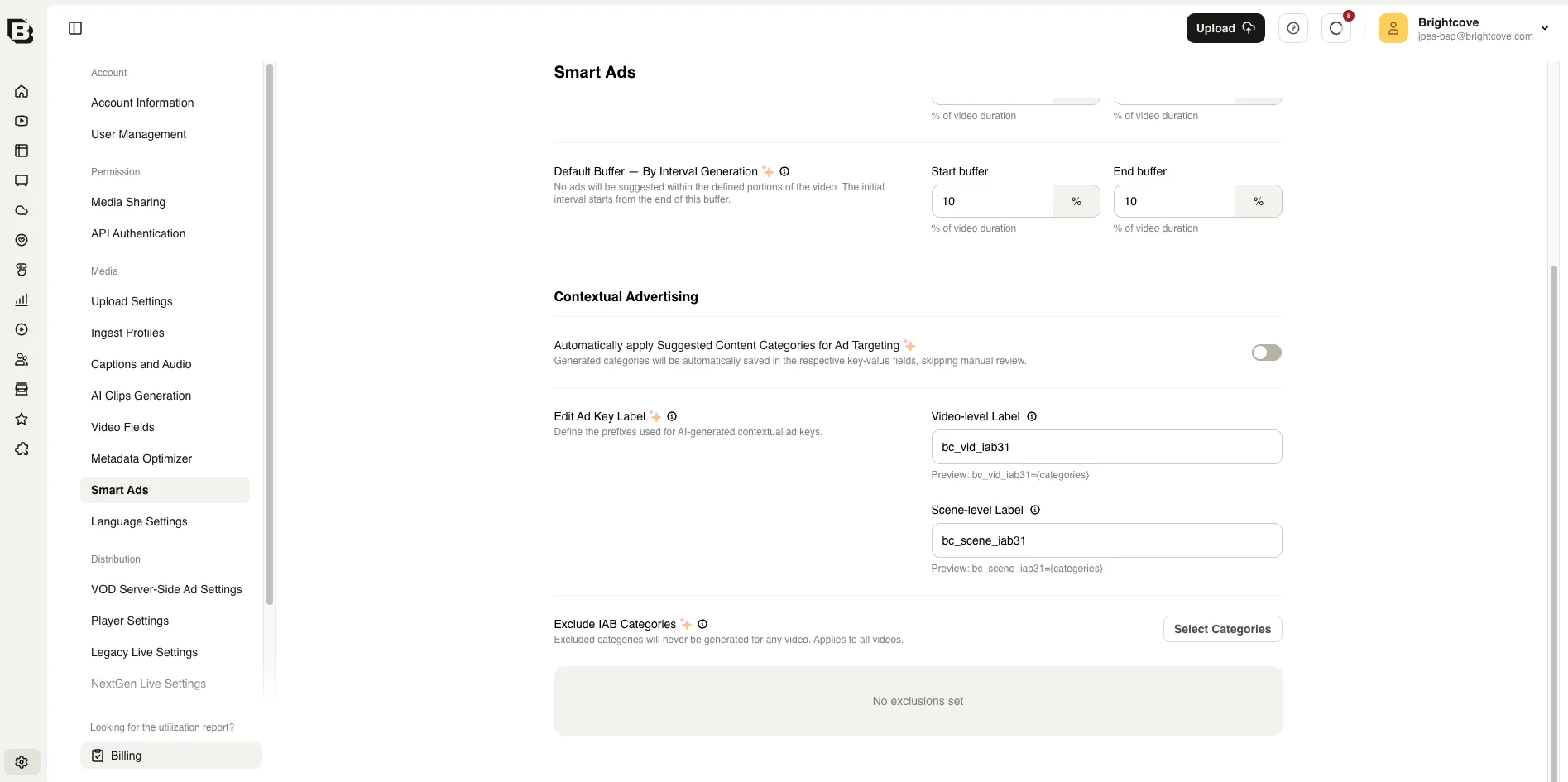
- Exclude IAB Categories – Select categories that will never be generated for any video in your account.
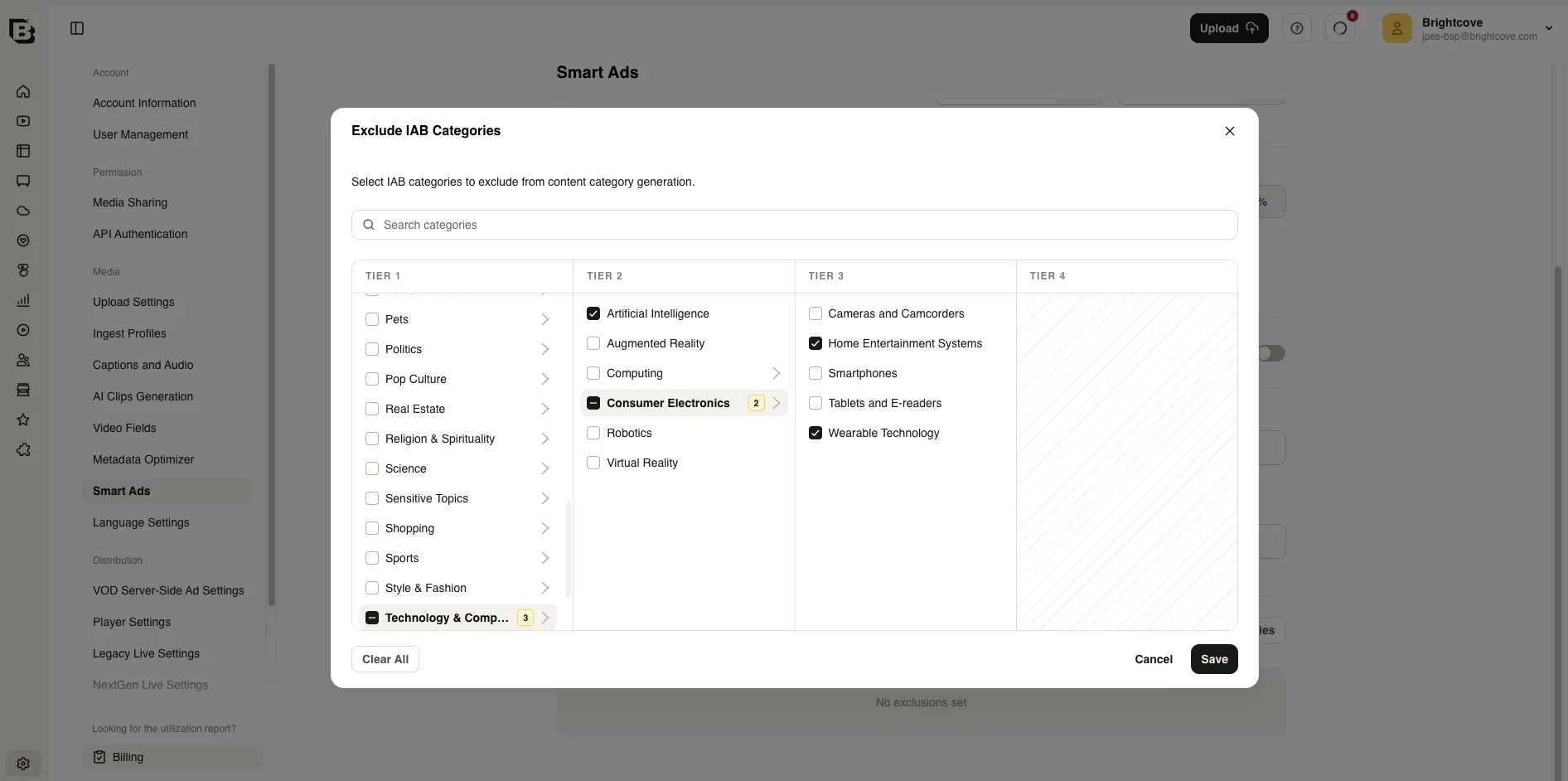
The category tree in the exclusion dialog follows the same tiered structure as the IAB Content Taxonomy 3.1. You can exclude a category that has no subcategories by selecting it on its own. If you exclude a category that has subcategories, all of its subcategories are excluded automatically—they will all appear selected in the tree.
To manage exclusions, click Select Categories (or Edit when exclusions already exist). Browse or search the tiered category tree, select categories to exclude, and click Save.

- Changes are saved automatically.
Video-level generation
Generate content categories for a single video from the Video Details page.
- In the Media module, open a video.
- Below the video player, click Smart Ads and choose Add Contextual Targeting.
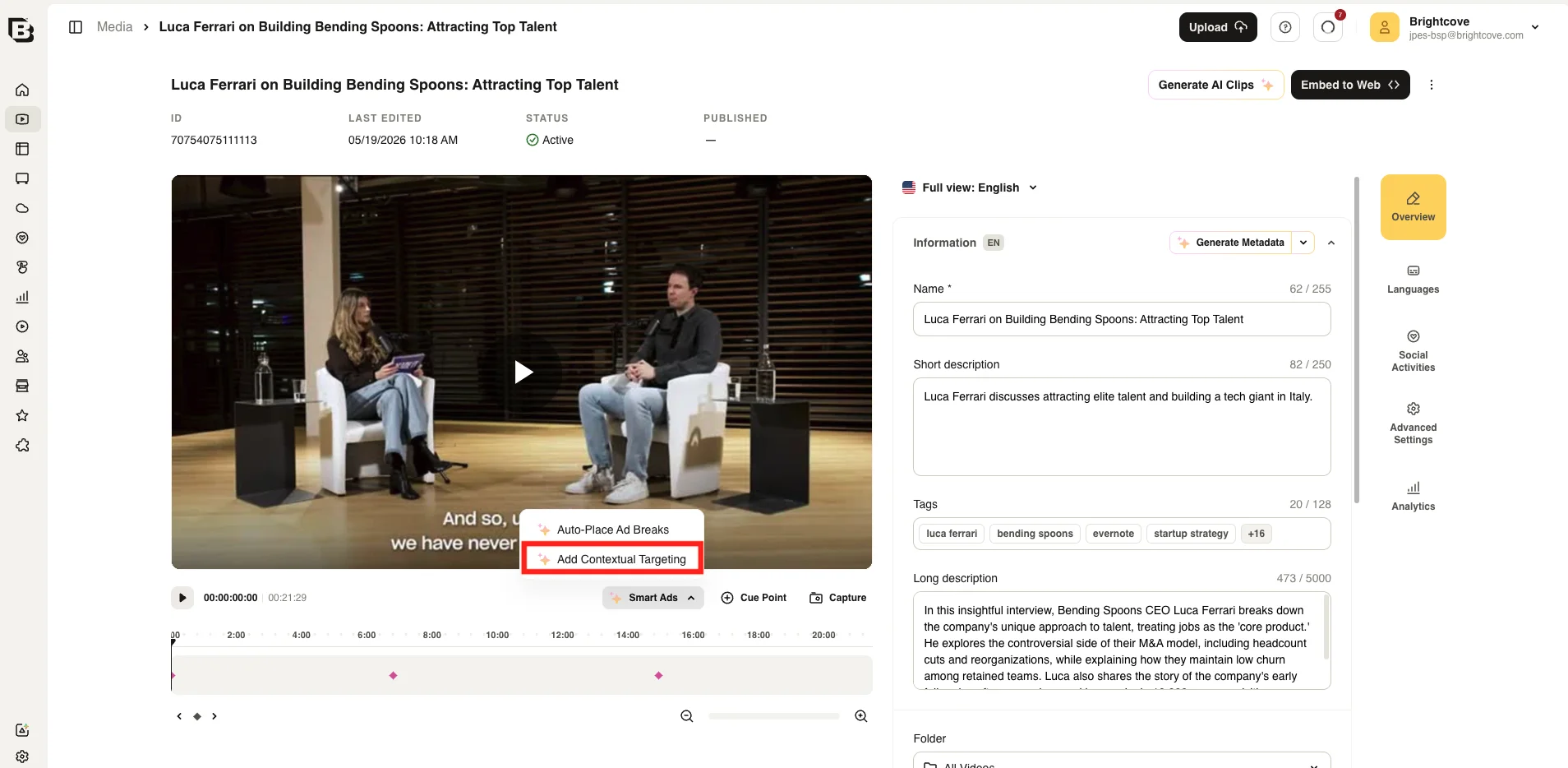
- In the Generate Content Categories for Ad Targeting dialog, choose a generation method (see Generation methods) and click Generate. If the video or its ad cue points already contain key-value pairs (for example, values you added manually), see Existing ad targeting keys before continuing.
- When processing completes, use Review Ad Categories (see Reviewing categories) to confirm or edit the suggested categories before they are used in ad workflows.
Existing ad targeting keys
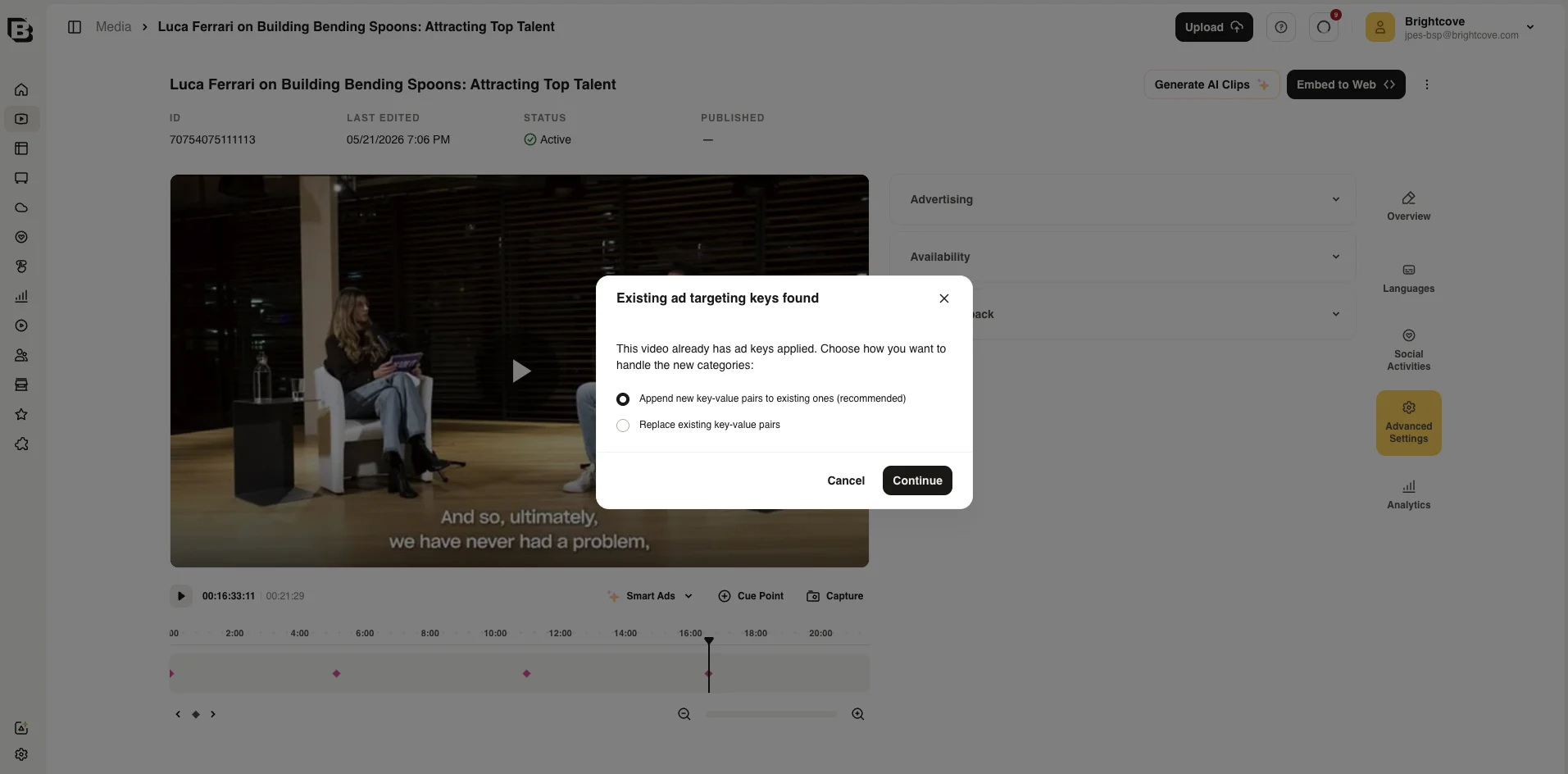
If you start generation on a video that already has ad targeting key-value pairs—in the Ad Key field, in Key/Value Pairs on ad-type cue points, or both—the Existing ad targeting keys found dialog appears before processing begins.
Choose how to handle the new categories:
- Append new key-value pairs to existing ones (recommended) – Keeps your current keys and adds the AI-generated contextual pairs alongside them.
- Replace existing key-value pairs – Removes existing ad targeting keys in the affected fields and replaces them with the newly generated categories.
Click Continue to run generation with your selection, or Cancel to close without changes.
Generation methods
The generation dialog offers two methods for analyzing your content:
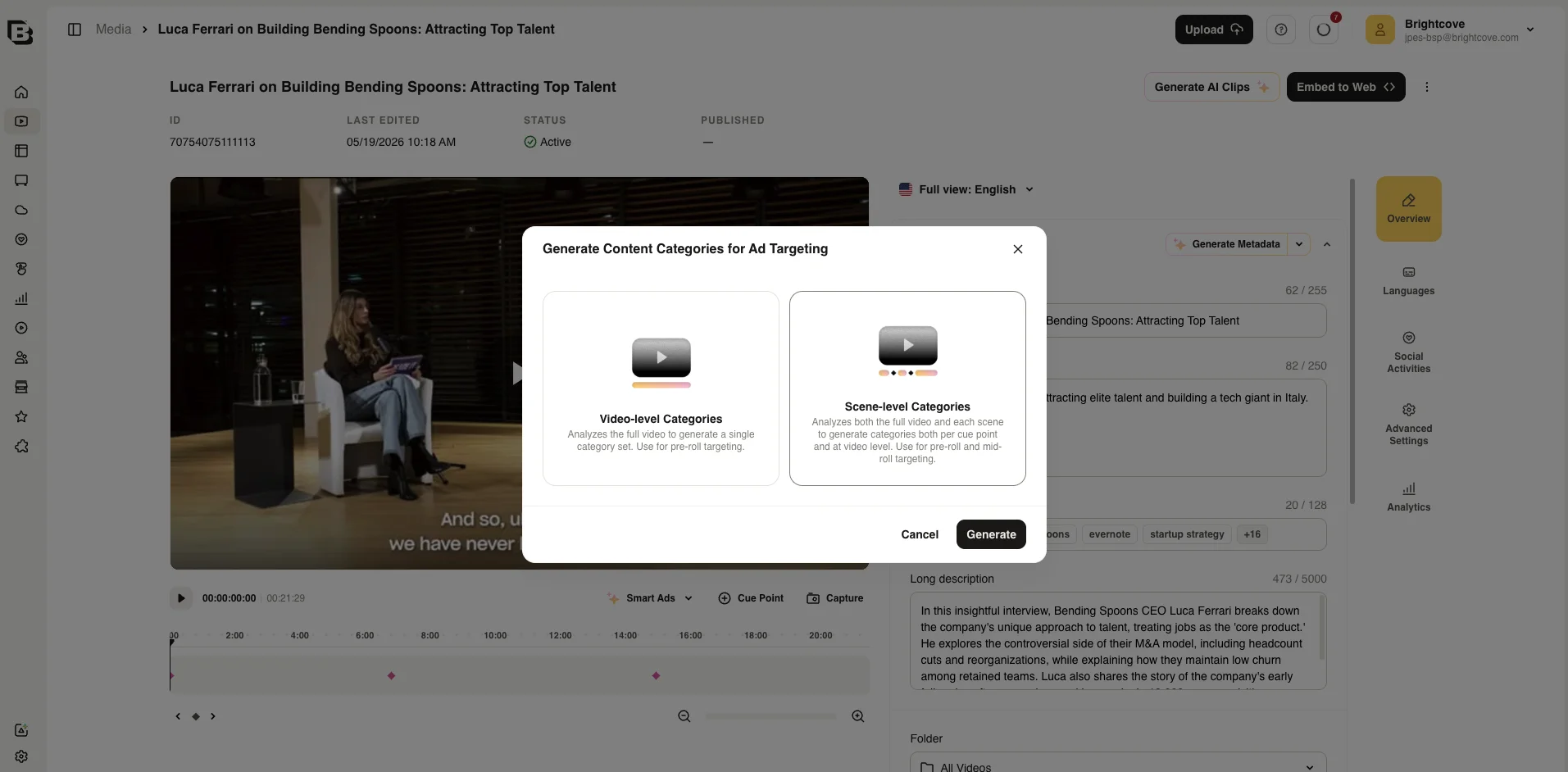
Video-level categories
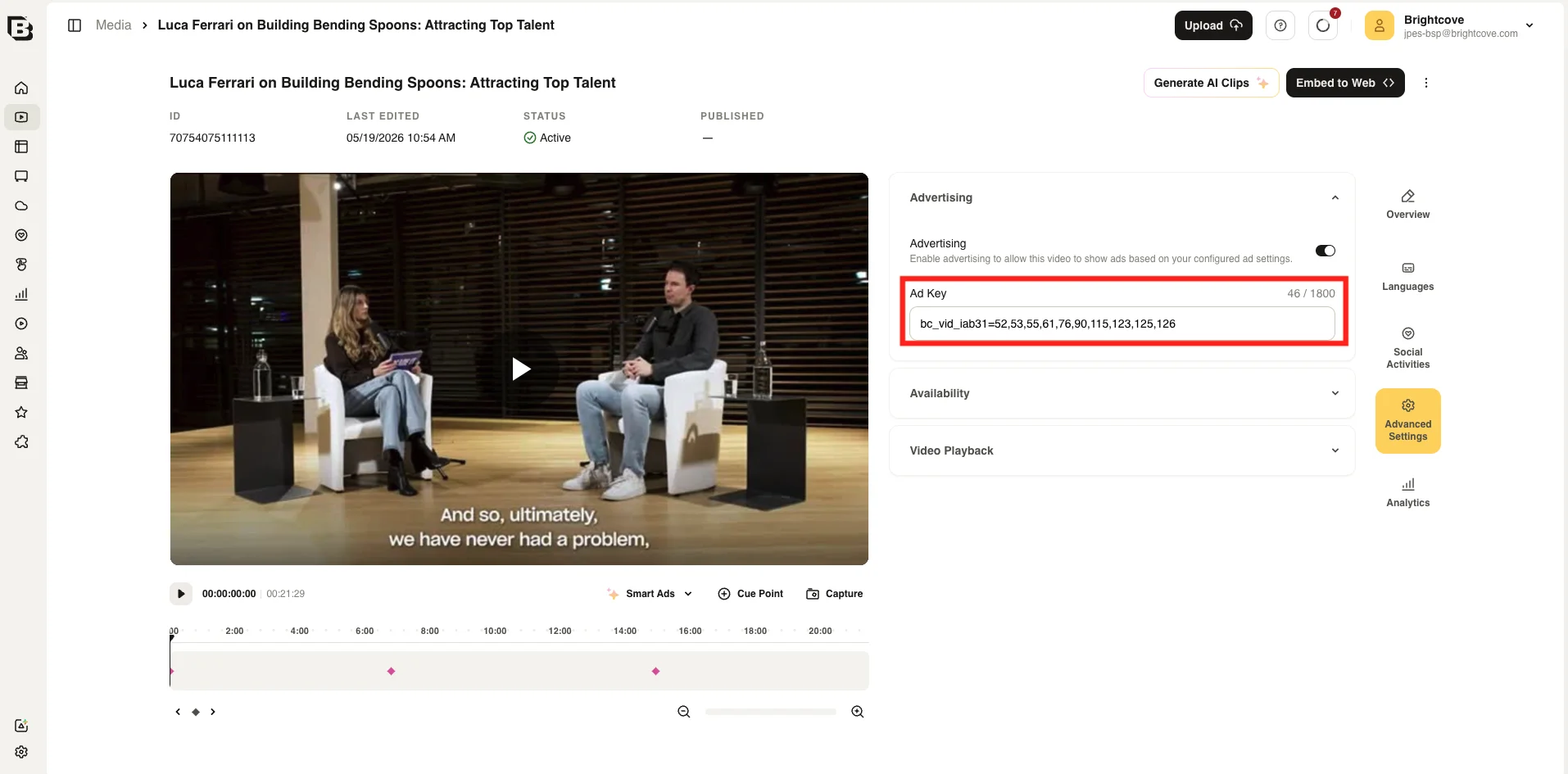
Analyzes the entire video and produces one set of IAB categories for the video. This is suited to pre-roll ad targeting where a single contextual signal applies to the whole asset. Video-level categories are saved in the Ad Key field on the video (under Advanced Settings > Advertising).
Scene-level categories
Analyzes the full video and individual scenes (aligned with cue points) to produce:
- Video-level categories (applied across the asset)—saved in the Ad Key field
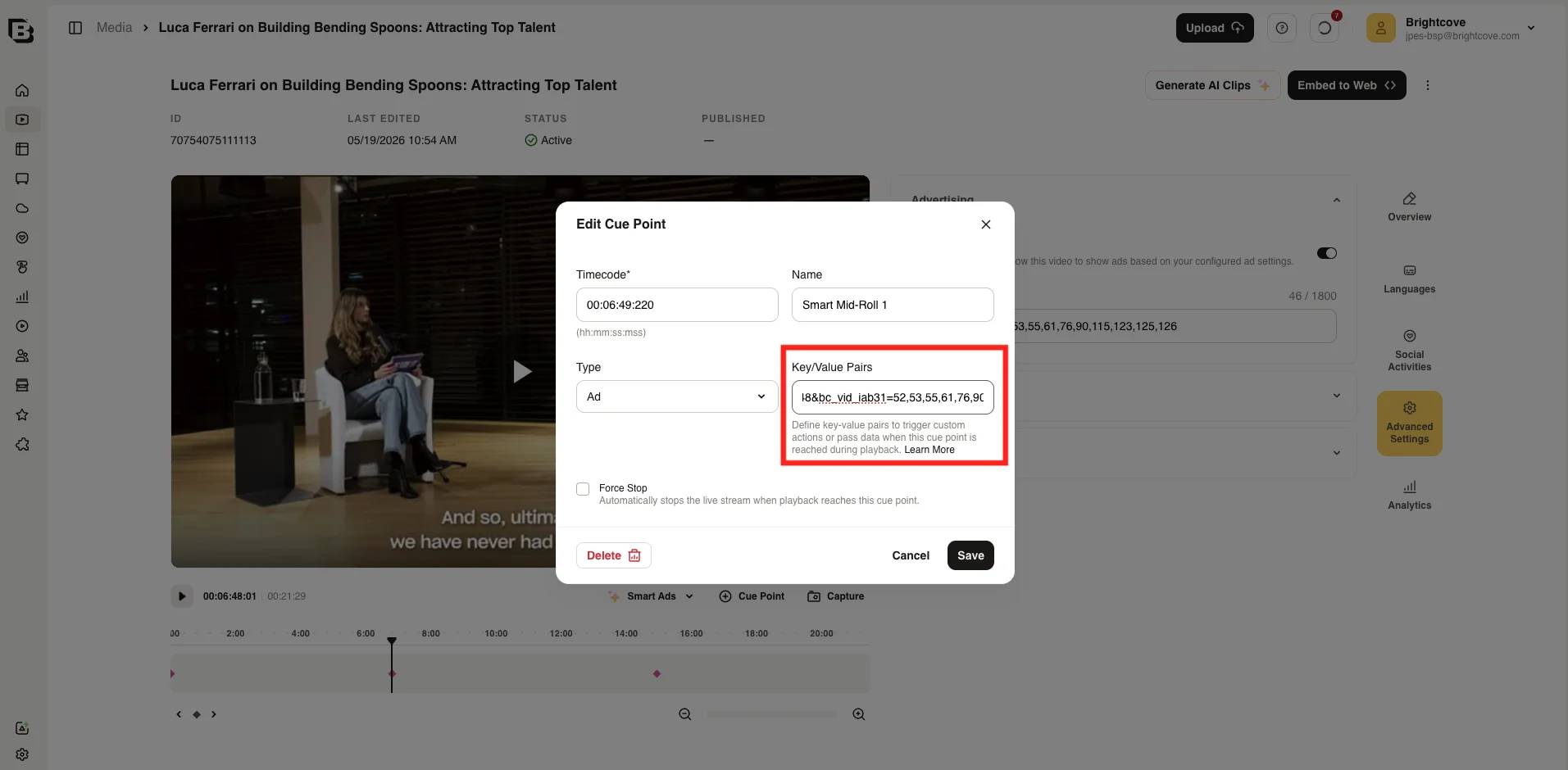
- Per-cue-point categories for each ad-type cue point—saved in the Key/Value Pairs field on that cue point
Use this method when you need contextual signals for both pre-roll and mid-roll targeting.
Reviewing categories
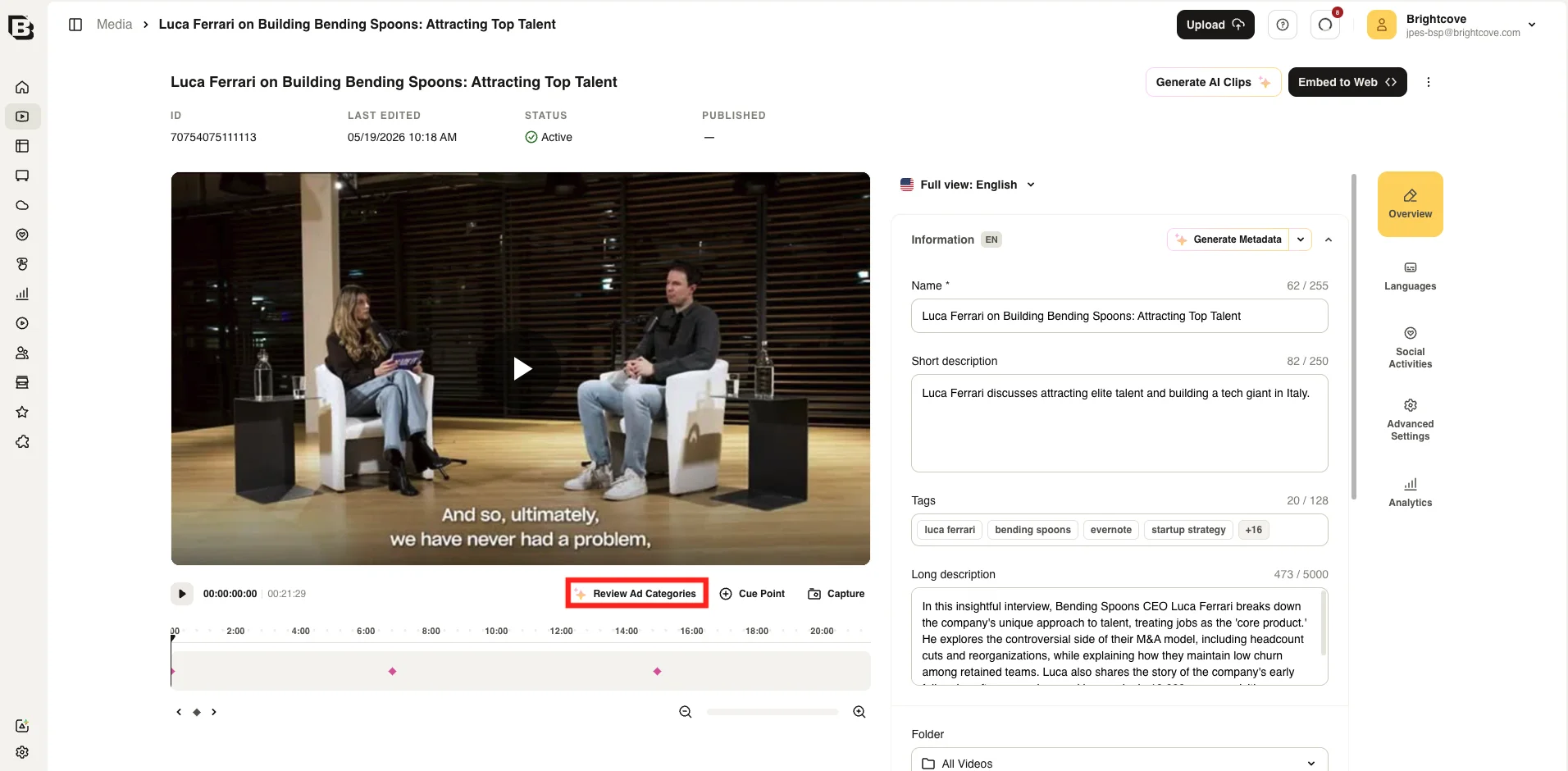
After Contextual Advertising runs, review and edit suggested categories before they are passed to your ad server. Once the system has generated its suggestions, the Smart Ads button below the video player changes to Review Ad Categories.
- On the Video Details page, click Review Ad Categories (formerly Smart Ads) below the video player.
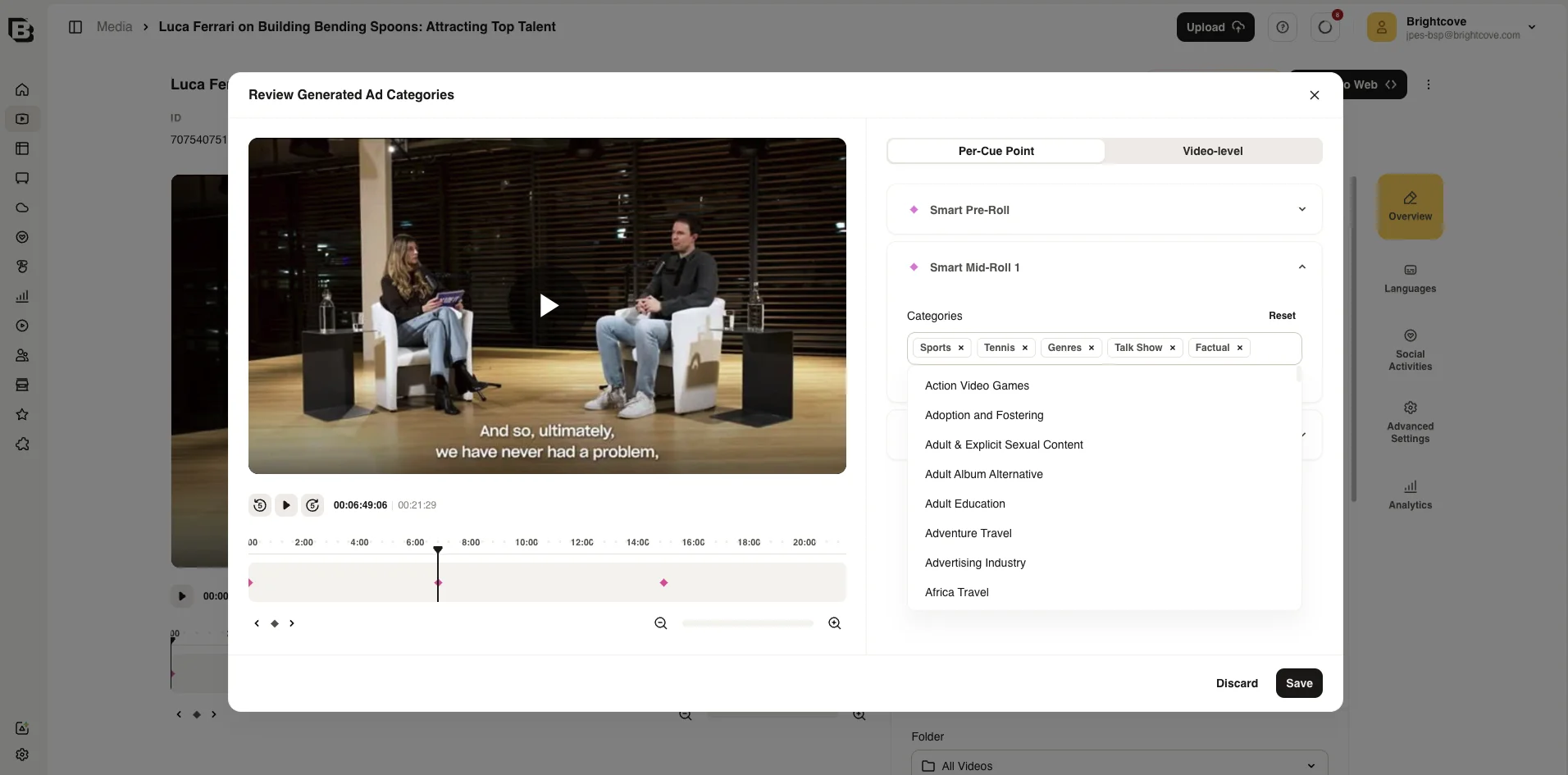
- Use the Per-Cue Point tab to review and edit categories for each smart pre-roll and mid-roll. Remove a category by hovering over its tag and clicking the x that appears. Add categories using the dropdown. Click Reset to restore AI suggestions for that cue point.
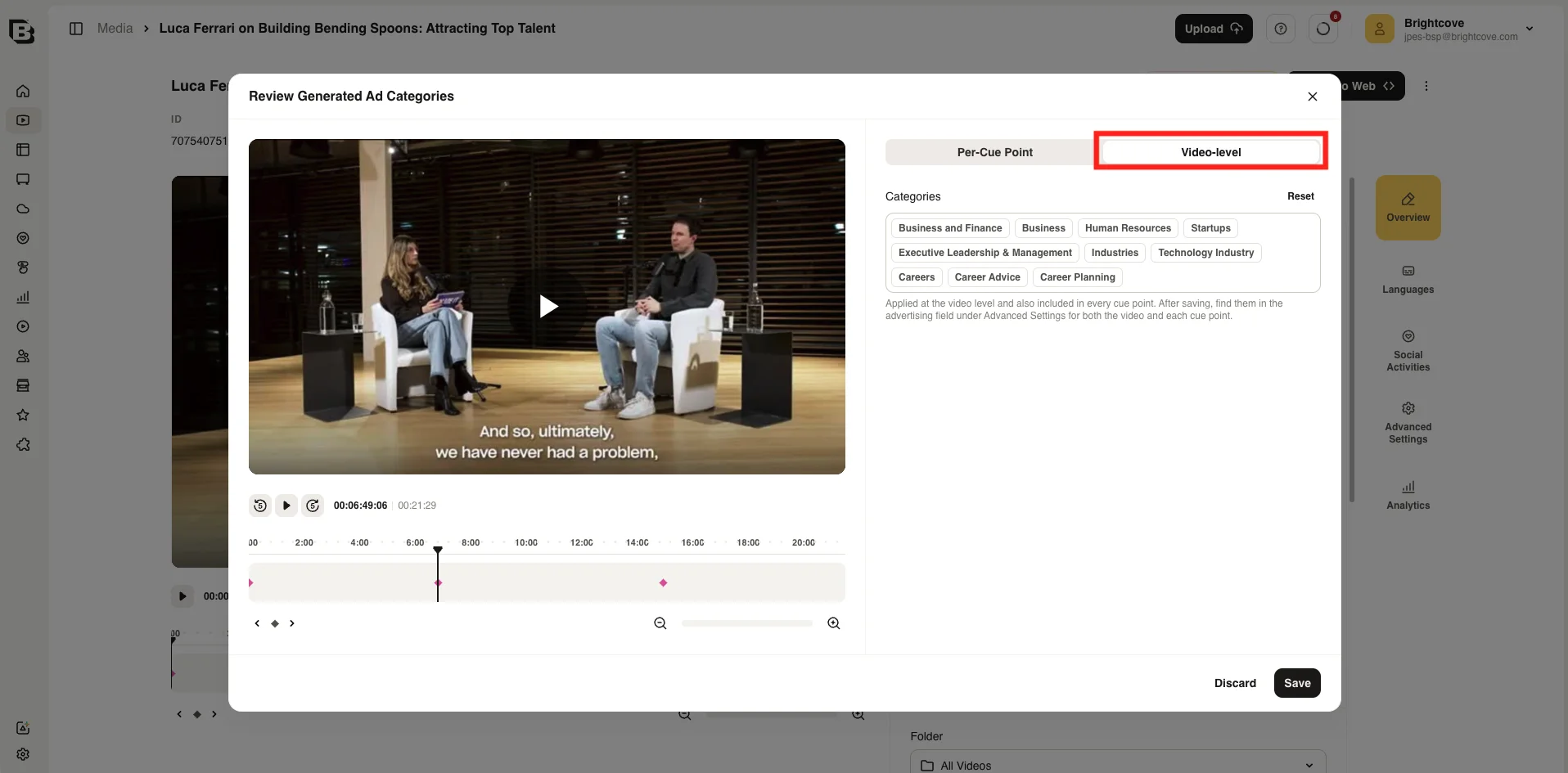
- Use the Video-level tab to review categories applied to the entire video. Video-level categories are also included on every cue point when you use scene-level generation.
- Click Save to keep your changes, or Discard to close without saving.
Where categories are stored
After you save reviewed categories (or when they are auto-applied), contextual targeting data is written to advertising fields in Video Cloud Studio.
Video-level: Ad Key field
On the Video Details page, open the Advanced Settings tab. Under Advertising, the Ad Key field contains the video-level contextual key-value pair (for example, bc_vid_iab31=52,53,55,... with IAB category IDs).
Cue point: Key/Value Pairs
For scene-level categories, each ad cue point stores its own key-value pair in the cue point editor. Open a cue point from the timeline and edit the Key/Value Pairs field (for example, bc_scene_iab31=... alongside any video-level values).
Media module: Single and multi-video generation
Run Contextual Advertising from the Media module grid without opening each video first.
- In the Media module, select one or more videos.
- Click the ... menu on a selected video and choose Add Contextual Targeting.
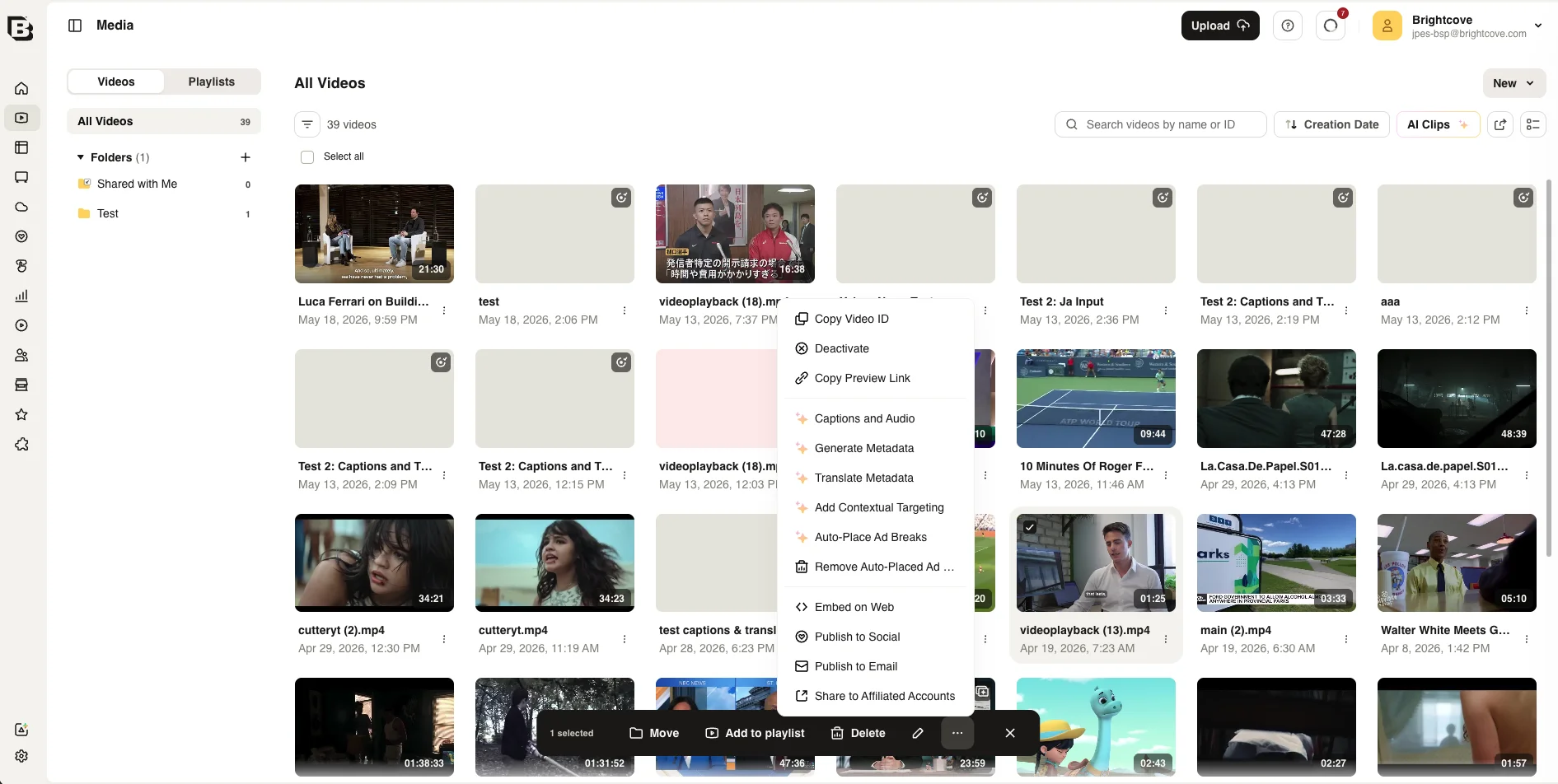
- Choose a generation method in the dialog and click Generate. Processing runs for each selected video.
- Open each video to use Review Ad Categories and confirm categories as needed.
API access
The Contextual Advertising feature is available via the Ingest API. All endpoints require OAuth with scope video-cloud/video/read.
Create / Get / Delete Contextual Advertising jobs (by video)
Endpoint:
POST | GET | DELETE https://ingest.api.brightcove.com/v1/accounts/{account_id}/videos/{video_id}/ai/ad-contextual
Scope: video-cloud/video/read
POST – Start a new contextual advertising job
Request body (all fields optional):
skip_review: boolean — whentrue, cue points are updated without a manual review step.replace_existing: boolean — whentrue, replaces any existing contextual data on the video.key_video_level: string — custom key used to store video-level contextual labels in ad targeting metadata.key_cue_level: string — custom key used to store cue-point-level contextual labels in ad targeting metadata.analysis_scope: string —"video"to generate labels for the whole video only, or"both"to generate labels at both video and cue-point level.
Response: job_id (string), job_status (e.g. processing).
GET – Get job status / result for a video
Returns the current contextual advertising job for the given account and video. Each response includes:
account_id,video_id: stringsjob_id: string (workflow execution ID)status:processing|finished|failedoutput: contextual analysis result when finished, containing:video_labels: string — comma-separated IAB node IDs for the whole video, formatted as the ad key value (e.g."bc_vid_iab31=52,53,61,55")cue_labels: array of objects, one per cue point:time: float — cue point position in secondslabels: string — comma-separated IAB node IDs for that scene (e.g."bc_scene_iab31=123,125,52,53")
detailed_info: human-readable breakdown of the assigned categories:video: array of label objects for the whole video, each withid,label(category name), andparent_idcue: array of objects, one per cue point, each withtimeand alabelsarray of the same label objects
key_video_level: string — the ad key prefix used for video-level output (e.g."bc_vid_iab31")key_cue_level: string — the ad key prefix used for cue-point-level output (e.g."bc_scene_iab31")
skip_review: booleanreplace_existing: booleanerror: string (present whenstatusisfailed)
If no job exists for the video, the response body is empty.
DELETE – Cancel a job
Stops any in-progress workflow and removes the record. Returns an empty body.
Get list of Contextual Advertising jobs (by account)
GET https://ingest.api.brightcove.com/v1/accounts/{account_id}/ai/ad-contextual/jobs
Scope: video-cloud/video/read
Response: array of job objects (same shape as the video-level GET)
IAB Taxonomy
These endpoints let you read and customise the IAB taxonomy used for contextual labelling.
GET – Get IAB taxonomy
GET https://ingest.api.brightcove.com/v1/accounts/{account_id}/ai/ad-contextual/taxonomy
Scope: video-cloud/video/read
Response fields:
version: taxonomy versionsource: source identifiernodes: flat list of all taxonomy nodestree: hierarchical tree structureusing_account_override: boolean — whether an account-level customisation is active
PATCH – Update IAB taxonomy
PATCH https://ingest.api.brightcove.com/v1/accounts/{account_id}/ai/ad-contextual/taxonomy
Scope: video-cloud/video/read
Request body:
excluded_node_ids: array of strings — node IDs to exclude from labelling.add_nodes: array of custom node objects to add. Each entry requires:id,parent_id,label,sort_order,is_active.
Response: { "message": "..." }.
FAQs
- What are IAB categories?
IAB (Interactive Advertising Bureau) content categories are a standard taxonomy used by the ad industry to describe video content for brand safety and contextual targeting. - When should I use video-level vs scene-level categories?
Use video-level when you only need one contextual signal for the whole video (typical for pre-roll). Use scene-level when mid-roll breaks should carry context that matches the content at each break. - Do excluded categories apply retroactively?
No. Exclusions affect only videos processed by Contextual Advertising after the exclusion is saved. To remove categories already stored in ad keys, edit the video or cue point metadata manually, or regenerate contextual targeting after updating exclusions.