
Introduction
Extended Audio Description pauses the video when there is no natural pause to describe what is happening on screen, and resumes playback after the description. Standard audio description fits descriptions into the natural pauses in the video instead.
Use extended audio description when there are not enough pauses to describe important visual content and that content is crucial for understanding. For example, use it for educational content with dense demonstrations or lectures, and for similar content where the visuals carry much of the explanation.
For videos with enough natural pauses for descriptions, use Standard Audio Description.
A new video is created
Because extended audio description lengthens the duration of the video, Brightcove creates a new video for each generation language instead of adding the descriptions to the original video.
The new videos appear in the Media module as children of the original video, using a parent-child relationship similar to Content Multiplier. This keeps the described versions organized and tied to the relevant video.
Metadata is carried forward automatically to each child video, including the title, the short and long descriptions, and tags.
Generating extended audio description from Video Detail
You can generate an extended audio description for a single video from the Languages section of the Video Detail page.
- Open the Media module and select the video you want to describe.
- In the Languages section, click New and select Generate Audio Description.
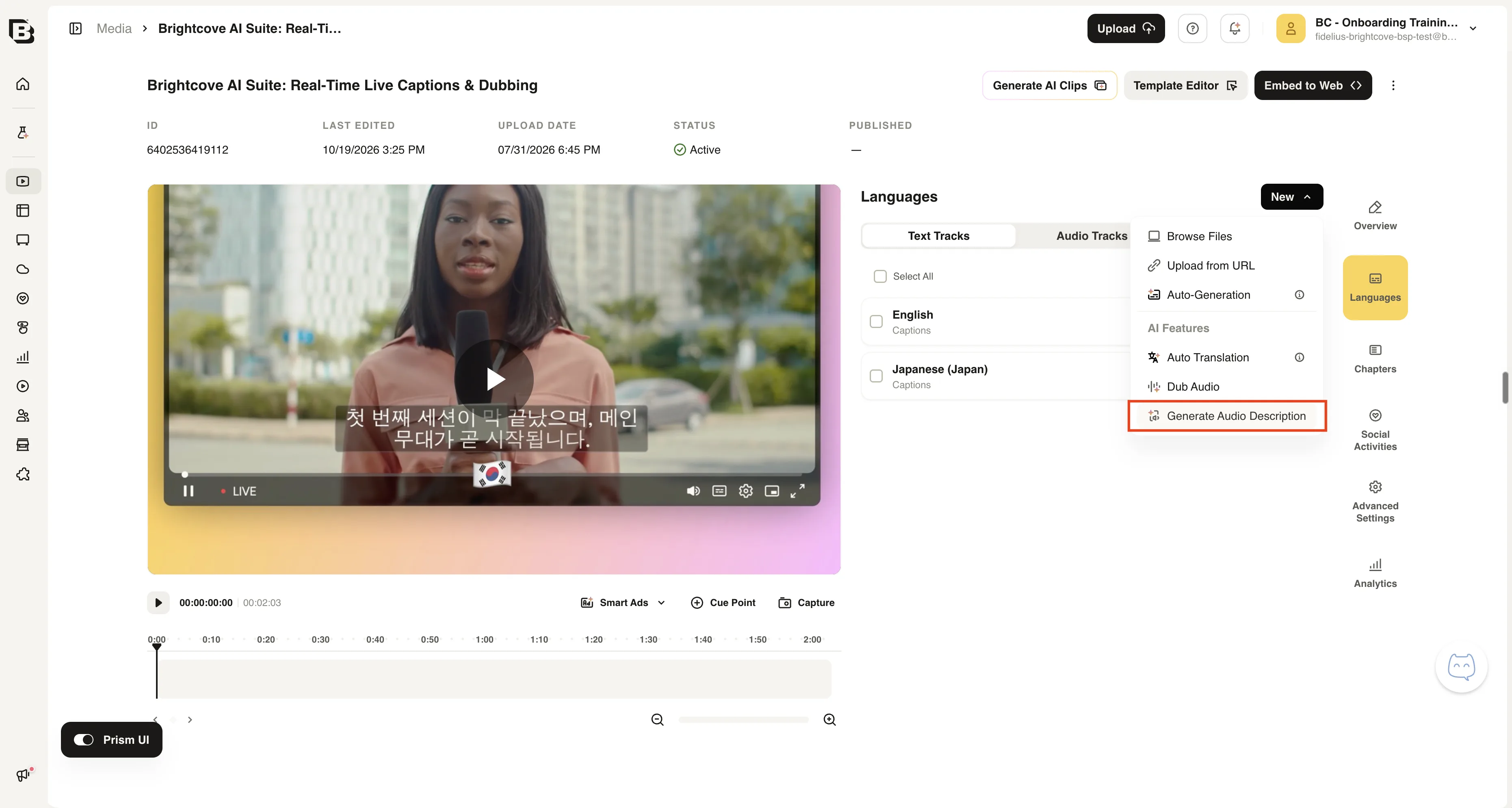
- Select one or more generation languages. The source language is preselected.
- Turn on Use Extended Mode.
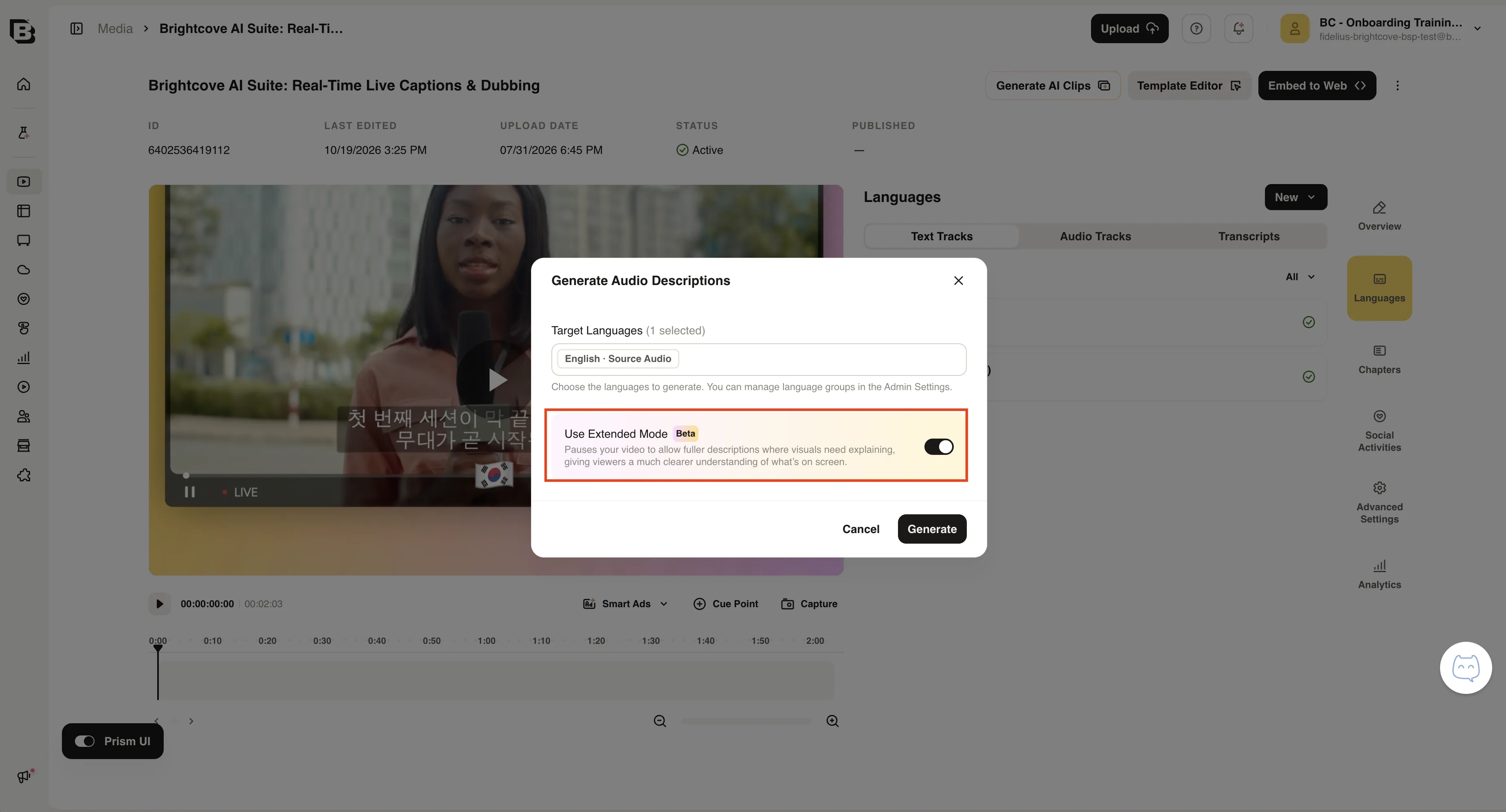
- Click Generate.
Generating extended audio description in bulk
You can generate extended audio descriptions for multiple videos at once from the Media module.
- In the Media module, select the videos you want to describe.
- Open the AI Suite menu, then open Captions and Audio and select Generate Audio Description.
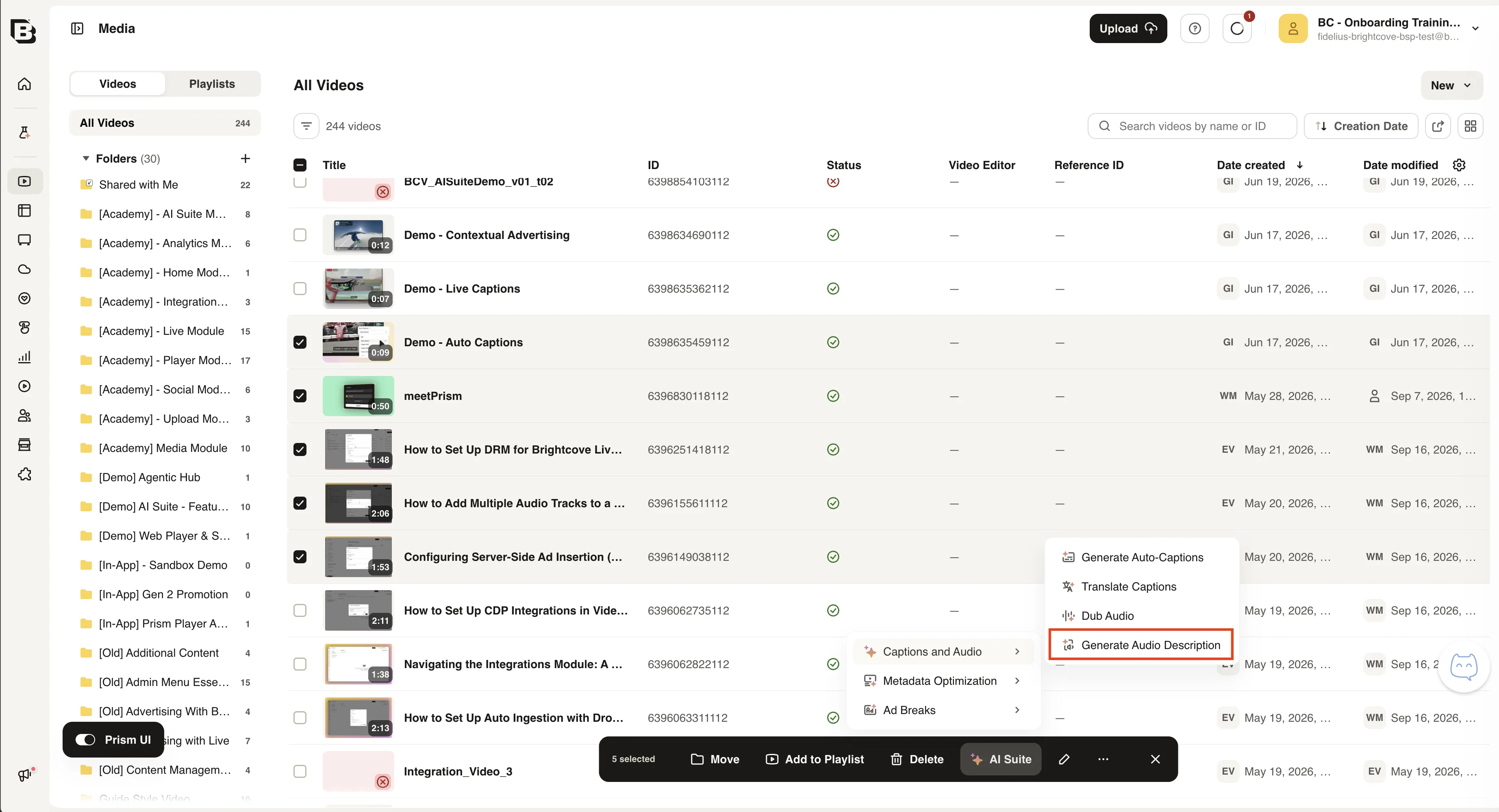
- Select one or more generation languages. The source language is preselected.
- Turn on Use Extended Mode.
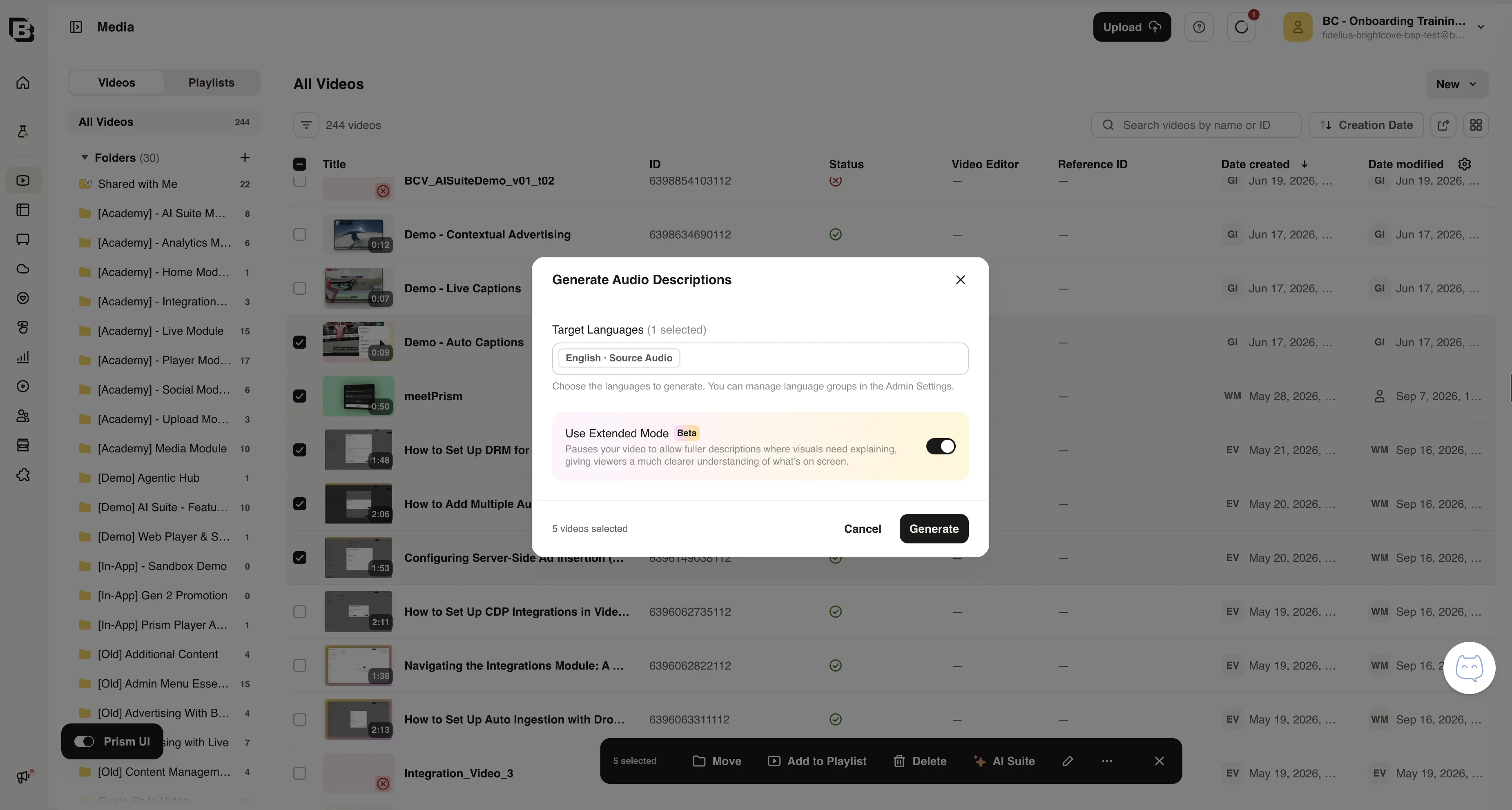
- Click Generate.
Finding the child video and descriptive track
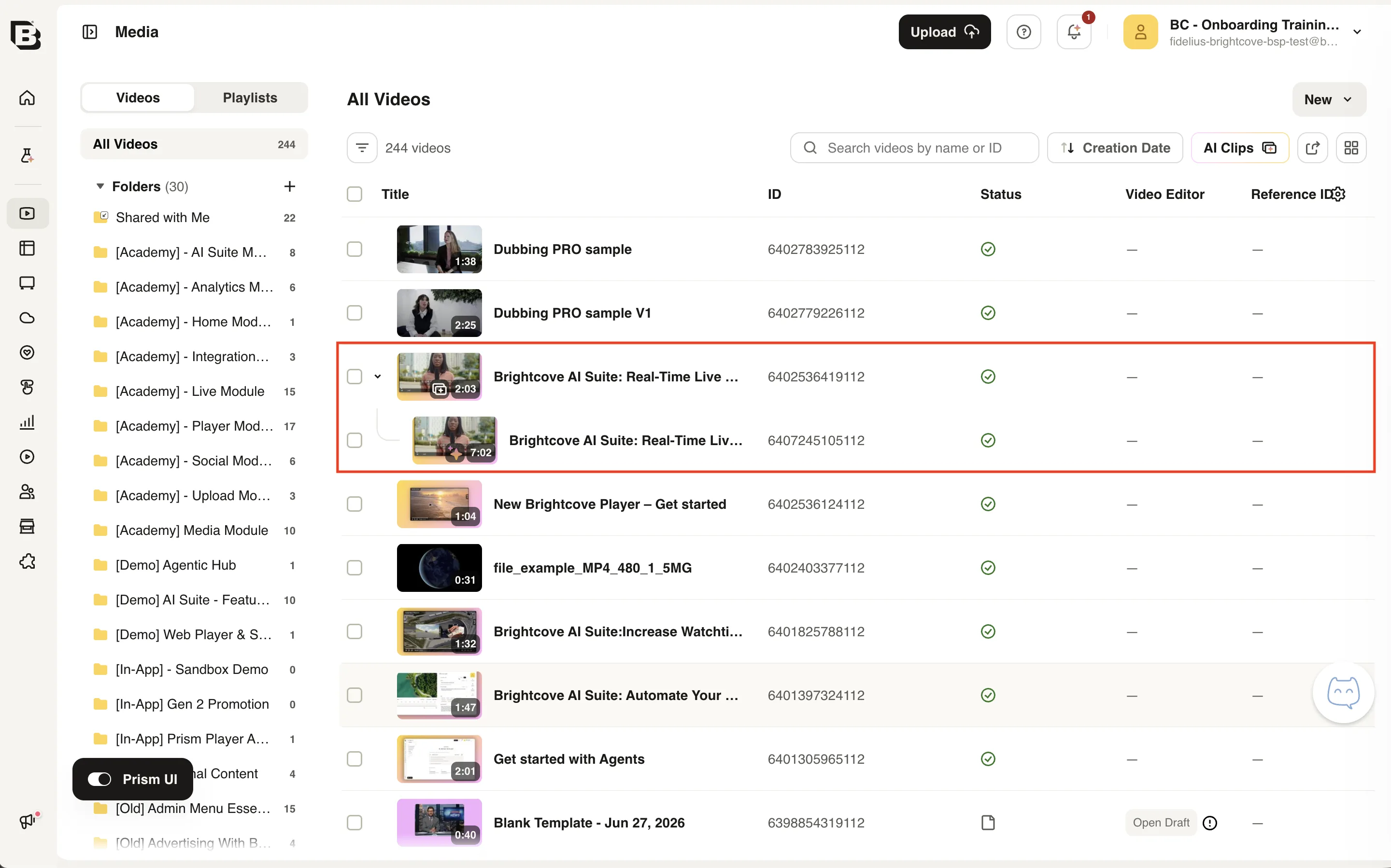
When processing finishes, the extended version appears as new videos in the Media module. Expand the original video to see the child videos.
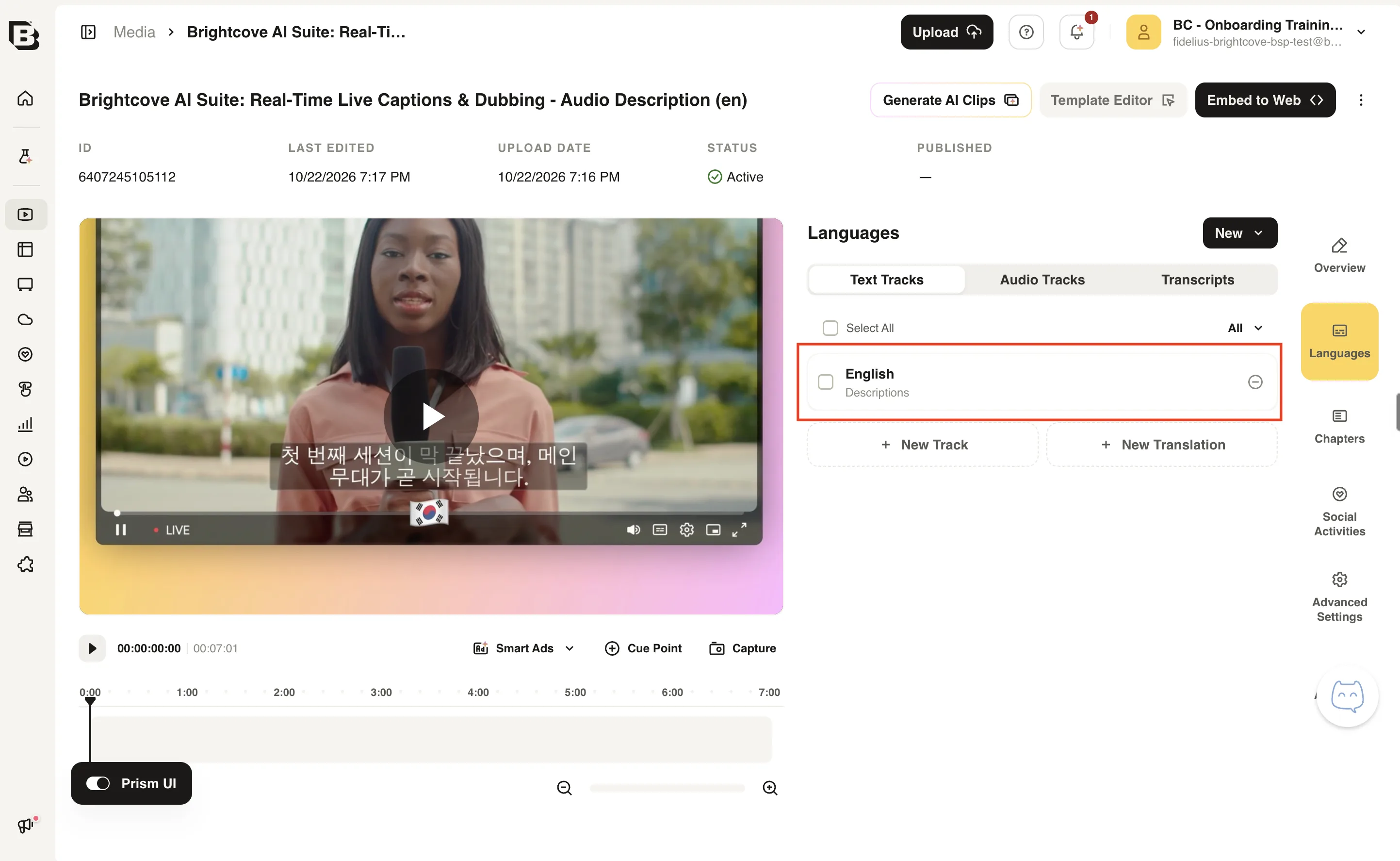
Open a child video and select the Languages section. The Text Tracks tab includes a track with the Descriptions kind.
Playing the extended version with the Extended Audio Description plugin
The Extended Audio Description plugin lets viewers switch between the original video and its extended audio description version from the AD button in the Brightcove Player control bar.
The plugin requires Brightcove Player 7.50.0 or later and is available as a packaged plugin. For setup details, see the Extended Audio Description plugin documentation. For version history, see the Brightcove Player Release Notes.
Keep these trade-offs in mind when you use the plugin:
- Switching between the original video and the described version always starts the selected version from the beginning.
- Each switch counts as a new video view in analytics.
- Interactivity overlays are not shown on described versions.
- With client-side advertising, switching versions does not request new ads. With server-side ad insertion, each switch starts a new ad session, which can include a pre-roll.
- On iPhone, viewers cannot switch versions while in fullscreen. The AD button is also hidden while casting to Chromecast.
Supported languages
Extended audio description can generate audio in the following languages:
| Language | Code |
|---|---|
| Afrikaans | af |
| Arabic (Standard) | ar |
| Armenian | hy |
| Assamese | as |
| Azerbaijani | az |
| Belarusian | be |
| Bengali | bn |
| Bosnian | bs |
| Bulgarian | bg |
| Catalan | ca |
| Chinese | zh |
| Croatian | hr |
| Czech | cs |
| Danish | da |
| Dutch | nl |
| English | en |
| Estonian | et |
| Finnish | fi |
| French | fr |
| Galician | gl |
| German | de |
| Greek | el |
| Hindi | hi |
| Hungarian | hu |
| Language | Code |
|---|---|
| Icelandic | is |
| Indonesian | id |
| Irish | ga |
| Italian | it |
| Japanese | ja |
| Korean | ko |
| Lithuanian | lt |
| Malay | ms |
| Norwegian | no |
| Persian | fa |
| Polish | pl |
| Portuguese | pt |
| Romanian | ro |
| Russian | ru |
| Serbian | sr |
| Slovak | sk |
| Slovenian | sl |
| Spanish | es |
| Swedish | sv |
| Tagalog | tl |
| Tamil | ta |
| Turkish | tr |
| Ukrainian | uk |
| Welsh | cy |
FAQs
- How is extended audio description different from standard audio description?
Standard audio description fits descriptions into the natural pauses in the video. Extended audio description pauses the video when a longer description is needed, then resumes playback after the description. - When should I use extended audio description?
Use it when the video does not have enough natural pauses to describe important visual content, and that content is crucial for understanding. Educational content with dense demonstrations or lectures is a good example. - Does extended audio description create a new video?
Yes. Because the descriptions lengthen the video, Brightcove creates a new child video for each generation language. The original video remains unchanged. - Why should the descriptions text track stay in Draft?
The audio description viewers use is the audio track in the child video. The text track is a working track, and publishing it would make it available as a descriptive text track for screen readers. Use the audio track for the audio description instead. - Is metadata copied to each child video?
Yes. The title, short and long descriptions, and tags are carried forward automatically to each child video. - How do viewers access the extended version?
Add the Extended Audio Description plugin to a Brightcove Player 7.50.0 or later. The plugin adds an AD button that lets viewers switch between the original video and the described version. - How is credit consumption calculated?
Extended Audio Description consumes AI Suite Brightcove Credits based on the minutes of video processed and is more expensive than standard audio description. Contact your account manager for details. - Which languages are supported?
See Supported languages above.