
Trimming a Live Stream Before Converting to VOD
Overview
Normally, when a NextGen Live channel has Convert media asset from Live to VOD when complete enabled, stopping the channel converts the entire recorded session to VOD, including any lead-in or lead-out content such as slates or dead air. Removing that content afterward means clipping the finished VOD, which re-transcodes the asset a second time.
Trim Live lets you select the range you want to keep before the stream is converted, so only that range is ever transcoded. This avoids a second transcode entirely, rather than requiring one after the fact.
Trim Live only appears for channels that already have Convert media asset from Live to VOD when complete enabled. See Creating and Managing NextGen Live Events for details on that setting. If the channel does not have Live to VOD enabled, stopping the channel converts the full session as it always has, with no change in behavior.
Stopping a channel with Trim Live enabled
- Open the Live module and go to the Control Room for the channel you want to stop.
- Click Stop. A confirmation dialog opens with two options:
- Convert the entire session to VOD, with no trimming.
- Trim Live, which opens the trimming timeline described below.
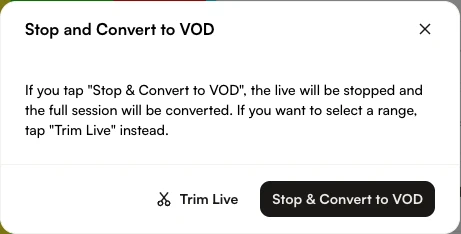
- To trim the session, choose the Trim Live option. The Trim Live dialog opens.
This dialog reuses the same video preview, timeline scrubber, and start/end trim handles as Creating a Video Clip Using the Live Module. Use the handles to set the start and end of the range you want converted, and use the Preview button to review your selection. The selected duration is shown while you work.
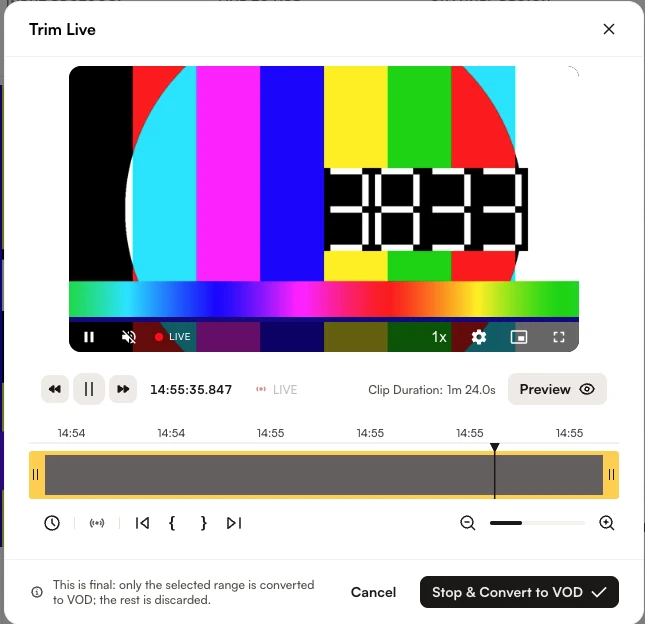
- When you are satisfied with the range, confirm from within the Trim Live dialog. The channel stops and only the selected range is sent to transcoding.
- If you leave the Trim Live dialog without changing the start or end point, confirming converts the entire session, the same as choosing not to trim.
Notes and limitations
- Trim Live applies only at the moment you stop a channel. It does not affect VOD assets that were already converted without using it. To trim an existing VOD, use the Clipping tool instead.
- The selected range becomes the entire VOD asset. There is no separate list of clips managed from this dialog, unlike the Create Clips interface.
- Trim Live is not available for audio-only channels or for channels where Live to VOD is not enabled.