
Brightcove Interactivity uses an account-level, Interactivity CSS file to style all annotations in projects and templates. You can use your own CSS file to style annotations.
Follow these steps to access the account-level, Interactivity CSS file.
- Login to Video Cloud Studio.
- Open the Interactivity module.
- Click the settings icon (
 ) at the top of the page.
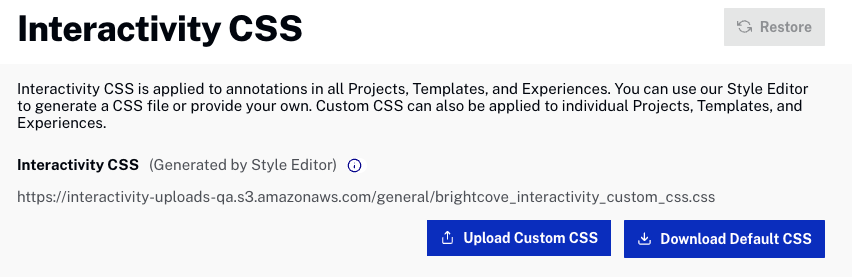
Uploading a CSS file
To upload a new CSS file, click Upload Custom CSS and then browse and select a CSS file to use.
Downloading the default CSS file
To download the default CSS file, click Download Default CSS. After downloading the CSS, you can edit it as needed and then upload it.
Restoring the default CSS file
To restore the default CSS file, click Restore.
Creating custom annotation styles
You can create custom annotation styles by uploading and editing a custom CSS file (see below). Styling can also be adjusted per annotation using the annotation editor.
Modifying the custom style
You can further style annotations (for example, adding the same font or font style you use on your web site) by following these steps.
- Upload a custom CSS file or edit the default CSS (see Configuring Interactivity Settings) to style annotations as desired.
- Click Download Default CSS to download the custom CSS file.
- Edit the CSS file using a text editor. You can inspect elements using tools provided by your web browser to see which selectors and classes to modify.
- Save your CSS file.
- Click Upload Custom CSS and then browse and select the new CSS file to use.
Creating a custom annotation CSS file from scratch
You can also create a custom annotation CSS file from scratch. Follow these steps:
- Click Download Default CSS to download the default CSS file.
- Make any needed changes/additions.
- Click Upload Custom CSS and then browse and select the new CSS file to use.
To restore the default CSS file, click Restore.