
Introduction
Auto Ad Break Placement is part of the Brightcove AI Suite. It uses AI to analyze your video and suggest optimal positions for mid-roll ad cue points, so you can monetize content without manually hunting for break points.
The tool looks for natural pauses in your videos—such as scene cuts and pauses in the audio—to place ads where they are least disruptive, so viewers get a smoother experience when an ad plays.
You can configure and use the feature from two places in Video Cloud Studio:
- Admin module – Set account-wide defaults and automation behavior under Smart Ads.
- Media module – Place ad breaks for a single video from Video Details, or use the video context menu to process one or more videos.
There are two placement methods:
- By number of ads per video (By Total Breaks) – Select how many ad breaks you want in the video. The feature suggests the optimal position for each break.
- By interval (By interval (minutes)) – Select a target interval and a tolerance buffer. Ads are placed at the best position within each buffer window near the interval.
After placement, review suggested breaks on the timeline, adjust timecodes or break names as needed, and save when you are satisfied.
Admin settings
Configure how Auto Ad Break Placement behaves for your account in the Admin module.
- Open the Admin module and select Smart Ads.
- Under Auto Ad Break Placement, configure the following as needed:
- Automatically apply Suggested Ad Breaks – When enabled, suggested ad breaks are applied without requiring manual review.
- Automatically include a pre-roll cue point – When placing smart cue points, also add a pre-roll cue point at the beginning of the video.
- Default Buffer — By Total Breaks Generation – Set start and end buffers (as a percentage of video duration) where no ads will be suggested.
- Default Buffer — By Interval Generation – Set start and end buffers for interval-based placement. The first interval starts from the end of the start buffer.
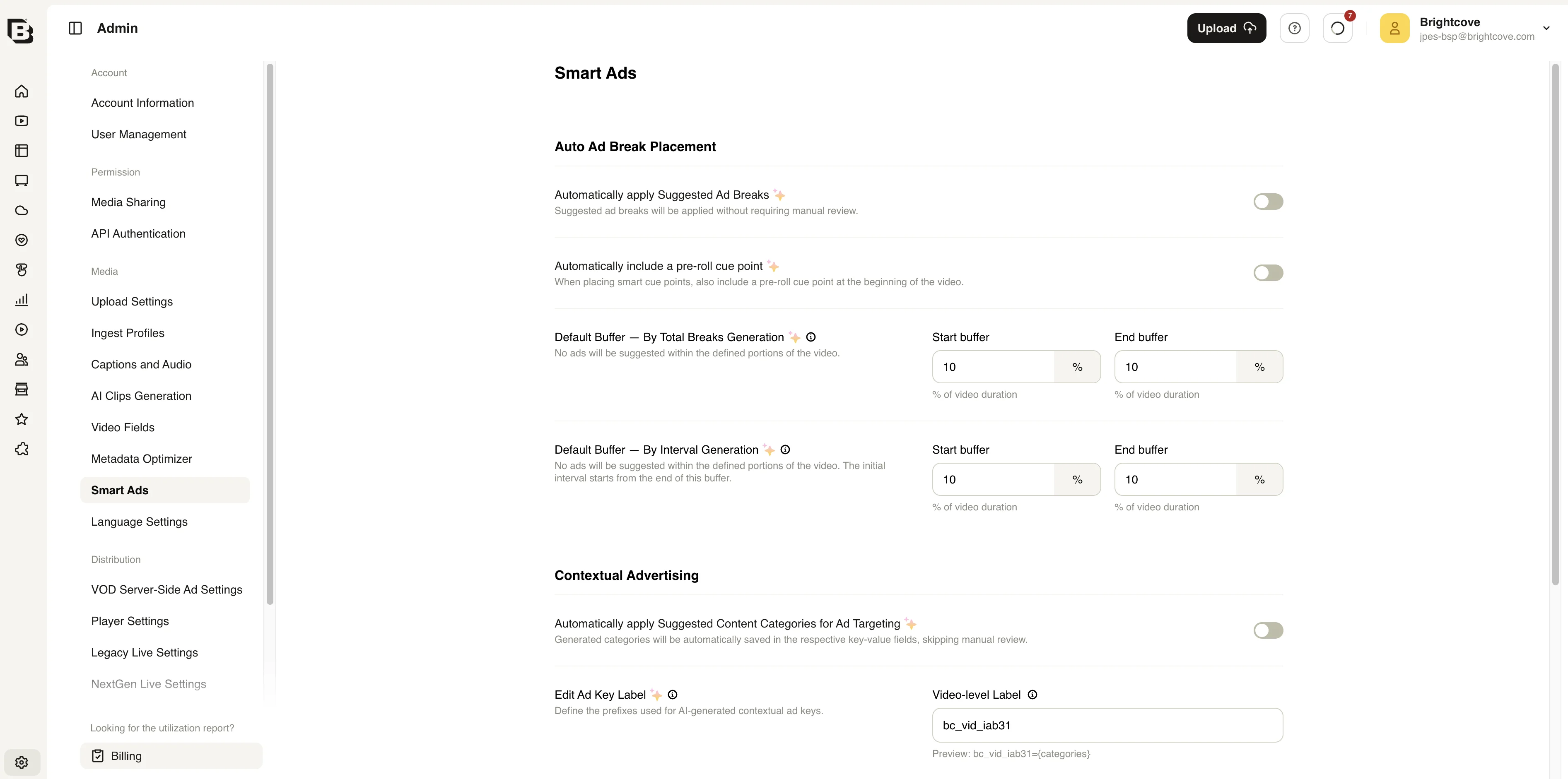
- Changes are saved automatically.
Video-level placement
Place ad breaks for a single video from the Video Details page.
- In the Media module, open a video.
- Below the video player, click Smart Ads and choose Auto-Place Ad Breaks.
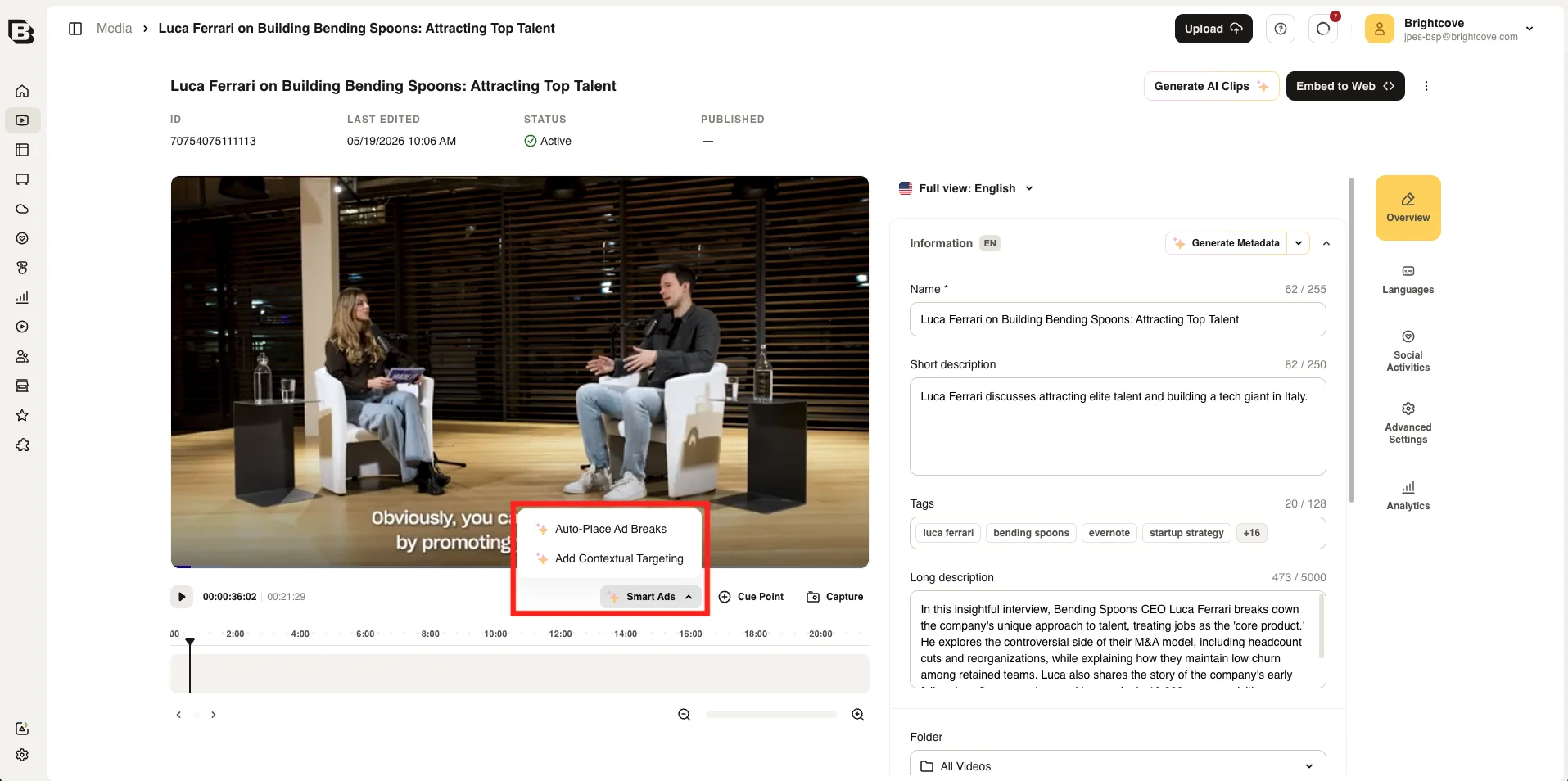
- In the Auto Ad Break Placement dialog, choose an Auto Placement Method, configure the options for that method (see Placement methods), and click Auto-Place.
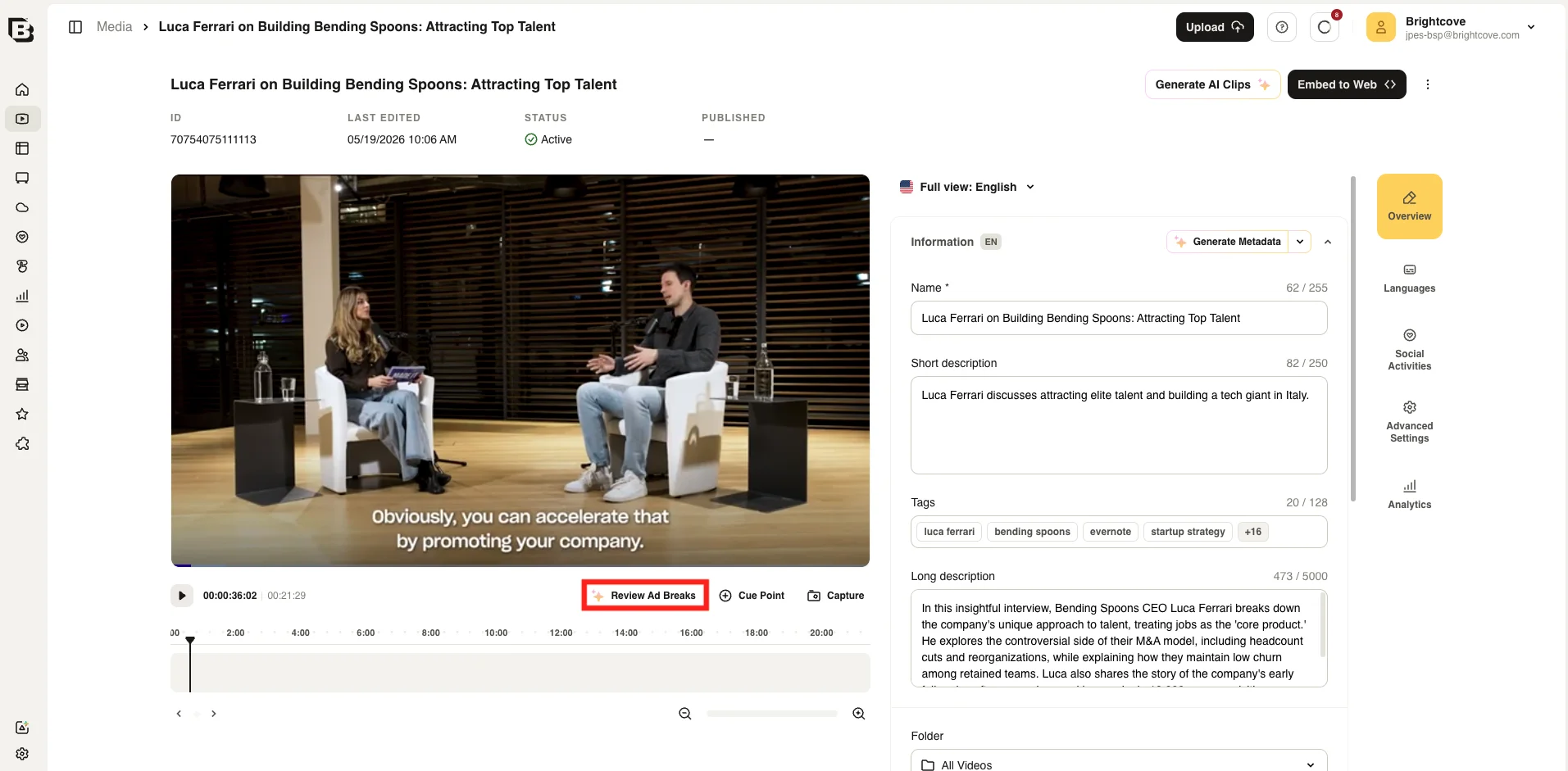
- When processing completes, use Review Ad Breaks (see Reviewing ad breaks) to confirm or edit the suggested cue points before they are used in player workflows.
Placement methods
The Auto Placement Method dropdown offers two ways to guide AI placement:
By Total Breaks
Set the total number of mid-roll breaks you want. AI selects the optimal positions within your buffer settings.
- Select By Total Breaks from the Auto Placement Method dropdown.
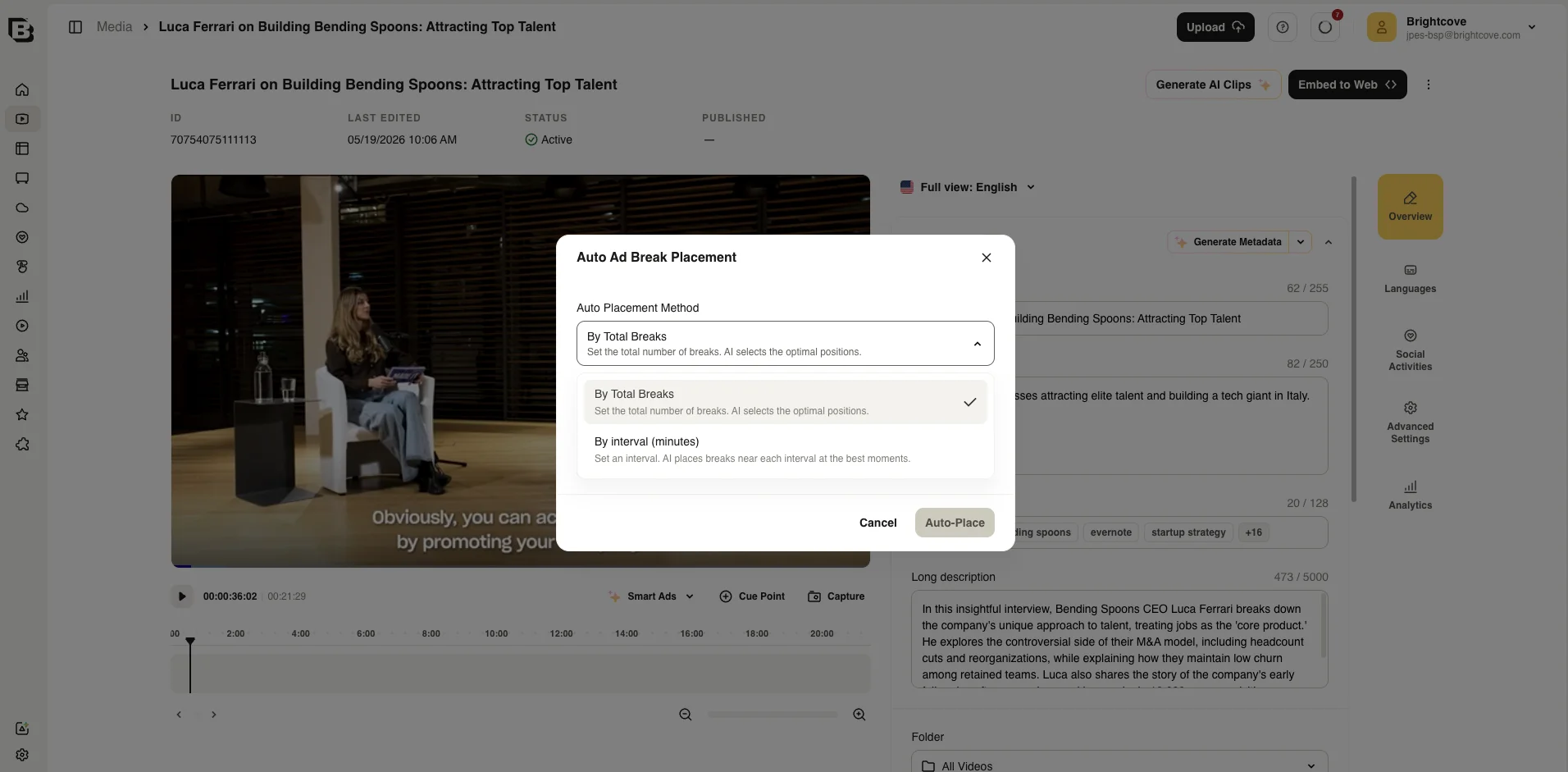
- Enter Total ad breaks (required).
- Optionally select Include pre-roll cue point to add a pre-roll at the start of the video.
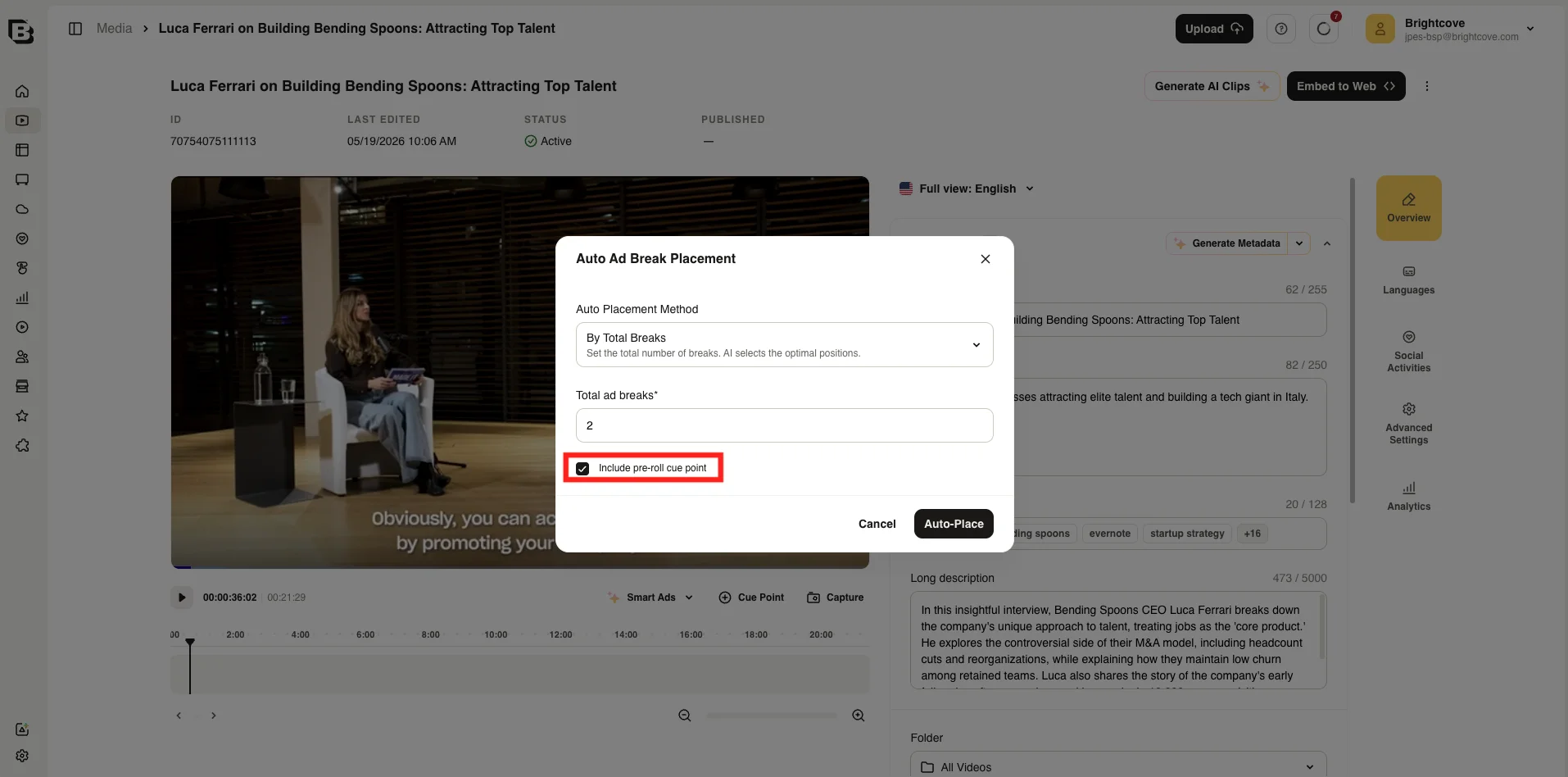
- Click Auto-Place.
By interval (minutes)
Set a target interval between breaks. AI places each break near that interval at the best natural moment within your tolerance.
- Select By interval (minutes) from the Auto Placement Method dropdown.
- Enter Ad interval in minutes (required).
- Enter Tolerance (+/- minutes) (required). Tolerance must be at least 1 minute. AI may shift each break within this window to find a better scene change or pause.
- Optionally select Include pre-roll cue point.
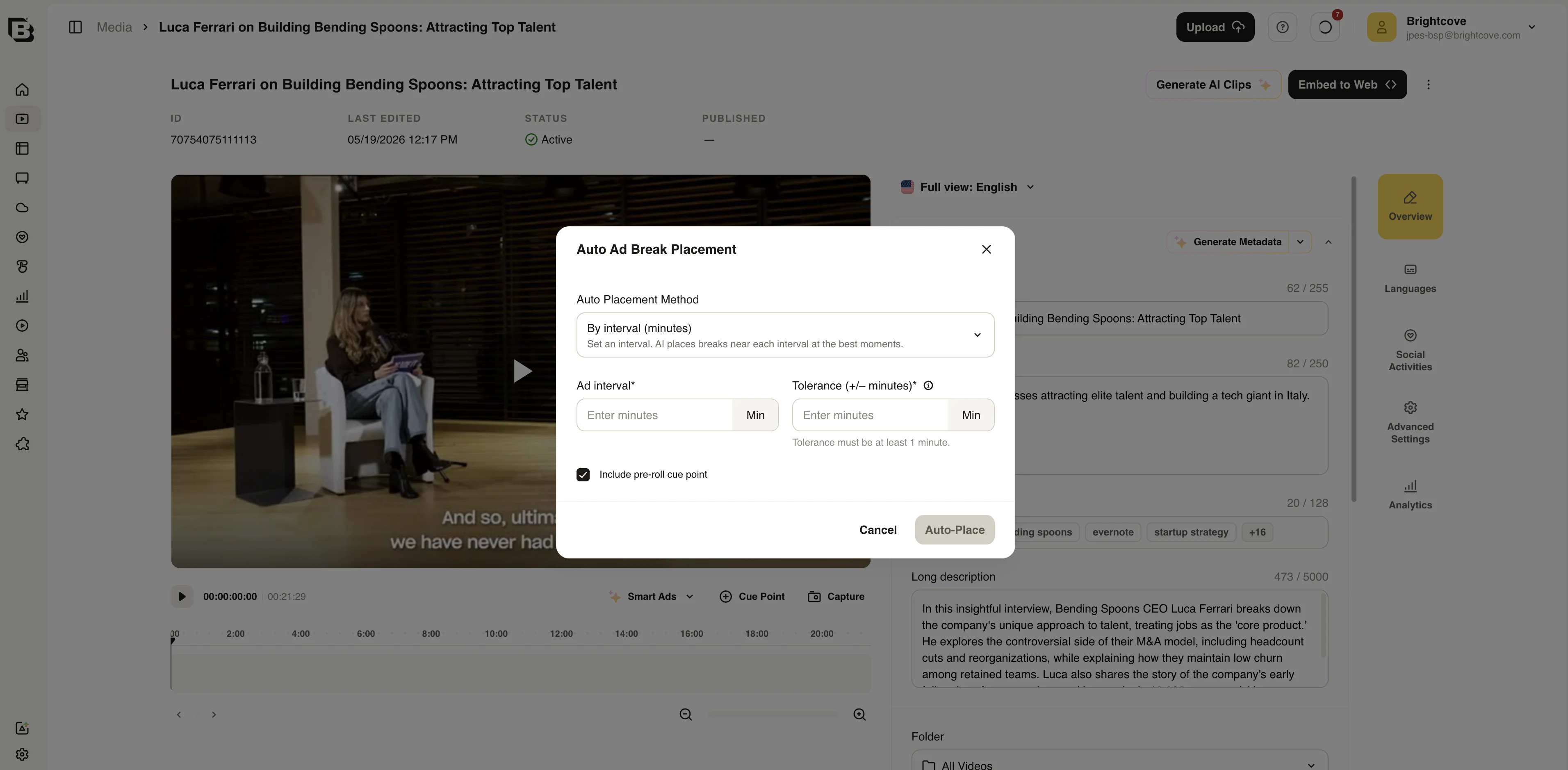
- Click Auto-Place.
Reviewing ad breaks
After Auto Ad Break Placement runs, review and edit suggested cue points before they are used in player workflows. Once the system has placed its suggestions, the Smart Ads button below the video player changes to Review Ad Breaks.
- On the Video Details page, click Review Ad Breaks (formerly Smart Ads) below the video player.
- In the Review Auto-Placed Ad Breaks dialog, use the timeline and break list to inspect each suggestion. Each break shows a Fit score (out of 100) and a short explanation of why the AI rated that position, so you can see what signals drove the score.
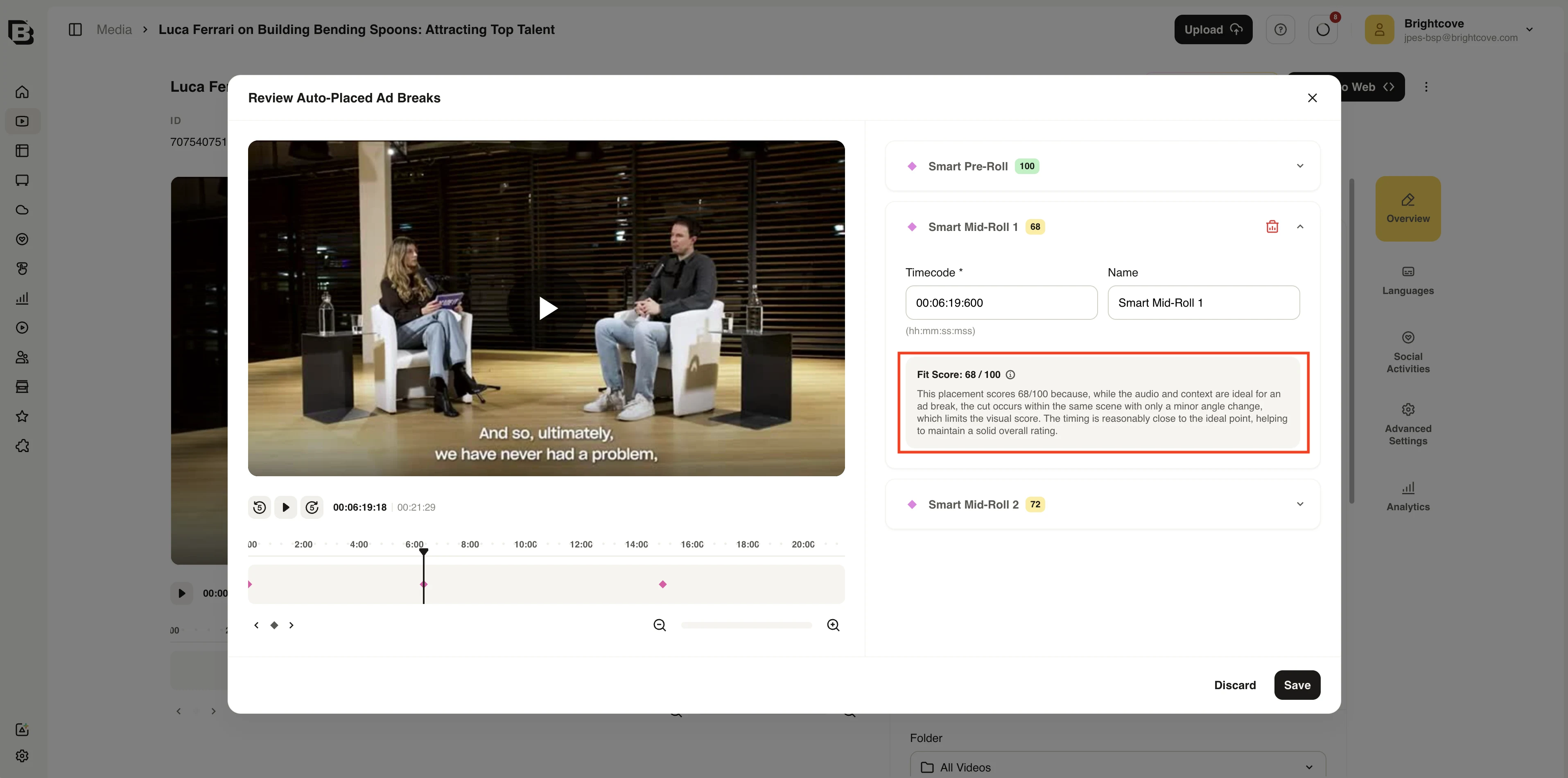
- In the review modal, you can manually change each break’s name and timecode directly. Remove a break by clicking the trash icon.
- Click Save to keep your changes, or Discard to close without saving.
Media module: Single and multi-video placement
Run Auto Ad Break Placement from the Media module grid without opening each video first.
- In the Media module, select one or more videos.
- Click the ... menu on a selected video and choose Auto-Place Ad Breaks.
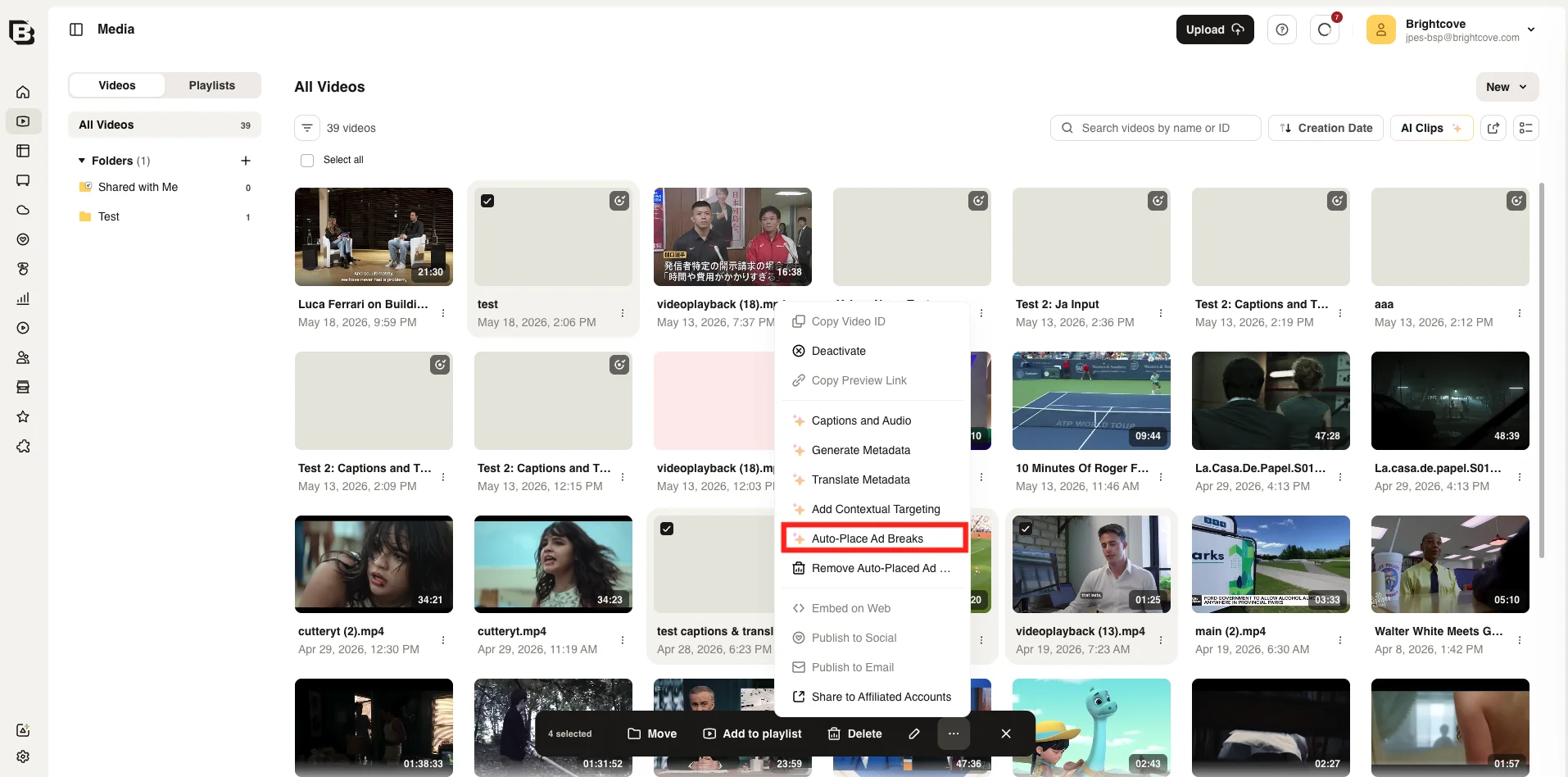
- Configure placement options in the dialog and click Auto-Place. Processing runs for each selected video.
- Open each video to use Review Ad Breaks and confirm placements as needed.
API access
The Auto Ad Break Placement feature is available via the Ingest API. All endpoints require OAuth with scope video-cloud/video/read.
Create / Get / Delete Ad Break Detection jobs (by video)
Endpoint:
POST | GET | DELETE https://ingest.api.brightcove.com/v1/accounts/{account_id}/videos/{video_id}/ai/ad-break-detection
Scope: video-cloud/video/read
POST – Start a new ad break detection job
Request body:
ad_mode: required string —"total_count"or"interval"total_ad_breaks: integer — required whenad_modeis"total_count". Number of desired ad breaks.ad_interval_minutes: float — required whenad_modeis"interval". Target interval between breaks in minutes.tolerance_minutes: float (optional) — tolerance window around the interval.skip_review: boolean (optional) — whentrue, cue points are applied without a manual review step.start_buffer: integer (optional) — percentage of video duration to exclude from the start. No cue point will be placed before this point (e.g.10means the first 10% of the video is ad-free).end_buffer: integer (optional) — percentage of video duration to exclude from the end. No cue point will be placed after this point (e.g.10means the last 10% of the video is ad-free).include_pre_roll: boolean (optional) — whentrue, adds a pre-roll cue point at t=0.
Response: job_id (string), job_status (e.g. processing).
GET – Get job status / result for a video
Returns the current ad break detection job for the given account and video. Each response includes:
account_id,video_id: stringsjob_id: string (workflow execution ID)status:processing|finished|failedoutput: array of detected ad break objects when finished. Each object contains:time: float — position in seconds (e.g.379.6;0indicates a pre-roll)score: integer — placement quality score from 0 to 100score_motivation: string — human-readable explanation of why the AI rated that position
skip_review: booleanerror: string (present whenstatusisfailed)
DELETE – Cancel a job
Stops any in-progress workflow and removes the record. Returns an empty body (HTTP 200/204).
Get list of Ad Break Detection jobs (by account)
GET https://ingest.api.brightcove.com/v1/accounts/{account_id}/ai/ad-break-detection/jobs
Scope: video-cloud/video/read
Response: array of job objects (same shape as the video-level GET)
FAQs
- What is a Fit score?
The Fit score reflects how well the AI believes a suggested position matches a natural break in the content. Signals such as scene cuts, pauses in the dialogue, and silence are used to calculate the score. Higher scores generally indicate stronger placement confidence. The review dialog also shows a brief explanation alongside the score so you can see which kinds of signals applied to each suggestion. - What is the difference between By Total Breaks and By interval?
By Total Breaks targets a fixed number of mid-rolls. The feature still tries to distribute ad breaks evenly across the video, but that spacing is less strict than with By interval (minutes). Placement optimizes for the best Fit score at each position rather than enforcing equal distance between breaks.
By interval (minutes) targets a set spacing between breaks. For each interval, the AI finds the best Fit score within the tolerance buffer you define.