
User Activity Logs
Overview
User Activity Logs is an audit trail of key changes to the videos in your account. Each entry shows when a change happened, who made it, what they did and how they did it: in Studio, through the API, or through an AI agent. You can filter the log, inspect the details of each change, and export the results.
Benefits
- Accountability - See who added videos to your account and who deleted them.
- Faster troubleshooting - When a video disappears or a new upload appears unexpectedly, find out who did it and when.
- Visibility into integrations and agents - See which changes came from API integrations and AI agents, not only from people working in Studio.
- Compliance and audits - Export activity to CSV to share with auditors or keep alongside your own records.
What is recorded
User Activity Logs records these successful actions:
| Activity | Recorded when |
|---|---|
| Video created | A video is created in the account. |
| Video deleted | A video is deleted. |
| Video ingest requested, Ingest request | An ingest request is made, for example when a video file is uploaded or replaced. |
Viewing content and signing in are not recorded.
Each entry also records the Channel the action came from:
- Studio - A user working in Studio.
- API - A direct call to a Brightcove API, for example from your own integration using API credentials.
- MCP - An AI assistant connected to your account through the Brightcove MCP server.
- Agentic Hub - An agent running in Brightcove Agentic Hub.
Opening User Activity Logs
User Activity Logs is available to users who have access to the Admin module. Users with the Standard role don't have access to the Admin module, so they can't see the logs. To let other users see them, assign a custom role with the Admin option turned on. The Admin option gives full administrator access. See Managing Roles and Users.
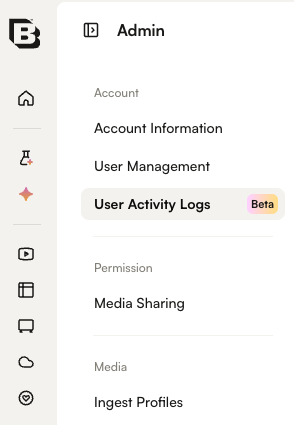
- In Studio, open the Admin menu.
- In the Account section, click User Activity Logs.
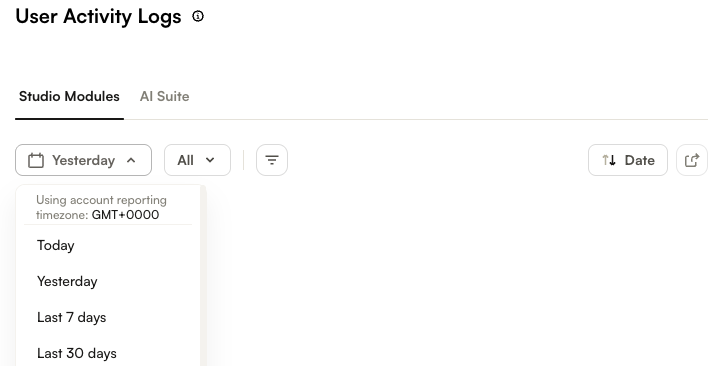
The activities described on this page are listed on the Studio Modules tab.
Reading the activity log
Entries are listed newest first. Use the Date sort button above the table, or click the Date column header, to change the sort order.
| Column | Description |
|---|---|
| Date | The date and time of the activity, in your account's reporting time zone. |
| User | The email address of the user who performed the action. |
| Activity | What happened, for example Video deleted. Below it is the underlying request, for reference. |
| Payload | A preview of the values sent with the change. Click the expand icon to see the full payload. |
| Channel | Where the action came from: Studio, API, MCP or Agentic Hub. |
| Entity | The area the change belongs to. For the activities on this page, Videos. |
You can resize, hide and show columns from each column's header menu.
Viewing the payload
To see exactly what was sent with a change, click the expand icon in the Payload column. The Activity log dialog shows the full payload. Click Copy payload to copy it to your clipboard.
Filtering the activity log
Date range
By default the log shows the last 7 days. Use the date range control to choose Today, Yesterday, Last 7 days, Last 30 days, This month, Last month, or Custom to pick your own start and end dates. Dates use the account reporting time zone, which is shown next to the control and can be changed in Analytics Settings.
Filters
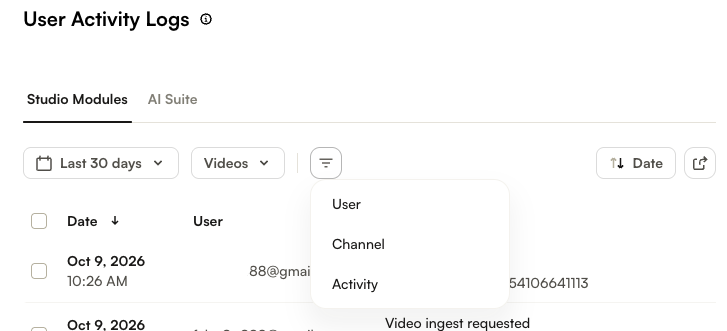
Click the filter icon to narrow the results, then choose a filter. You can combine filters.
- User - Show entries where the user's email contains or does not contain the text you enter. For example, enter your company's domain to see only activity from your own staff.
- Channel - Show entries that include or do not include the selected channels.
- Activity - Show entries that include or do not include the selected activities, such as Video deleted.
Exporting activity logs
You can export the activity log to a CSV file.
- Set the date range and filters for the entries you want. To export specific entries only, select them in the table.
- Click the export icon in the top-right corner of the table.
- In the Export Activity Logs dialog, select the columns to include.
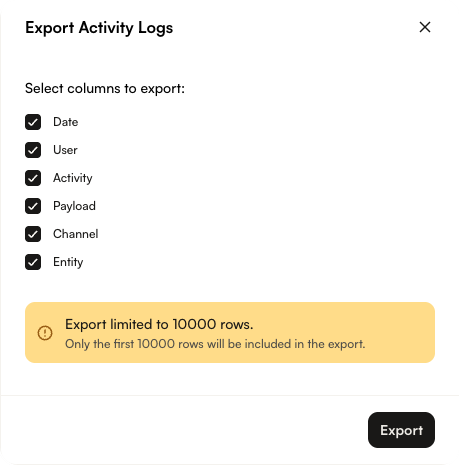
- Click . The file
user-activity-logs.csvis downloaded.