
Overview
AI Activity Logs records every request to run a Brightcove AI Suite feature in your account, such as generating auto captions, translating captions, dubbing or generating metadata. Each entry shows when the request was made, who made it, what was requested and how: in Studio, through the API, or through an AI agent.
AI Activity Logs is included with Brightcove AI Suite. You find it on the AI Suite tab of the User Activity Logs page in Studio.
Benefits
- Visibility into AI usage - See which AI features your team uses, and who uses them.
- Understand AI Credits consumption - Connect AI Credits usage to the people and requests behind it.
- Review AI agents - See the AI requests made by agents in Agentic Hub and by AI assistants connected through MCP, not only by people working in Studio.
- Faster troubleshooting - When a translation, dubbing track or metadata appears unexpectedly, find out who requested it and when.
- Audits - Export AI activity to CSV to share with auditors or keep with your own records.
What is recorded
The AI Suite tab records successful requests to run these AI features:
| Activity | Recorded when a user or agent requests |
|---|---|
| Auto Captions requested | AI-generated captions for a video |
| Universal Translator requested | Caption translations with Universal Translator |
| Dubbing requested | AI-dubbed audio tracks |
| Metadata Optimizer requested | AI-generated metadata with Metadata Optimizer |
| Audio Descriptions requested | Audio descriptions |
| Content Multiplier requested | Clips with Content Multiplier |
| Chapters requested | AI-generated chapters |
| Smart Ad Breaks requested | Ad break positions with Auto Ad Break Placement |
| Contextual Advertising requested | Contextual advertising data |
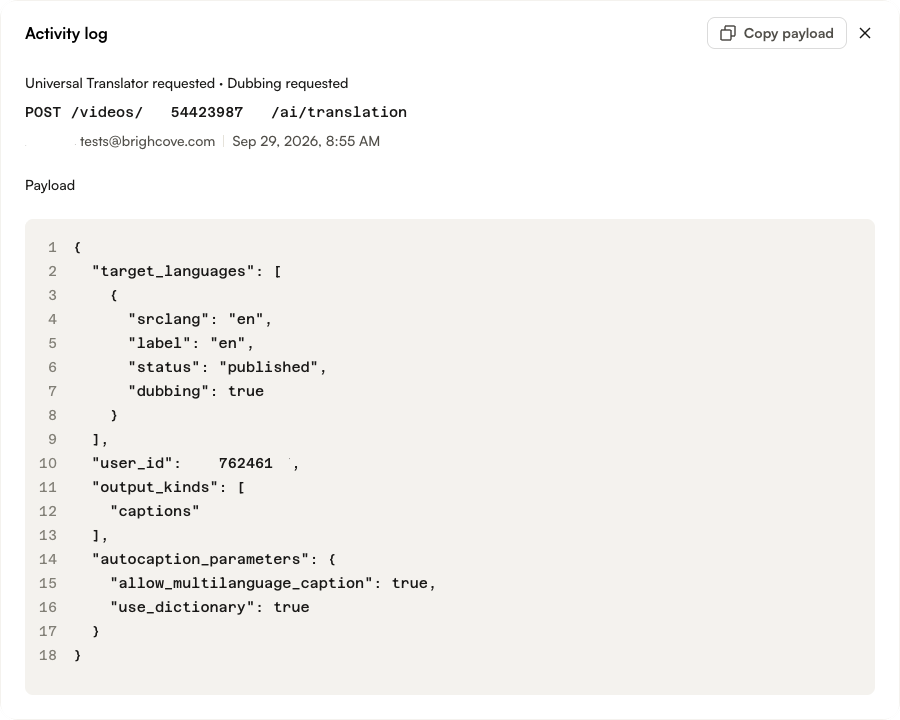
One request can show more than one activity. For example, a translation request that also creates dubbed audio shows Universal Translator requested · Dubbing requested.
Each entry also records the Channel the request came from:
- Studio - A user working in Studio.
- API - A direct call to a Brightcove API, for example from your own integration.
- MCP - An AI assistant connected to your account through the Brightcove MCP server.
- Agentic Hub - An agent running in Brightcove Agentic Hub.
Opening AI Activity Logs
AI Activity Logs is available to users who have access to the Admin module. Users with the Standard role don't have access to the Admin module, so they can't see the logs. To let other users see them, assign a custom role with the Admin option turned on. The Admin option gives full administrator access. See Managing Roles and Users.
- In Studio, open the Admin menu.
- In the Account section, click User Activity Logs.
- Click the AI Suite tab.
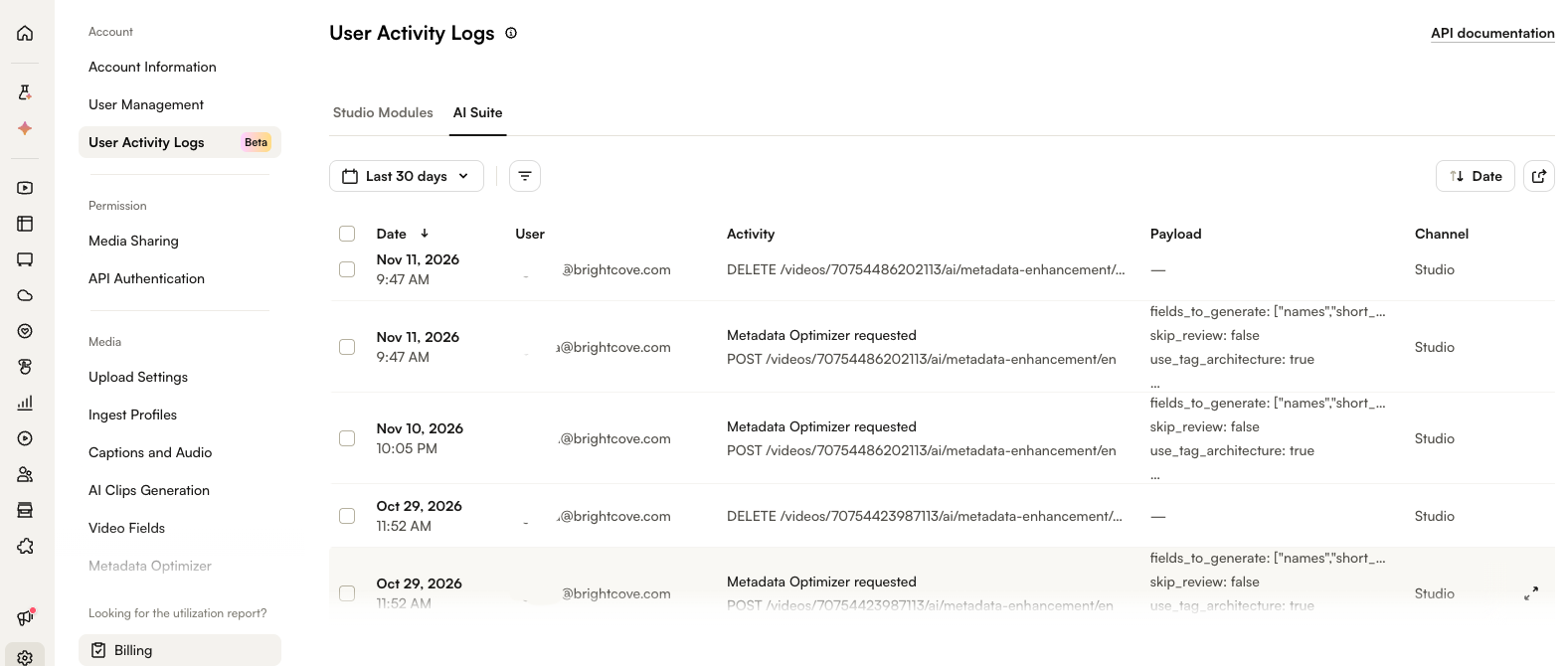
Reading AI activity
The AI Suite tab shows these columns:
| Column | Description |
|---|---|
| Date | The date and time of the request, in your account's reporting time zone. |
| User | The email address of the user who made the request. |
| Activity | The AI feature requested. Below it is the underlying request, for reference. |
| Payload | A preview of the options sent with the request, such as the target languages. Click the expand icon to see the full payload. |
| Channel | Where the request came from: Studio, API, MCP or Agentic Hub. |
Filtering and exporting
The AI Suite tab uses the same date range, filters and export as the rest of User Activity Logs. See User Activity Logs for how to use them. On this tab:
- The Activity filter lists only AI activities.
- Exports include the Date, User, Activity, Payload and Channel columns.